Articles 17 min read

Mastering the Shadow Box SVG with Your Cricut

Transform flat digital files into stunning shadow box SVG creations with your Cricut

Shadowbox - Image 01

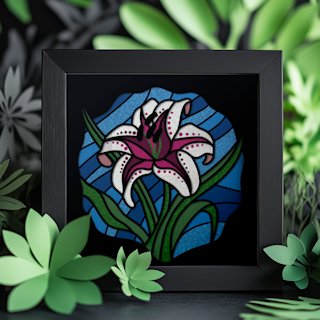
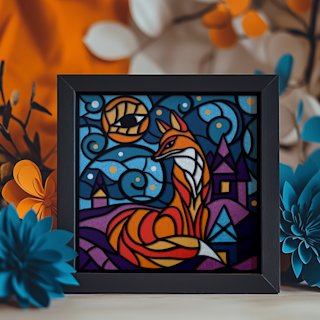
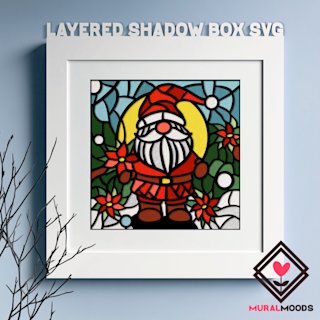
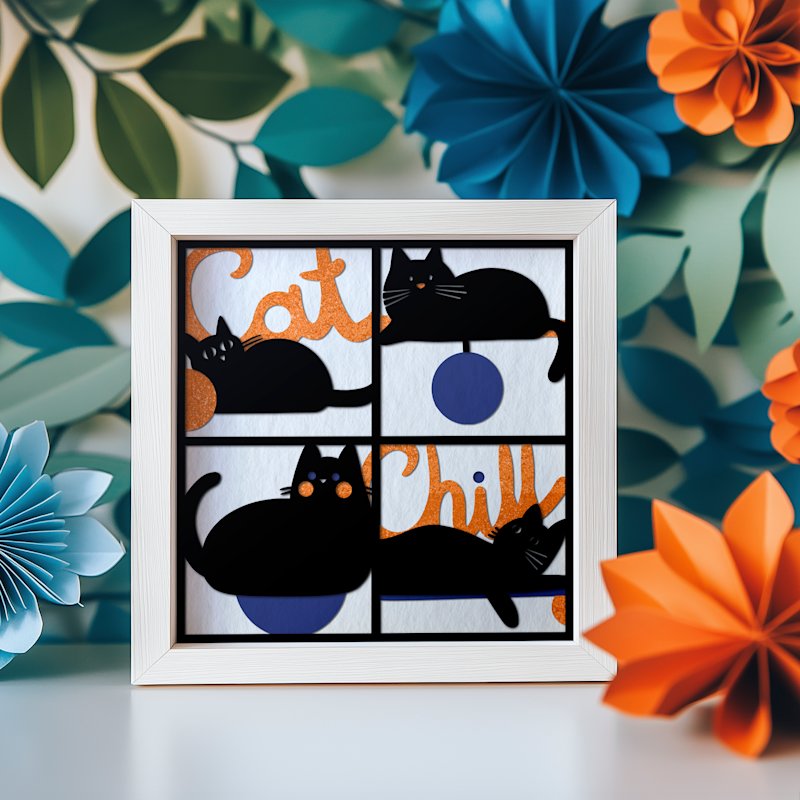
So, what exactly is a shadow box SVG? Think of it as a digital blueprint specifically designed for your Cricut machine to create layered, three-dimensional paper art. The SVG file contains a series of individual components that you'll cut from cardstock, then assemble into an intricate scene that pops with incredible depth inside a shadow box frame.

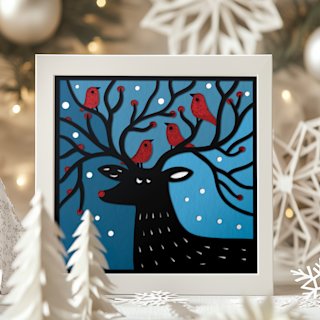
These designs are made for cutting machines like a Cricut. The real magic happens when you stack each paper layer, separating them with tiny foam spacers. This is what creates that signature 3D effect you see inside a deep shadow box frame, turning a simple SVG into a work of art.

Bringing Your 3D Layered Art to Life with Cricut

Ready to transform a flat digital SVG file into a jaw-dropping piece of 3D art? This guide will walk you through the entire process of using shadow box SVG files with your Cricut. We're going to get past the simple "click and cut" and dive into the little details that give your final project that professional, polished finish. You'll learn how to pick the best materials, nail the assembly, and even personalize your creation.

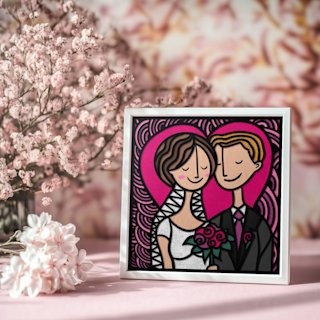
This is so much more than just another craft project. It's about turning a shadow box SVG into a meaningful keepsake, a stunning piece of home decor, or the perfect handmade gift. Whether you're crafting a pet memorial, a whimsical nursery decoration, or a festive holiday scene with your Cricut, the process is incredibly rewarding—and much simpler than you might think once you get the hang of it.

Three-dimensional layered paper art in white shadow box frame with hand and watercolor elements

From Digital Design to Physical Creation

The journey from an SVG file on your computer to a finished piece of art is where your creativity truly shines. Your Cricut handles all the precise cutting, but it's your hands that bring the entire vision to life.

Here's a look at what we'll cover to get you comfortable with any layered shadow box SVG project you tackle:

  • Picking Your Materials: We'll explore why the right cardstock and adhesives are non-negotiable for building stable, dimensional art with your Cricut that lasts.
  • Prepping in Cricut Design Space: I'll show you how to size your SVG perfectly for your frame, double-check each layer, and select the right cut settings for crisp lines.
  • Mastering Assembly: You'll learn the best way to apply foam spacers to get that flawless 3D effect without any frustrating sinking or warping.
  • Adding Finishing Touches: We'll even get into fun ways to personalize your shadow box, like adding vinyl text to the glass or incorporating fairy lights for a magical glow.

The secret to a great-looking shadow box is consistency. When every layer is cut cleanly on your Cricut and spaced evenly, the final piece looks sharp, professional, and captivating. That small bit of extra care is what elevates a project from a simple craft to a genuine work of art.

We're going to break down every step, from the initial SVG file prep in Design Space to placing that final, beautiful piece into its frame. Let's get started and create something you'll be proud to display.
Picking the Right Supplies for a Flawless Shadow Box

Empty wooden shadow box frame with craft knife and watercolor papers on white surface

Before you even think about firing up your Cricut, let's talk about supplies. Getting this part right is half the battle, and honestly, the quality of your materials can make or break your finished shadow box SVG project. It's the literal backbone of your 3D paper art.

The cardstock is your star player. I know it's tempting to just use whatever you have lying around, but the weight and texture have a huge impact. Go too heavy, and your Cricut might struggle with the tiny, intricate details in the SVG. Too flimsy, and your layers will sag and buckle, completely killing that beautiful 3D illusion you're going for.

Finding the Perfect Cardstock for Layering

Through lots of trial and error with my Cricut, I've found the sweet spot for paper weight is between 65 lb and 80 lb (that's about 176-216 gsm). This range gives you the best of both worlds: it's sturdy enough to stand up straight with foam spacers behind it, but it's still light enough for the fine-point blade to glide through those delicate cuts without snagging or tearing.

When you're browsing cardstock, keep these things in mind for your Cricut project:

  • Weight: Again, 65-80 lb is your magic number for stability and clean cuts with a Cricut machine.
  • Texture: I almost always reach for a smooth, solid-core cardstock. Textured paper can sometimes interfere with blade precision, and nothing ruins a clean look faster than the white edge of a white-core paper peeking out from a colored layer.
  • Color Palette: Think about your colors before you buy. Do you want a subtle gradient to create a sense of realism, or are you aiming for bold, high-contrast colors that make the design jump out?

Here's a pro tip for every Cricut user: always do a small test cut on a new brand or type of cardstock. It takes 30 seconds and can save you from ruining a whole sheet of expensive paper because the default setting in Design Space wasn't quite perfect. For a much deeper look into all your paper possibilities, check out our comprehensive Cricut cardstock types guide.

Spacers, Adhesives, and Other Must-Have Tools

Okay, let's talk about creating that "wow" factor—the depth. This all comes down to the space between the layers, which is where your adhesive foam spacers become your best friend. They are every bit as critical as the paper. I like to keep a variety on hand because different parts of a shadow box SVG call for different types of support.

My general rule is to match the spacer size to the surface area it's supporting.

  • Foam Dots: These are perfect for those tiny, delicate pieces that just need a single point of lift.
  • Foam Squares: My absolute go-to. They're versatile and provide fantastic stability for most medium-sized elements.
  • Foam Strips: You'll definitely want these for any long, thin sections or for running along the outer edges of a layer to keep it from bowing over time.

To help you get organized, here's a quick rundown of everything you'll need for your Cricut project.

Essential Supplies for Your Shadow Box SVG Project

This table gives you a quick-glance guide to the essential materials and tools for building your layered paper art.

Item Recommended Type Pro Tip
Cardstock 65-80 lb (176-216 gsm), solid-core Pre-plan your color scheme. Gradients create depth, while contrasting colors add drama.
Foam Spacers Dots, squares, and strips Keep a variety pack on hand to match the spacer size to the element you're supporting.
Shadow Box Frame Wood or composite, at least 1.5" deep Make sure the frame's interior dimensions match your paper size before you start cutting!
Weeding Tool Standard Cricut weeder or a dental pick A sharp point is essential for removing tiny, stubborn cutouts without damaging the paper.
Craft Knife X-Acto or similar precision knife Perfect for manually cleaning up any corners or details the machine might have missed.
Cutting Machine Cricut Maker, Explore, or Joy Xtra Ensure your blade is clean and sharp before every project for the best results.

Having these tools ready to go makes the entire assembly process smoother and much more enjoyable.

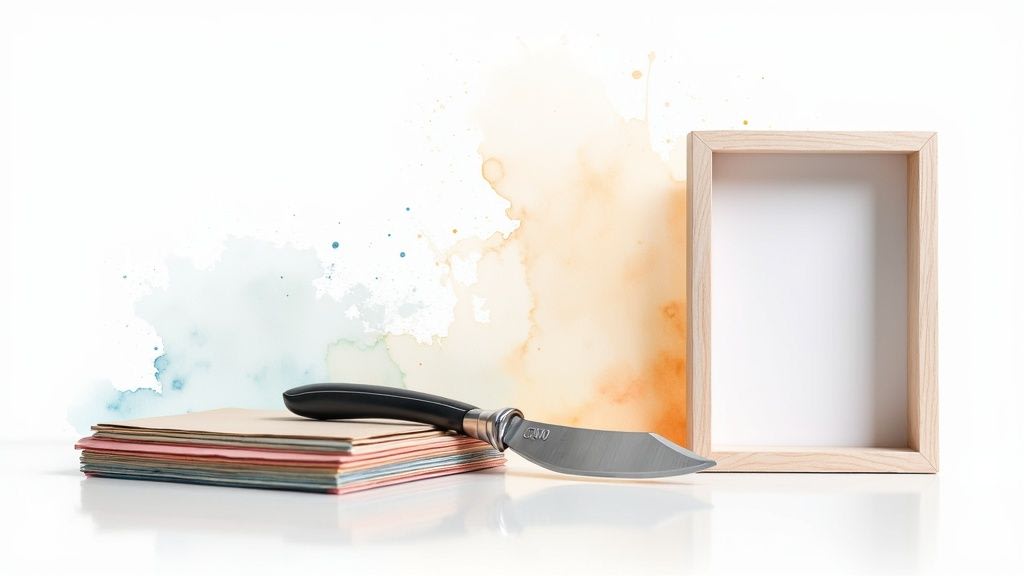
Beyond your adhesives, a good weeding tool is non-negotiable for popping out all those little cutouts. A sharp craft knife is also great to have for any tiny spots the machine didn't get perfectly. And, of course, the shadow box frame itself! You need something with enough depth to really show off all your hard work. Choose a sturdy frame that complements your SVG design and will properly house all those beautiful layers you're about to create.

Getting Your SVG Ready in Cricut Design Space

This is where the magic really begins—transforming that digital shadow box SVG from a file on your computer into a physical work of art. Honestly, getting your file set up perfectly in Cricut Design Space is probably the most critical part of the whole process. A few minutes of careful prep here will save you a world of headaches later on.

First things first, upload your SVG file to a new canvas. Before you touch anything else, you need to resize the entire group of layers. The goal is to make it match the inside dimensions of your shadow box frame. So, if you're working with an 8x8 inch frame, you'll want to size your design to fit right inside that space. The trick is to select all the layers at once before you resize; this keeps everything perfectly in proportion.

Ungroup and Double-Check Your Layers

With your design correctly sized, it's time to hit Ungroup. This breaks the SVG design into its individual layers on your canvas, letting you see exactly what your Cricut will be cutting.

I always take a moment here to click through the layers panel on the right. I'll toggle each layer on and off just to make sure everything imported correctly and there are no surprises. This is also your chance to get the stacking order right. Most SVG designers will number their layers for you, but if not, you can drag them around to see how they'll look when assembled. The most solid piece is almost always your base layer, with the most detailed, delicate layer sitting right on top.

Before you send your project to your Cricut, do a quick scan for any tiny, floating pieces or overly complicated lines. Sometimes a detail that looks amazing on screen is just asking for trouble when it meets a piece of cardstock. It's so much better to find those potential snags now rather than after you've already started cutting.

Nailing Your Cricut Cut Settings

Okay, let's talk about the settings that will give you those beautifully clean, crisp cuts. The perfect settings really come down to the weight of your cardstock. Don't just pick the default "Cardstock" option and hope for the best—it almost always needs a little finessing for layered SVG designs like these.

For the 65-80 lb cardstock most Cricut users choose for shadow boxes, these are the adjustments I swear by:

  • Material Setting: I always start with the "Cardstock (for intricate cuts)" setting. This automatically slows the machine down and makes it do a double pass, which is a lifesaver for all the tiny details in a shadow box SVG design.
  • Pressure: More often than not, I bump the pressure up to "More." This helps the blade get all the way through without catching or dragging, especially on that slightly thicker 80 lb paper.
  • Blade: Make sure you're using a clean, sharp Fine-Point Blade. A dull blade is the number one reason for torn corners and fuzzy edges. If you start to see your cuts getting a little messy, a new blade is the quickest fix.

A classic mistake I see all the time is accidentally shifting a layer after ungrouping it. Remember, your Cricut will cut each piece exactly where it sits on the virtual mat. To prevent this, just group all the layers back together after you're done sizing and checking them, right before you click "Make It." This locks everything in place and ensures a smooth, productive cutting session.

The Art of Assembling Your 3D Masterpiece

Alright, your Cricut has done its magic, and you've got a neat stack of perfectly cut cardstock layers. This is my favorite part—where all those flat pieces of paper come to life and transform into a stunning 3D shadow box.

Before you even think about grabbing the glue or foam tape, do this one simple thing first: lay out every single layer on your craft table. Seriously. Arrange them in the exact order they'll be stacked, from the solid background piece all the way to the most detailed top layer. This little bit of prep work saves a ton of headaches and makes sure you don't accidentally stick spacers on the wrong piece.

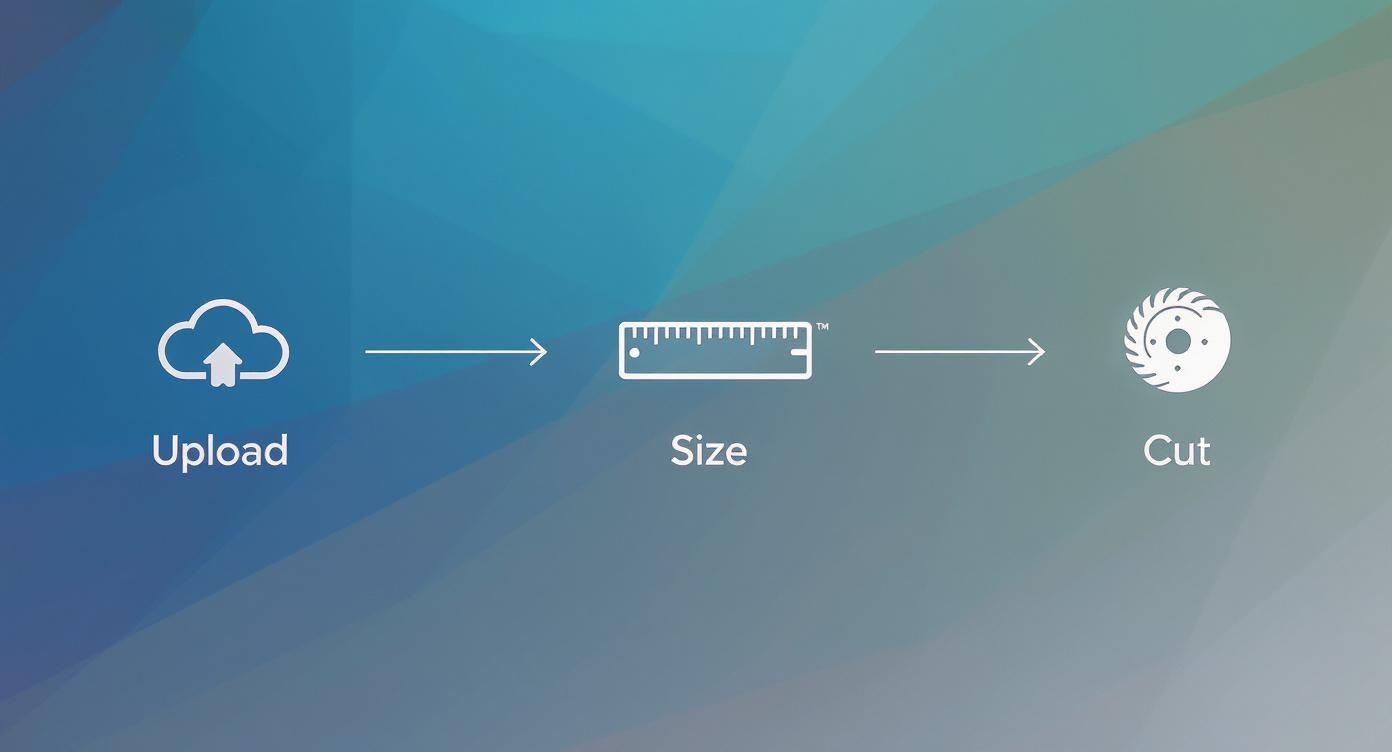
This visual map breaks down the basic workflow for just about any shadow box SVG project.

Three step workflow diagram showing cloud upload, ruler measuring size, and circular saw blade cutting process

It's a great reminder of how getting things right in Cricut Design Space is the key to a clean cut and, ultimately, a stress-free assembly.

Building Dimension with Foam Spacers

The secret sauce for that amazing 3D pop is all in how you use your adhesive foam spacers. You're aiming for consistent, even spacing between each and every layer. When you apply them strategically, you avoid that disappointing "caved-in" look where parts of the SVG design start to sag over time.

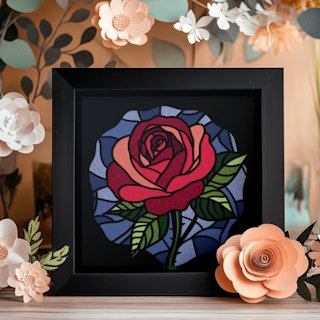
Grab your second-to-last layer (the one that goes right on top of the solid base layer), flip it over, and start placing your spacers. If you're working on something intricate like a floral piece, our shadow box flower rose SVG Cricut template is a fantastic project for honing these assembly skills.

Here's the key to spacer placement: support everything. I always place spacers about a quarter-inch from all the outer edges, but I also add them to prop up any large, unsupported areas or delicate "floating" bits in the middle of the design. This gives the next layer a really stable foundation.

Techniques for Flawless Layer Alignment

With your spacers in place, it's time to stack. Honestly, alignment is everything. If the layers are off even by a little bit, the final piece can look blurry or just… off. Don't rush this part.

Here's a method that has never failed me:

  • Corner to Corner: Gently hover the new layer above the one below it. Line up one corner perfectly, then pivot slightly to get the adjacent corner lined up just right.
  • The Center Tack: Once you're happy with the alignment, just give the center a light tap to tack it down. This holds it in place without fully committing the adhesive, giving you a chance for a last-second adjustment.
  • The Final Press: Starting from that tacked-down center, work your way outwards, pressing firmly across the whole layer to make sure all the foam spacers make good contact.

Just keep repeating this process for every layer, building your way up from the bottom. Patience here pays off big time. You're not just stacking paper; you're methodically building a professional-looking piece of art that will be ready to frame and show off.

Adding Personalized Finishing Touches

With your layered masterpiece all put together, it's time for the fun part: adding those special details that make it uniquely yours. This is where a beautiful shadow box SVG transforms into a cherished gift or a standout piece of home decor. A few thoughtful additions can really elevate the entire project.

One of the easiest and most impactful ways to personalize your shadow box is by adding custom text with vinyl. You can use your Cricut to cut a name, a special date, or a meaningful quote from adhesive vinyl and apply it right onto the glass. This is my go-to technique for creating gifts for weddings, new babies, or even heartfelt pet memorials.

Illuminating Your Art with Fairy Lights

For a truly magical effect, try weaving a string of tiny, battery-operated fairy lights between the layers. This adds a warm, captivating glow that really makes the design's depth pop, especially in the evening. The trick is to place them carefully so they enhance your art, not distract from it.

Here's how I get it right:

  • Map It Out First: Before you secure the layers, gently weave the wire light string around the inner elements of your SVG design. Be careful not to snag any of the delicate paper edges.
  • Hide the Battery Pack: The best way to hide that clunky battery pack is to stick it to the back of the frame's insert with a small piece of heavy-duty double-sided tape. Out of sight, out of mind.
  • Create a Clean Exit: If the on/off switch is on the pack, you can use a craft knife to carefully cut a small notch into the frame's backing. This lets the wire pass through cleanly without creating a gap.

By placing the lights strategically, you can draw the eye to specific parts of the SVG design. This creates beautiful focal points and adds a dynamic, storytelling quality to the whole piece.

Adding Sparkle and Final Embellishments

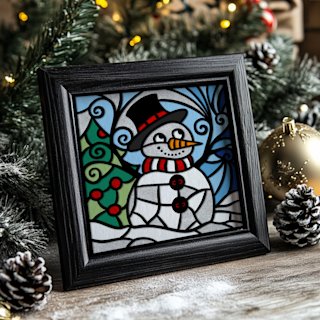
Tiny details added before the final assembly can introduce so much texture and charm. Think about adding a delicate dusting of fine glitter to a specific layer—like snow on a winter scene—or placing tiny drops of liquid pearls on flower centers for a subtle sparkle.

Just be sure to let any of these additions dry completely before you stack the next layer on top. You don't want to deal with smudges!

Personalized decor made with SVG files has absolutely taken off, turning a fun hobby into a serious creative outlet for Cricut crafters everywhere. Shadow boxes, in particular, have become a global favorite for hobbyists and small gift businesses. You only have to look at platforms like Etsy to see the explosion in listings for 3D layer SVG templates. Designs like the '3D Layer SVG for CRICUT! Multilayer Ferrari Shadow Box' and '3D Baby Stats Shadow Box SVG' are pulling in thousands of buyers and rave reviews. It's always a good idea to see what's popular, so check out these 3D layered SVG designs for a little inspiration.

Once all your personal touches are in place, give the inside of the frame's glass one last, thorough cleaning to wipe away any fingerprints or dust. Carefully place your assembled layers inside, secure the backing, and that's it! Your Cricut shadow box is officially complete and ready to show off.

What to Do When Your Project Hits a Snag

Even seasoned Cricut crafters run into trouble sometimes. It's just part of the process! Let's walk through some of the most common hiccups you might face when making a shadow box SVG and how to get back on track without the frustration.

Taming Tricky Cuts

Is your paper tearing, especially on those tiny, detailed parts of your SVG design? This is probably the number one issue people face. Before you do anything else, check your blade. A dull blade will drag and rip the paper instead of slicing cleanly through it. Popping in a fresh, sharp blade is often an instant fix for your Cricut.

If a new blade doesn't solve it, take a look at your cutting mat. A brand-new mat can be too sticky, causing delicate cardstock to tear when you peel it off. On the flip side, an old, worn-out mat that isn't sticky enough will let the paper shift around during the cut, which spells disaster for your design.

Fixing Assembly Frustrations

You've got a beautiful stack of perfectly cut layers, but when you go to assemble them, they just don't line up right. Don't worry! If it's just a tiny misalignment, you can often fix it by carefully trimming a sliver off the edge with a craft knife. For bigger alignment headaches, you might want to check out our detailed guide on common papercut mistakes and how to fix them. It's packed with useful tips.

Getting the depth just right can also be a challenge. If your foam spacers are too thick, you'll end up with weird gaps between the layers. If they're too thin, that cool 3D effect you're going for will fall flat.

Pro Tip: Always do a "dry fit" before you glue anything down. Stack a few layers with your spacers to see how it looks. This quick preview lets you check the depth and make adjustments without committing to a permanent mistake.

Mastering these little troubleshooting steps can make a huge difference, turning your projects from a fun hobby into something truly professional. It's a skill worth having, especially in a growing market. The broader wall art industry, which includes these kinds of papercrafts, was valued at USD 68.9 billion in 2025 and is only expected to get bigger. You can read more about the wall art market on futuremarketinsights.com if you're curious about the trends.

Have a Few Questions? Let's Get Them Answered

Even seasoned crafters run into a question or two when starting a new project. Here are some of the most common things people ask when they're getting into shadow box SVGs, along with a few tips I've picked up along the way.

What's the Best Paper to Use for a Shadow Box?

I've found that the sweet spot for most shadow box designs is a smooth cardstock between 65-80 lb (that's about 176-216 gsm). This weight is the perfect balance—it's got enough heft to create clean, crisp cuts on your Cricut and stay rigid when you add your foam spacers.

If you go too light, you risk the paper warping or sagging over time. Go too heavy, and you might find your Cricut blade struggling with those tiny, intricate details, leading to tears instead of cuts.

How Do I Figure Out the Right Order for the Layers?

Don't worry, you won't have to guess! A good shadow box SVG file will always give you a helping hand. The designer usually numbers the layers for you (you'll see something like "Layer 1," "Layer 2," etc. in your Cricut Design Space Layers Panel).

If for some reason they aren't numbered, a quick rule of thumb is to look for the largest, most solid piece—that's almost always your background layer. The layers get progressively smaller and more detailed as you move toward the front. Before you even think about glue, do a "dry fit" by stacking them up to make sure everything looks right.

Can I Make the Design Bigger or Smaller?

Absolutely! But here's the crucial trick: you must resize every single layer at the same time. In Cricut Design Space, select all the layers of the SVG design at once, then drag the corner to your desired size.

If you resize them one by one, the proportions will be thrown off, and the pieces will no longer align. It's a simple step that saves a ton of frustration!


Feeling inspired to get crafting? Dive into a collection of stunning, beginner-friendly layered designs over at Mural Moods Art. Find your next favorite shadow box template by visiting us at https://muralmoodsart.com.