Articles 17 min read

Cricut Cardstock Settings: Perfect Cuts Every Time

Your comprehensive guide to cricut cardstock settings.

Cricut Cardstock Settings: Perfect Cuts Every Time

Cricut Cardstock Settings: Perfect Cuts Every Time

You load your cardstock onto the mat, hit the flashing "Go" button, and wait excitedly as your Cricut whirs to life. But when you peel off your project, your heart sinks—half the cuts didn't go through, or worse, the paper is shredded beyond recognition. Sound familiar?

Mastering Cricut cardstock settings is the difference between stunning papercraft projects and wasted materials. Whether you're working with lightweight text paper, heavy cover stock, or specialty glitter cardstock, getting your settings dialed in perfectly ensures clean cuts every single time.

In this comprehensive guide, you'll learn exactly which Cricut cardstock settings to use for every paper weight, how to create custom material settings when presets fall short, and the troubleshooting techniques that will save you from frustrating failures. By the end, you'll have complete confidence in your ability to cut any type of cardstock with precision and consistency.

Understanding Cricut Material Settings

Before diving into specific settings, it's essential to understand how Cricut Design Space organizes and applies material settings to your cuts. For complete troubleshooting help, see our comprehensive cardstock troubleshooting guide.

How Design Space Categorizes Materials

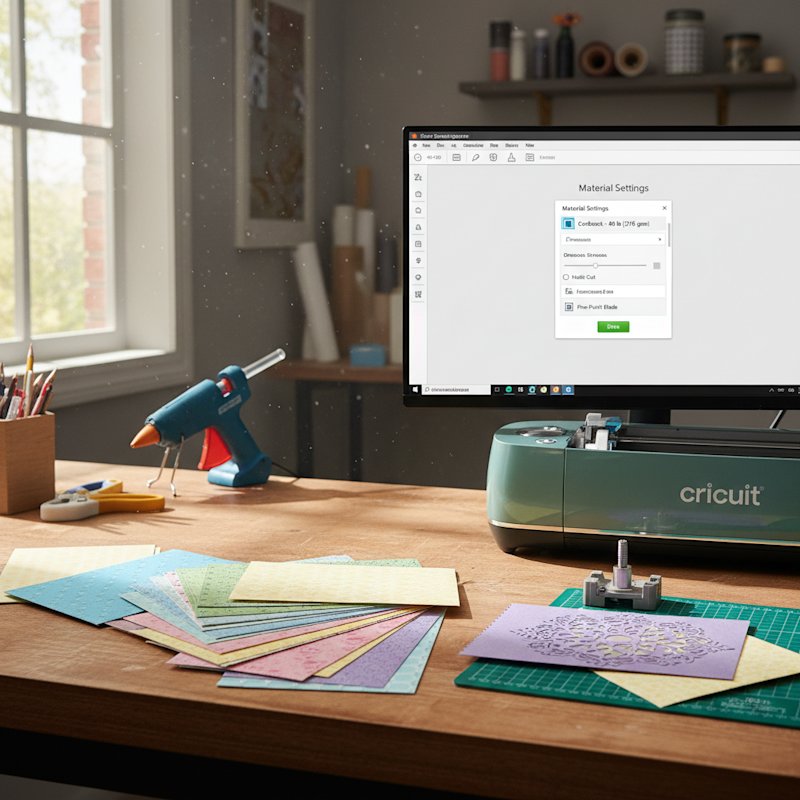
Cricut Design Space includes hundreds of preset material settings organized by category. When you reach the "Make It" screen, you'll select your material from categories like:

  • Paper - Text weight papers and lightweight cardstock
  • Cardstock - Medium to heavy cardstock in various finishes
  • Specialty - Materials like vellum, glitter cardstock, and metallic papers
  • Poster Board - Very thick cardstock and poster materials

Each preset material setting controls three critical cutting parameters:

  1. Pressure - How much downward force the blade applies
  2. Blade Depth - How far the blade extends from the housing (manual on older models)
  3. Multi-Cut - Whether the machine makes multiple passes for thick materials

Preset vs Custom Settings

Preset settings are pre-programmed combinations tested by Cricut for specific materials. They provide an excellent starting point and work perfectly for Cricut-branded materials and common cardstock weights.

Custom settings allow you to fine-tune pressure, speed, and multi-cut parameters for materials that don't quite match the presets. You can also save custom settings for materials you use frequently, making future projects faster.

The Importance of Test Cuts

The single most valuable habit you can develop is always performing a test cut before committing to your full project. A test cut takes 30 seconds and can save you from ruining expensive cardstock or intricate designs.

When you select a material in Design Space, you'll see a "Test Cut" button. Use it every time you:

  • Try a new cardstock brand or weight
  • Switch between different paper finishes (matte, glossy, textured)
  • Notice your blade is getting dull
  • Experience humidity changes in your craft room

After the test cut completes, peel the small square from your mat and inspect it carefully. The cut should go cleanly through the cardstock without tearing, leaving smooth edges with no paper fibers hanging.

Cardstock Weight Guide: Understanding GSM and Pounds

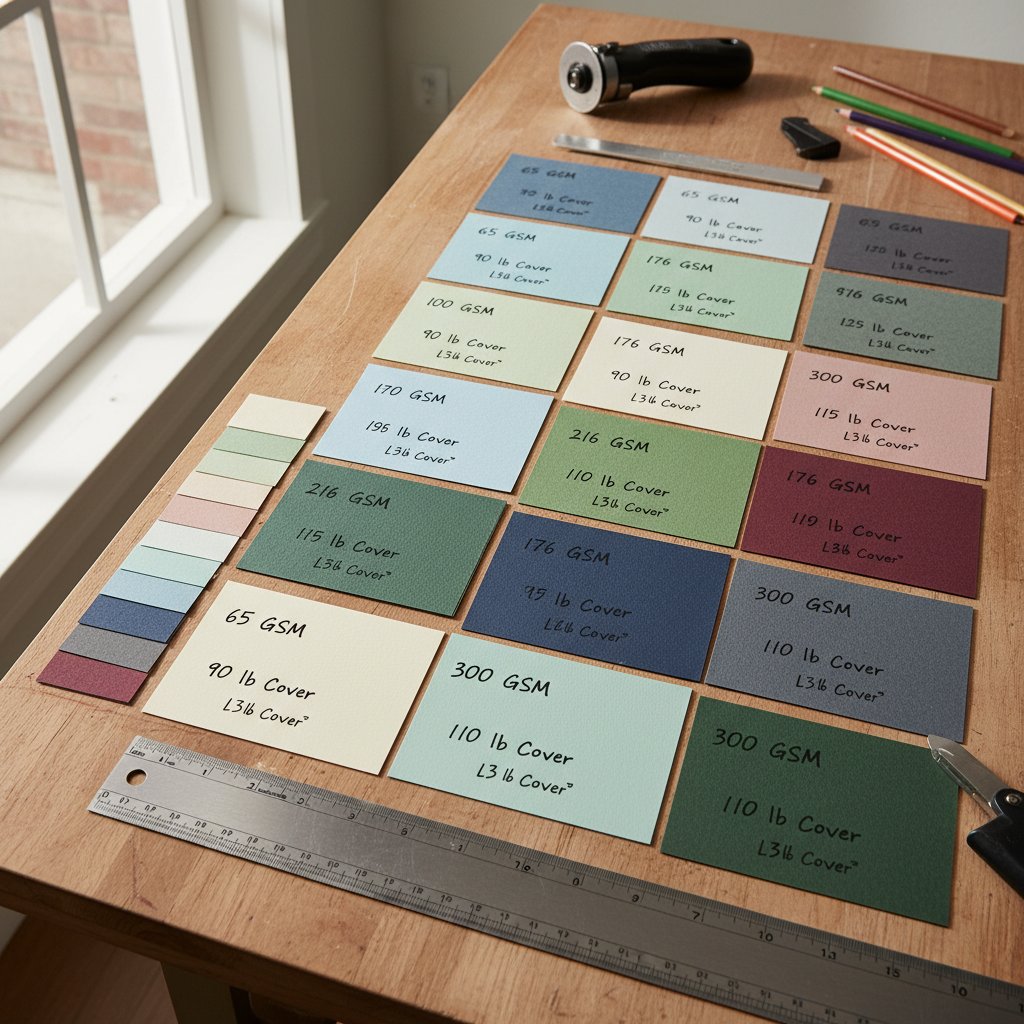
Different cardstock weight samples labeled with GSM and pound measurements for Cricut cutting reference

Cardstock is categorized by weight, but the measurement system can be confusing because different regions use different units.

What GSM and lb Mean

GSM (grams per square meter) is the international standard for paper weight. It measures how much one square meter of the paper weighs. This is the most accurate measurement because it directly corresponds to paper thickness and density.

Pounds (lb) is the North American measurement for paper weight. It measures how much 500 sheets (a ream) of the paper weighs in its parent size (which varies by paper type). This makes it less intuitive—a 65 lb cardstock and a 65 lb text weight paper are very different thicknesses.

Common Cardstock Weights and Their Uses

Here's a practical breakdown of cardstock weights you'll encounter and what they're best for:

Lightweight Cardstock (50-65 lb / 135-176 gsm)

  • Best for: Scrapbook pages, card inserts, origami, paper flowers
  • Cricut Setting: Light Weight Cardstock or Medium Cardstock
  • Characteristics: Flexible, easy to score and fold, minimal cutting issues

Medium Cardstock (80 lb / 216 gsm)

  • Best for: Greeting cards, invitations, card bases, layered projects
  • Cricut Setting: Medium Cardstock or Cardstock+
  • Characteristics: Sturdy enough to stand up, holds folds well, most versatile weight

Heavy Cardstock (100-110 lb / 270-300 gsm)

  • Best for: Shadow box layers, sturdy card bases, dimensional projects, signs
  • Cricut Setting: Heavy Cardstock or Poster Board with multi-cut
  • Characteristics: Very rigid, requires sharp blade and higher pressure, excellent for dimensional depth

Cover Stock (110+ lb / 300+ gsm)

  • Best for: Business cards, thick project bases, book covers
  • Cricut Setting: Poster Board with 2x multi-cut
  • Characteristics: Requires Deep Cut Blade on some models, may need multiple passes

How to Identify Your Cardstock Weight

If your cardstock doesn't list the weight on the package, you can:

  1. Check the manufacturer's website - Most brands list specifications online
  2. Compare to known weights - Place it next to cardstock you know the weight of
  3. Use the bend test - Lightweight flexes easily, medium has moderate stiffness, heavy barely bends
  4. Start conservative - Begin with a lighter preset setting and increase pressure if needed

Preset Cardstock Settings Explained

Cricut Design Space offers several preset cardstock settings. Understanding when to use each one will save you time and frustration.

Light Weight Cardstock (50 lb)

When to use: For thin cardstock around 50 lb or 135 gsm, including most scrapbook cardstock and lightweight craft papers.

Settings:

  • Pressure: Low to Medium
  • Multi-cut: No
  • Mat: LightGrip (blue) or StandardGrip (green)

Pro tip: This setting works perfectly for intricate designs because it applies just enough pressure without over-cutting delicate details.

Medium Weight Cardstock (65 lb)

When to use: Your go-to setting for standard cardstock around 65 lb or 176 gsm. This is the most common cardstock weight for card making and general paper crafts.

Settings:

  • Pressure: Medium
  • Multi-cut: No
  • Mat: StandardGrip (green)

Pro tip: If you're unsure of your cardstock weight, start here. It's the sweet spot that works for most projects.

Heavy Cover Weight Cardstock (80-110 lb)

When to use: For thick cardstock between 80-110 lb or 216-300 gsm. Perfect for shadow box layers, sturdy card bases, and projects needing extra rigidity.

Settings:

  • Pressure: High
  • Multi-cut: Sometimes 2x for 100+ lb
  • Mat: StrongGrip (purple)

Pro tip: Always do a test cut with heavy cardstock. The difference between 80 lb and 110 lb may require adjusting to "More" pressure or enabling multi-cut.

Cardstock for Intricate Cuts

When to use: This specialized setting is designed specifically for detailed designs with small pieces, delicate cutouts, or fine lines—regardless of cardstock weight.

Settings:

  • Pressure: Slightly higher than standard
  • Speed: Slower for precision
  • Multi-cut: No

Pro tip: Use this setting for shadow box layers with intricate details. The slower cutting speed prevents the paper from tearing at connection points while maintaining clean edges.

Custom Material Settings: Taking Control
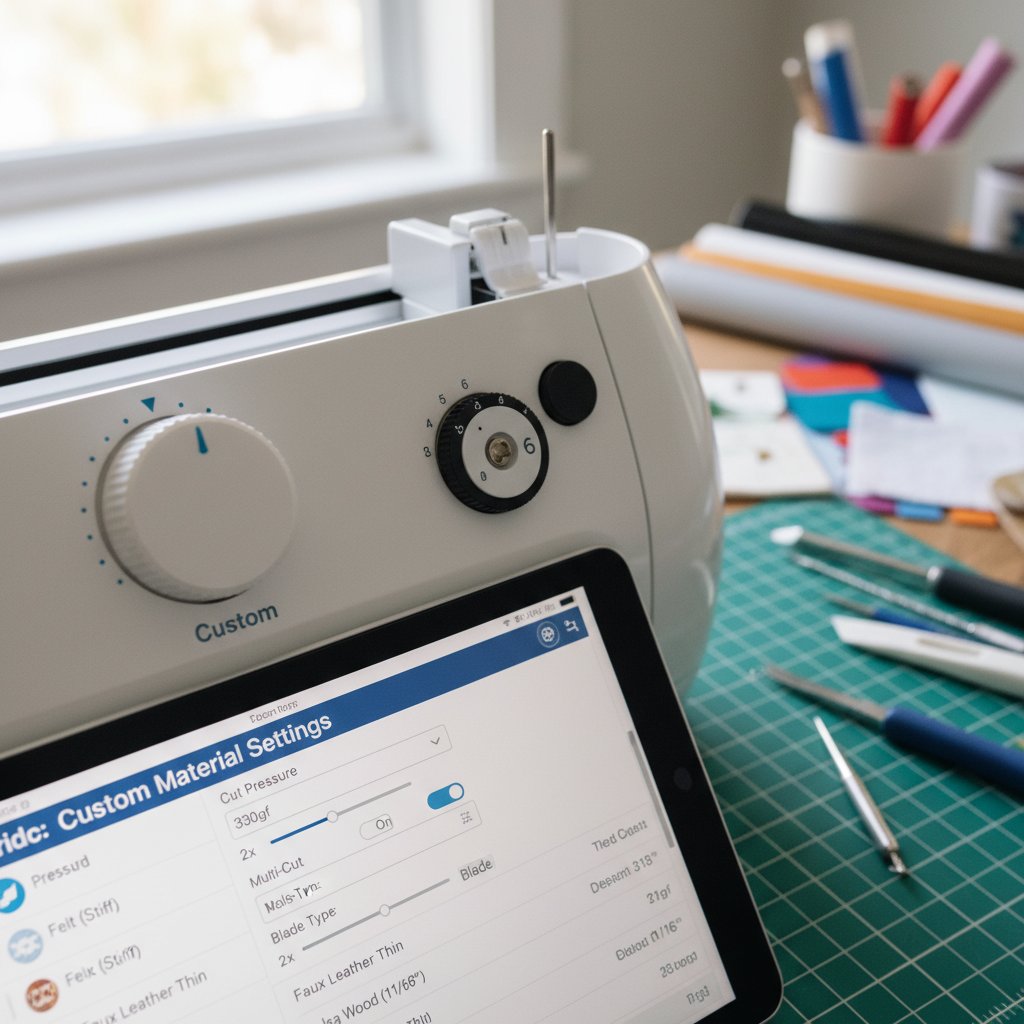
Cricut pressure dial and blade depth adjustment settings for custom cardstock material configuration

While preset settings work for most situations, there are times when you need complete control over your cutting parameters.

When to Create Custom Settings

You should create custom material settings when:

  • Your cardstock brand consistently needs adjustments from presets
  • You're working with specialty papers that don't have exact matches
  • You've found the perfect combination through testing and want to save it
  • You're cutting unusual materials like chipboard or handmade paper

How to Create Custom Material Settings Step-by-Step

Step 1: In Design Space, reach the "Make It" screen and select your material.

Step 2: After selecting the closest preset material, look for the "Pressure" dropdown menu below the material name.

Step 3: Click the dropdown and select "More" or "Less" to adjust from the preset. Each step represents approximately 50 units of pressure.

Step 4: Perform a test cut with your adjusted setting.

Step 5: If the test cut is perfect, note the setting you used. For frequently used adjustments, you can create a truly custom material:

  • Select "Browse All Materials"
  • Scroll to the bottom and select "Create New Material"
  • Set your base parameters (pressure, multi-cut, blade type)
  • Name your custom material (e.g., "Brand X 110lb Glitter")
  • Save it for future use

Step 6: Your custom material will now appear in your materials list for quick access.

Fine-Tuning Pressure (More/Less)

The "More" and "Less" pressure options are your most powerful troubleshooting tools. Here's when to use each:

Use "More" pressure when:

  • Cuts aren't going all the way through
  • You see paper fibers still connecting cut pieces
  • The backing material shows only a faint scoring line
  • You're cutting particularly dense or thick cardstock

Use "Less" pressure when:

  • Paper is tearing or shredding
  • Cuts are going through the mat backing
  • Intricate details are being cut too aggressively
  • You're working with delicate or brittle materials

The sweet spot: Your ideal pressure cuts completely through the cardstock without scoring into your mat. You should see a very light impression on the mat backing, but it shouldn't cut into the mat itself.

Multi-Cut Settings for Thick Papers

Multi-cut makes your Cricut pass over the same cutting path 2-3 times, which is essential for very thick cardstock that can't be cut in a single pass.

When to enable multi-cut:

  • Any cardstock 100 lb / 270 gsm or heavier
  • Chipboard and thick specialty papers
  • When a single pass leaves paper fibers connecting
  • When cutting intricate designs in thick materials

Multi-cut options:

  • 2x - Two complete passes (most common for heavy cardstock)
  • 3x - Three passes (for extremely thick materials like heavy chipboard)

Important note: Multi-cut doubles or triples your cutting time, so only use it when necessary. Always try a single pass with increased pressure first.

Specialty Cardstock Settings

Not all cardstock is created equal. Specialty finishes require adjustments to prevent damage and achieve perfect cuts.

Glitter Cardstock

Glitter cardstock presents unique challenges because the glitter coating can dull your blade faster and may flake during cutting.

Recommended settings:

  • Use the "Glitter Cardstock" preset in Design Space
  • Pressure: Medium to High (depending on base weight)
  • Mat: StrongGrip (purple) for best adhesion
  • Blade: Fine Point, but replace more frequently

Pro tips for glitter cardstock:

  • Place glitter side DOWN on your mat to prevent loose glitter from getting into the blade housing
  • Clean your blade more frequently—glitter particles accelerate dulling
  • Use transfer tape instead of hand-applying small pieces to avoid getting glitter everywhere
  • Consider using a lint roller on your mat after cutting to remove loose glitter

Metallic and Pearl Cardstock

Metallic and pearl-finish cardstock often has a coating that can make cutting challenging.

Recommended settings:

  • Start with "Cardstock - Medium" and adjust up
  • Pressure: Slightly higher than uncoated cardstock of the same weight
  • Speed: Default
  • Mat: StandardGrip or StrongGrip depending on weight

Pro tips:

  • The reflective coating can hide cut lines, making it hard to see if you cut through. Hold it up to light after cutting to verify.
  • Some metallic papers have a plastic-like coating that may require the "Metallic Poster Board" setting for best results.
  • Pearl finish is usually more delicate than metallic—start with less pressure.

Textured Cardstock

Textured cardstock (linen, canvas, embossed) requires special consideration because the texture creates uneven surfaces.

Recommended settings:

  • Use the closest weight preset as a starting point
  • Pressure: Increase by one level (use "More" option)
  • Mat: StrongGrip (purple) for better contact
  • Test cut: Absolutely essential—texture varies dramatically by brand

Pro tips:

  • Place textured cardstock with the SMOOTH side down on your mat when possible for better adhesion
  • If cutting with texture facing down, expect the texture to compress slightly where the mat grips
  • Deeply embossed textures may not cut evenly—stick to simpler designs

Vellum and Translucent Papers

Vellum is delicate and tears easily, requiring gentle settings despite being similar in weight to regular cardstock.

Recommended settings:

  • Use "Vellum" preset or "Light Cardstock" with reduced pressure
  • Pressure: Low to Medium
  • Speed: Slower for control
  • Mat: LightGrip (blue) only—stronger mats can damage vellum

Pro tips:

  • Vellum tears easily at connection points—use "Cardstock for Intricate Cuts" if your design has delicate areas
  • Let vellum acclimate to your room temperature and humidity before cutting
  • Remove vellum slowly from the mat to prevent tearing

Mat Selection for Cardstock: The Foundation of Success

Your cutting mat is just as important as your settings. Using the wrong mat grip level can cause cutting failures even with perfect pressure settings.

LightGrip (Blue) for Lightweight Materials

Best for:

  • 50-65 lb / 135-176 gsm cardstock
  • Vellum and delicate papers
  • Printer paper and text weight

Why it matters: LightGrip provides just enough adhesion to hold paper flat without being difficult to remove. Using a stronger mat on lightweight paper can cause tearing when you try to remove your project.

StandardGrip (Green) for Medium Weight

Best for:

  • 65-80 lb / 176-216 gsm cardstock
  • Most scrapbook and craft cardstock
  • General card making

Why it matters: StandardGrip is your all-purpose workhorse mat. It balances holding power with ease of removal, perfect for the most common cardstock weights.

StrongGrip (Purple) for Heavy and Specialty

Best for:

  • 100+ lb / 270+ gsm cardstock
  • Glitter and metallic cardstock
  • Textured specialty papers
  • Any material that tends to lift during cutting

Why it matters: Heavy cardstock can curl or lift during cutting if not held firmly. StrongGrip prevents movement that would ruin intricate cuts.

How Mat Choice Affects Cutting

Mat adhesion directly impacts cutting quality:

  • Too weak: Paper shifts during cutting, causing misaligned or incomplete cuts
  • Too strong: Difficult removal can tear your project or damage delicate cutouts
  • Just right: Paper stays perfectly flat, cuts are precise, removal is smooth

Signs your mat grip is wrong:

  • Paper visibly moving or vibrating during cutting = Mat too weak
  • Project tears when removing from mat = Mat too strong
  • Small pieces won't release from mat = Mat too strong or too sticky
  • Cuts are slightly offset or doubled = Paper shifted (mat too weak)

Mat maintenance tip: Clean your mats with a scraper tool or baby wipes to remove paper fibers and dust. A clean mat maintains proper adhesion and extends its life.

Troubleshooting Common Cardstock Cutting Issues

Even with the right settings, you may encounter cutting problems. Here's how to diagnose and fix the most common issues.

Problem: Paper Not Cutting All the Way Through

Symptoms: Cuts look good but pieces don't release, or you see paper fibers still connecting cut sections.

Solutions:

  1. Increase pressure - Use "More" setting or bump up to next material preset
  2. Replace your blade - A dull blade is the #1 cause of incomplete cuts
  3. Enable multi-cut - For cardstock 100 lb or heavier
  4. Check mat adhesion - Weak grip lets paper lift slightly during cutting
  5. Verify material selection - Make sure you selected cardstock, not paper

Diagnostic test: After a failed cut, try manually separating the pieces. If they're barely held by thin fibers, you only need a slight pressure increase. If they're firmly connected, you need significant adjustments.

Problem: Paper Tearing or Ripping

Symptoms: Edges are jagged, pieces shred, or intricate areas tear out completely.

Solutions:

  1. Decrease pressure - Use "Less" setting
  2. Slow down cutting speed - Use "Cardstock for Intricate Cuts" setting
  3. Check blade condition - A damaged blade tip can tear rather than cut
  4. Use correct mat - Too much adhesion can cause tearing during cutting
  5. Reduce design complexity - Some designs are too intricate for the cardstock weight

Pro tip: Tearing often happens where fine details meet solid areas. Simplify your design by making connection points slightly thicker (0.25mm minimum).

Problem: Uneven Cuts

Symptoms: Some areas cut perfectly while others barely cut at all, or cuts are deeper on one side.

Solutions:

  1. Check mat flatness - Warped mats cause uneven pressure distribution
  2. Replace worn mat - Mats lose adhesion unevenly over time
  3. Ensure even cardstock - Hand some cardstock has thickness variations
  4. Clean blade housing - Paper dust can interfere with blade movement
  5. Check roller tracks - Debris on rollers causes uneven material feed

Diagnostic test: Run a test cut in different areas of your mat. If one area cuts better than others, your mat is worn unevenly.

Problem: Mat Adhesive Issues

Symptoms: Cardstock won't stick to mat, or conversely, won't release after cutting.

Solutions for "won't stick":

  1. Clean mat surface - Remove paper fibers and dust
  2. Use stronger mat - Upgrade from LightGrip to StandardGrip
  3. Burnish cardstock onto mat - Firmly press paper down with brayer
  4. Check mat age - Mats eventually lose all adhesion and need replacing

Solutions for "won't release":

  1. Use weaker mat - Downgrade from StrongGrip to StandardGrip
  2. Flex the mat - Bend mat backwards to release adhesive grip
  3. Use scraper tool - Gently work under paper edges
  4. Rest sticky mat - Cover with plastic sheet when not in use to reduce stickiness

Pro Tips for Perfect Cuts Every Time

Master crafters develop habits and techniques that ensure consistent success. Here are the insider tips that make all the difference.

Develop a Test Cut Workflow

Before every project:

  1. Load a scrap piece of your exact cardstock onto the mat
  2. Select your material setting in Design Space
  3. Run the test cut button
  4. Inspect the cut carefully
  5. Adjust settings if needed and test again
  6. Proceed with confidence once the test is perfect

This 2-minute routine prevents wasting expensive cardstock and time.

Environmental Factors Matter

Humidity is the silent killer of perfect cuts. Paper absorbs moisture from the air, which affects how it cuts.

High humidity (>60%):

  • Paper becomes softer and more prone to tearing
  • May need reduced pressure
  • Paper may curl after cutting
  • Store cardstock in airtight containers

Low humidity (<30%):

  • Paper becomes brittle and may crack
  • May need slightly increased pressure
  • Static electricity can cause paper to stick to blade
  • Consider using a humidifier in your craft room

Temperature also plays a role. Extreme cold makes paper brittle, while heat can make adhesives on specialty cardstock unstable.

Blade Maintenance Schedule

Your blade condition directly impacts cutting quality. Develop a replacement schedule based on usage:

Every 15-20 hours of cutting:

  • Inspect blade tip under magnification
  • Clean blade housing with compressed air
  • Replace blade if you see any tip damage or dullness

Signs you need a new blade:

  • Cuts not going through even at maximum pressure
  • Tearing instead of clean cuts
  • Dragging sounds during cutting
  • Increased paper dust or debris

Blade care tips:

  • Store blades with protective cap on
  • Never touch the blade tip with your fingers
  • Clean blade housing regularly
  • Consider a blade lubricant pen for smooth operation

Balance Speed and Pressure

Cutting speed and pressure work together to achieve perfect cuts.

Slower speed + Lower pressure = Best for intricate designs and delicate papers
Faster speed + Higher pressure = Best for simple designs in sturdy cardstock

The "Cardstock for Intricate Cuts" setting automatically optimizes this balance, but you can fine-tune it in custom materials.

When to adjust speed:

  • Intricate designs → Slow down for precision
  • Simple shapes → Speed up for efficiency
  • Thick cardstock → Slow down to allow blade time to penetrate
  • Thin paper → Normal or fast speed is fine

Your Next Steps to Cutting Mastery

You now have complete knowledge of Cricut cardstock settings for every paper weight and specialty finish. The difference between frustrating failures and perfect cuts comes down to:

  1. Understanding your cardstock weight and selecting the appropriate preset
  2. Running test cuts before committing to full projects
  3. Fine-tuning pressure using the More/Less options when presets need adjustment
  4. Matching mat grip to your cardstock weight and type
  5. Maintaining your blade and replacing it before it causes problems

Start with the preset settings that match your cardstock weight, always perform a test cut, and adjust pressure in small increments until you achieve perfection. Save your successful custom settings for materials you use frequently.

Remember, even experienced crafters test cuts with new materials. It's not a sign of inexperience—it's the mark of a smart maker who values their time and materials.

For comprehensive troubleshooting of all Cricut cardstock problems beyond just settings, including blade selection, mat issues, and advanced techniques, check out our complete guide: {{link:qerm:Cricut Cardstock Troubleshooting Bible}}.

Now load up that cardstock, dial in your perfect settings, and create stunning projects with confidence!