Articles 10 min read

How to Resize Shadow Box SVG for Any Frame (Step-by-Step)

Your comprehensive guide to how to resize shadow box svg.

How to Resize Shadow Box SVG for Any Frame (Step-by-Step)

How to Resize Shadow Box SVG for Any Frame Size

Finding the perfect shadow box SVG template is exciting, but what happens when it's designed for an 8x8 inch frame and you've already purchased a beautiful 12x12 inch frame? Learning how to resize shadow box SVG files correctly ensures your layered paper cut projects fit any frame size while maintaining perfect alignment and proportions.

When creating layered paper cut shadow boxes, resizing SVG templates is one of the most common challenges beginners face. Resize incorrectly, and your carefully cut layers won't align. Layers will have visible gaps, your three-dimensional effect will be ruined, and you'll waste valuable cardstock and time.

This guide teaches you exactly how to resize shadow box SVG files for any frame size using Cricut Design Space and Silhouette Studio, ensuring your layers remain perfectly aligned and your finished shadow box looks professionally crafted.

Why Proper Resizing Matters for Shadow Box Projects

Shadow box SVG templates differ fundamentally from simple single-layer cut files. Each design contains multiple layers—typically 6 to 12 separate pieces—that must align precisely when stacked to create the three-dimensional illusion.

What makes resizing critical: When you resize a shadow box template, every single layer must be scaled by the exact same percentage. If Layer 1 is resized to 150% but Layer 5 is only scaled to 145%, those layers won't align during assembly. Even a 2-3mm misalignment becomes glaringly obvious when backlit.

The compound effect: With 8-10 layers in a typical shadow box, small scaling errors multiply. A 1mm error on each layer results in a 10mm total misalignment from front to back—enough to completely destroy the visual effect.

Material waste prevention: Quality cardstock isn't cheap, especially when you need 8-12 sheets per project. Proper resizing the first time prevents costly remakes and frustration.

Professional shadow box creators always resize their entire design as one grouped unit, cut a test layer first, and verify the sizing before committing to cutting all layers on premium cardstock.

Understanding Frame Measurements

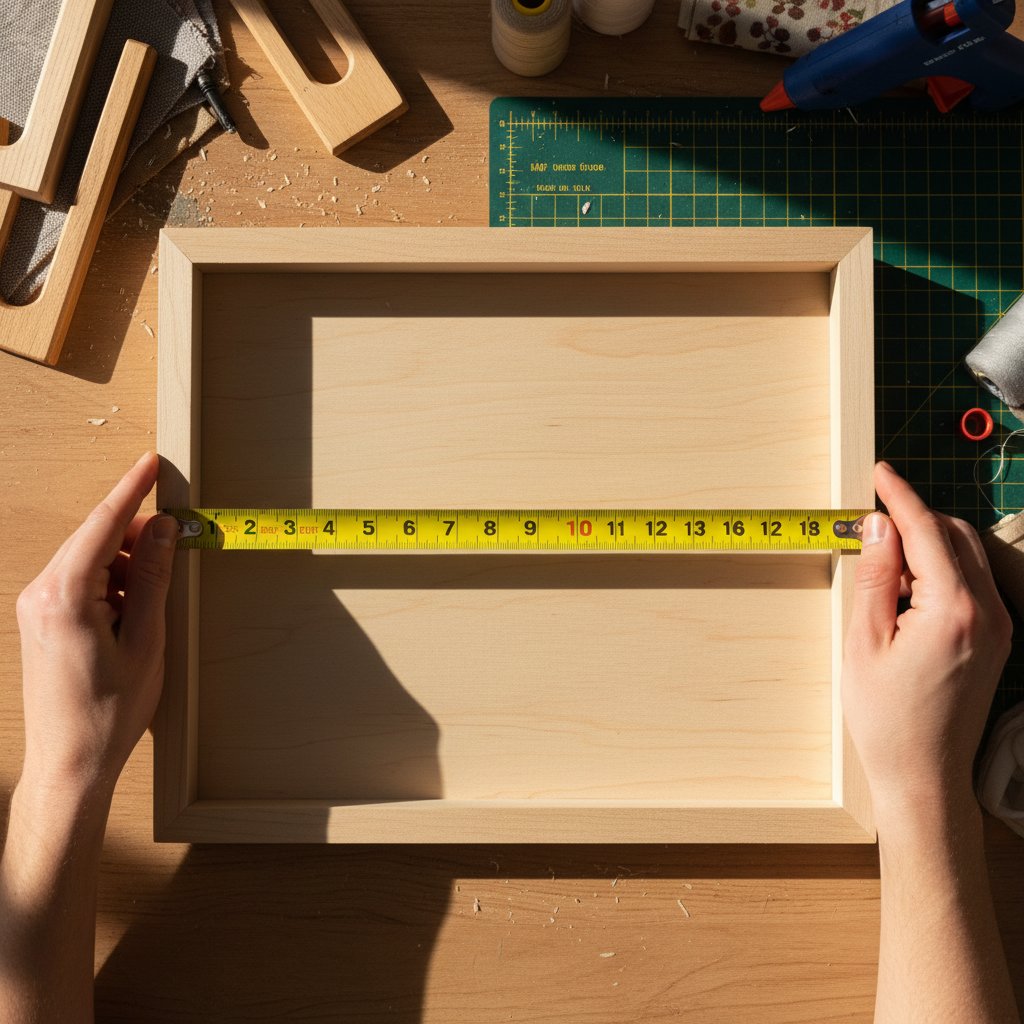
Measuring tape across shadow box frame interior demonstrating proper measurement technique for accurate sizing Check out our choosing frames and depth for paper cut shadow boxes for more details.

Before resizing any shadow box SVG, you need accurate frame measurements. This seemingly simple step is where many beginners go wrong.

Measuring Your Shadow Box Frame Correctly

Interior dimensions vs. exterior dimensions: The measurement that matters is your frame's interior opening—not the outer frame dimensions. A frame sold as "9x9 inches" typically has an interior opening of approximately 8.5 x 8.5 inches.

How to measure accurately:

  1. Remove the frame backing and glass
  2. Measure the interior opening from inside edge to inside edge horizontally
  3. Measure the interior opening from inside edge to inside edge vertically
  4. If your frame includes a mat, measure the mat opening instead

Account for the border: Your shadow box design should be slightly smaller than the frame opening. Leave at least 0.25 to 0.5 inches of space around all edges. For a frame with an 8.5 x 8.5 inch interior opening, size your design to approximately 8 x 8 inches maximum.

Common Shadow Box Frame Sizes

Understanding standard frame dimensions helps you plan projects:

8x8 inch frames (interior typically 7.5 x 7.5 inches):

  • Perfect for first projects and smaller designs
  • Affordable and widely available
  • Ideal for simple floral designs, seasonal decor

8x10 inch frames (interior typically 7.5 x 9.5 inches):

  • Standard photo frame size, easy to find
  • Vertical orientation suits many designs
  • Most SVG templates offer this size

12x12 inch frames (interior typically 11.5 x 11.5 inches):

  • Square format popular for symmetrical designs
  • Excellent for mandalas, wreaths, centered compositions
  • Provides generous space for complex layering

How to Resize Shadow Box SVGs in Cricut Design Space
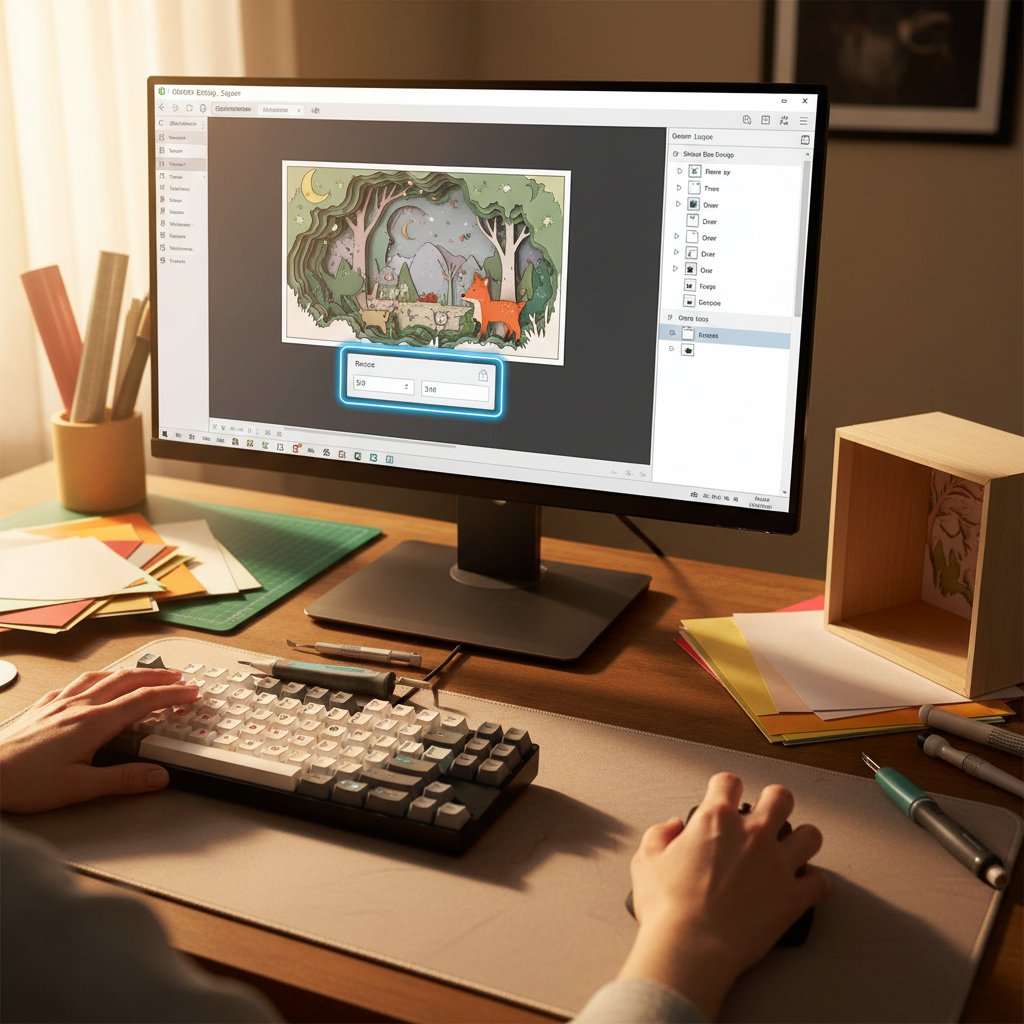
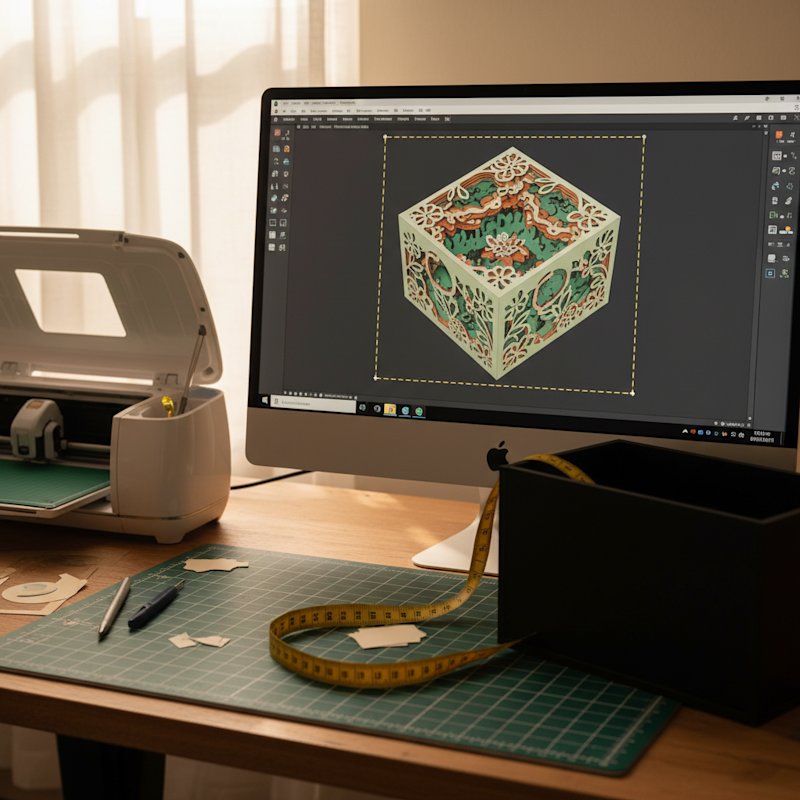
Cricut Design Space software interface showing layered shadow box SVG with resize controls and grouped layers for proper scaling

Cricut Design Space makes resizing multi-layer shadow box templates straightforward when you follow the correct process.

Step-by-Step Resizing Process

Step 1: Import Your Shadow Box SVG

Upload your shadow box SVG file to Cricut Design Space using the Upload button. Select SVG as the file type, upload the file, and insert it into your canvas.

Step 2: Group All Layers Together

This is the most critical step for maintaining alignment. Select the entire design by clicking and dragging across all elements. Once all layers are selected, click the "Group" button at the top of the Layers panel.

Why grouping matters: When layers are grouped, Cricut Design Space resizes them together as a single unit at exactly the same percentage, ensuring perfect alignment.

Step 3: Check the Lock Icon

At the top of Design Space, you'll see size fields showing width (W) and height (H). Between these fields is a lock icon. Ensure the lock is closed (locked). The locked icon forces proportional resizing—when you change width, height adjusts automatically.

Never unlock the lock icon when resizing shadow box templates. Unlocking allows disproportionate scaling which distorts your design and breaks alignment between layers.

Step 4: Enter Your Target Dimensions

Click in the width (W) field and type your desired dimension. For example, if you have an 8x10 frame with a 7.5 x 9.5 inch interior and you want a 0.25-inch border, type "7" in the width field.

Press Enter. The height automatically adjusts proportionally. Verify that the new height also fits within your frame dimensions.

Step 5: Verify the Resized Dimensions

Check both width and height to ensure your design fits within your frame interior with appropriate border space on all sides.

Step 6: Ungroup for Cutting

Once you're satisfied with the size, ungroup the layers to prepare for cutting. Select the grouped design and click "Ungroup" in the Layers panel. Each layer separates again, allowing you to organize them for efficient cutting.

Important: Only ungroup after resizing is complete.

Test Cutting Before Committing

Before cutting all layers on premium cardstock, always test your sizing:

  1. Select just the bottom or back layer
  2. Cut this single layer on scrap cardstock or printer paper
  3. Place the test cut in your frame to verify sizing
  4. Check that borders are even on all sides
  5. Adjust dimensions if needed

This test cut saves you from wasting 8-12 sheets of expensive cardstock on an incorrectly sized project.

How to Resize Shadow Box SVGs in Silhouette Studio

Silhouette Studio handles SVG resizing similarly to Cricut Design Space, with some interface differences.

Step-by-Step Resizing Process

Step 1: Import Your Shadow Box SVG

In Silhouette Studio, go to File > Open and navigate to your shadow box SVG file. Select it and click Open. The design imports onto your workspace.

Step 2: Ensure All Layers Are Grouped

If layers are already grouped together, you're ready to resize. If they imported as separate elements:

  1. Click and drag to select all elements
  2. Right-click and choose "Group"
  3. All layers now resize together as one unit

Step 3: Lock the Aspect Ratio

With all layers grouped and selected, look at the Scale panel on the right side. You'll see a lock icon linking the width and height fields. Ensure this lock is closed (locked).

Step 4: Enter Your Target Dimensions

Click in the width or height field and type your desired dimension. Press Enter or Tab. The other dimension adjusts automatically to maintain proportions.

Step 5: Test Cut One Layer

Before cutting your entire project:

  1. Ungroup your design
  2. Select one layer
  3. Cut on scrap paper
  4. Test fit in your frame
  5. Adjust sizing if needed before cutting all layers

Common Resizing Mistakes and How to Avoid Them

Mistake 1: Resizing Layers Individually

The error: Selecting and resizing each layer separately.

Why it fails: Even if you try to use the same percentage, slight differences create misalignment.

The solution: Always group all layers before resizing. Resize once. Ungroup only after resizing is complete.

Mistake 2: Unlocking the Aspect Ratio

The error: Unlocking the aspect ratio and adjusting width and height independently.

Why it fails: This distorts the design. Circles become ovals, and alignment between layers breaks down.

The solution: Always keep the aspect ratio locked. If a design doesn't fit your frame proportionally, choose a different design or frame.

Mistake 3: Not Accounting for Frame Borders

The error: Resizing a shadow box to exactly match the interior frame dimensions, leaving no border space.

Why it fails: Slight cutting variations become visible as uneven borders or layers touching frame edges.

The solution: Always size your design 0.25 to 0.5 inches smaller than your frame interior on each side.

Mistake 4: Not Testing with Scrap Paper First

The error: Immediately cutting all layers on premium cardstock without testing.

Why it fails: Frame measurements can be inaccurate, or you might have made a calculation error.

The solution: Always cut one layer on scrap paper first. Test fit it in your frame before cutting all layers on premium cardstock.

Mistake 5: Resizing Too Large for the Cutting Mat

The error: Resizing a design without checking whether it exceeds your cutting mat size.

Why it fails: Cricut and Silhouette mats are typically 12x12 inches. If you resize to 14 inches, it won't fit on your mat.

The solution: Verify that each layer fits within your cutting mat dimensions before finalizing your resize.

Advanced Resizing Techniques

Creating Multiple Size Variations

If you plan to create the same shadow box design in multiple frame sizes:

In Cricut Design Space or Silhouette Studio:

  1. Import and group your shadow box design
  2. Resize to your first target dimension
  3. Duplicate the grouped design
  4. Move the duplicate to a different area
  5. Resize the duplicate to your second target dimension

Now you can cut multiple size variations without re-importing and resizing repeatedly.

Resizing for Non-Square Frames

Many shadow box SVG templates are designed for square frames, but you can resize them for rectangular frames:

Proportional fit method:

  1. Group all layers
  2. Determine which dimension is limiting (usually the smaller frame dimension)
  3. Resize based on that dimension
  4. The design will fit within your rectangular frame with extra space on two sides

Example: Resizing a square 8x8 design for an 8x10 frame:

  • Your limiting dimension is width (8 inches)
  • Resize the grouped design to 7.5 inches wide (with border space)
  • Height resizes proportionally to approximately 7.5 inches
  • Your design fits the frame width perfectly with extra space top and bottom

This is the correct approach. Never stretch or distort the design to fill a different aspect ratio.

Calculating Exact Dimensions for Custom Frames

For custom or unusual frame sizes, use these formulas:

The Border Space Formula

Target design width = Frame interior width - (2 × desired border)

Example: Frame interior is 11.5 inches, you want 0.5-inch borders

  • Target design width = 11.5 - (2 × 0.5) = 10.5 inches

Apply the same formula to height.

The Proportional Fit Formula

When resizing for rectangular frames:

  1. Identify which dimension is limiting
  2. Resize based on the limiting dimension
  3. Accept extra space on the non-limiting sides

This maintains perfect proportions while fitting your frame.

Troubleshooting Alignment Issues After Resizing

Layers That Don't Match

Symptom: After cutting, some layers appear different sizes even though you grouped and resized together.

Diagnosis: Cut two different layers and compare their outer dimensions. They should match exactly.

Solution: If layers are different sizes, delete the imported design, re-import fresh, group immediately, and resize again without ungrouping until ready to cut.

Cutting Mat Shifting

Symptom: Layers appear correctly sized but have slight alignment issues.

Solution: Ensure your mat is properly loaded, not worn out, and that you're using appropriate pressure settings. Replace old mats that no longer grip cardstock firmly.

Conclusion

Learning how to resize shadow box SVG files correctly is essential for creating beautiful layered paper cut projects that fit any frame size. By always grouping layers before resizing, maintaining locked aspect ratios, accounting for border space, and testing with scrap paper before cutting on premium cardstock, you ensure perfect alignment and professional results every time.

Whether you're working with Cricut Design Space or Silhouette Studio, the fundamental principle remains the same: resize all layers together as one grouped unit, maintaining proportions, and verify your sizing before committing to final cuts.

With these resizing skills mastered, you can confidently purchase any shadow box SVG template knowing you can adapt it perfectly to your available frames. Your how to make layered paper cut shadow box cricut silhouette will feature perfectly aligned layers and professional presentation that showcases your crafting skills.