Articles 19 min read

How to Use Printable Paper Cut Shadow Box Templates

Your comprehensive guide to printable paper cut shadow box template.

How to Use Printable Paper Cut Shadow Box Templates

Using Printable Papercut Shadow Box Templates: The Complete Guide for Beginners

When you're ready to create stunning layered paper cut shadow boxes with your Cricut or Silhouette machine, using professionally designed templates is the fastest path to success. In our complete beginner guide to making paper cut shadow boxes, we covered the entire creation process from materials to final assembly. This guide focuses specifically on finding, evaluating, and using printable paper cut shadow box templates that deliver professional results every time.

Printable paper cut shadow box templates eliminate the guesswork of designing multi-layer projects from scratch. Instead of spending hours creating your own designs, you can download ready-to-cut templates, upload them to Cricut Design Space or Silhouette Studio, and start cutting beautiful shadow box layers within minutes. The right template makes the difference between a frustrating first attempt and a stunning finished project you'll be proud to display or gift.

Whether you're looking for free templates to practice with or premium designs for gift-worthy projects, this guide walks you through everything you need to know about using printable paper cut shadow box templates effectively.

What are Printable Paper Cut Shadow Box Templates?

Printable paper cut shadow box templates are pre-designed digital files containing all the layers, cutout patterns, and design elements needed to create a layered shadow box project. These templates come in various digital formats designed specifically for cutting machines or hand-cutting.

SVG (Scalable Vector Graphics) is the most common format for Cricut and Silhouette users. SVG files contain vector paths that tell your cutting machine exactly where to cut. These files scale to any size without losing quality, making them perfect for resizing projects to fit different frame dimensions.

PDF (Portable Document Format) templates are designed for printing and hand-cutting with craft knives or scissors. While PDF templates work if you don't have a cutting machine, they're far more time-consuming to cut than SVG files used with automated cutters.

DXF (Drawing Exchange Format) is another vector format compatible with Silhouette Studio and many other cutting machine software programs. Some template designers provide both SVG and DXF versions to ensure compatibility across different machines.

A quality shadow box template includes multiple layers (typically 6-12) with intricate cutout designs that create depth and dimension when stacked with foam spacers. Each layer builds on the previous one, revealing details through strategic cutouts that allow light to pass through the assembled piece.

The beauty of using templates is that experienced designers have already solved the complex challenges of layer alignment, appropriate cutout sizing, and visual depth creation. You benefit from their expertise without needing advanced design skills yourself.

Where to Find Free Printable Shadow Box Templates

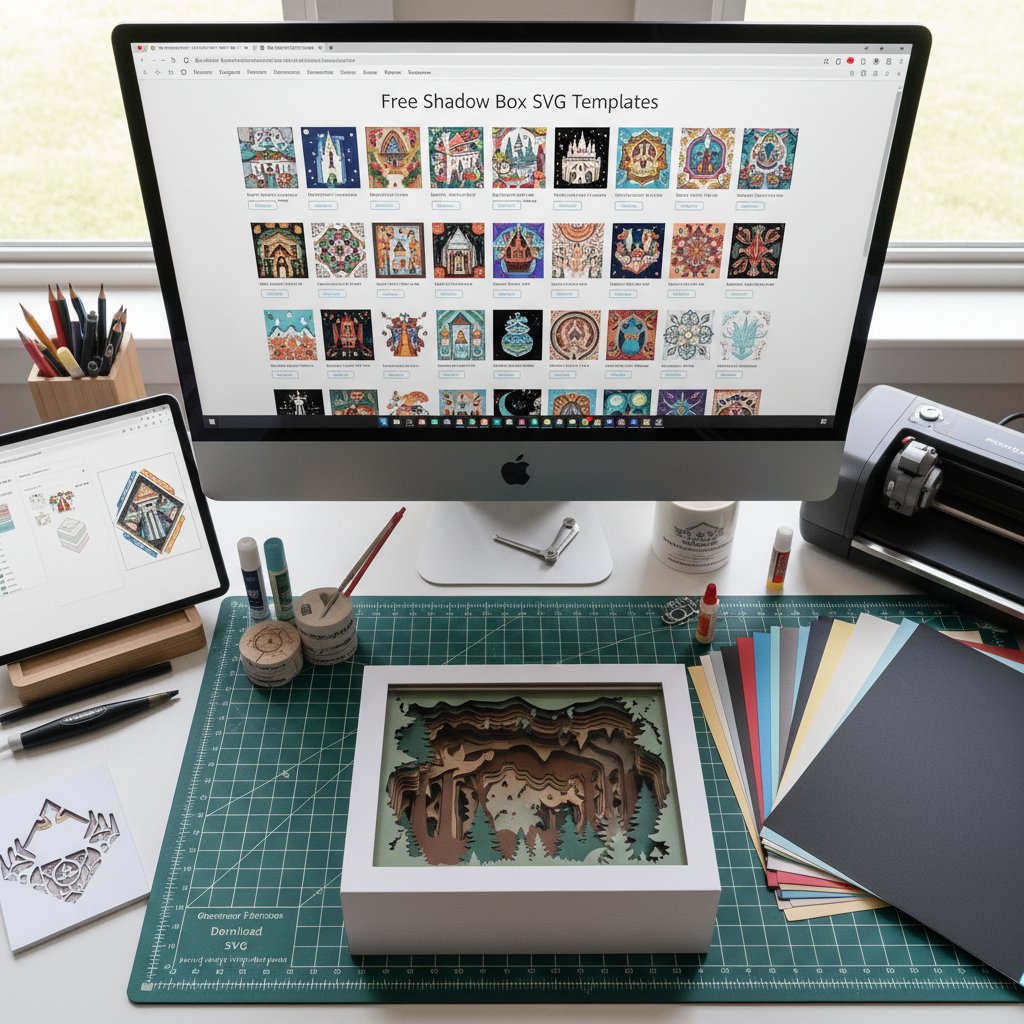
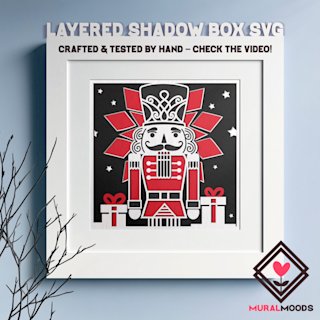
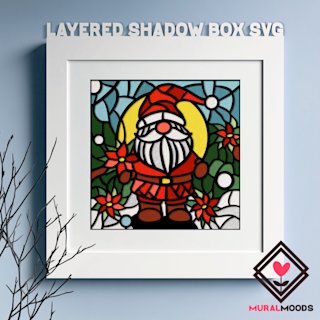
Collection of free printable shadow box templates from various online sources including template files and preview images

Free templates are excellent for beginners who want to test the shadow box creation process before investing in premium designs. Several reputable sources offer high-quality free printable paper cut shadow box templates.

Jennifer Maker provides free shadow box templates in her resource library, including popular designs like a Secret Garden shadow box and a beautiful cardinal SVG. These templates include basic instructions and are formatted for easy upload into Cricut Design Space. Jennifer Maker's free templates typically feature 4-6 layers, making them perfect starter projects.

Creates with Love offers free templates in their Resource Library that can be personalized and resized to fit different frame sizes. Their designs focus on beginner-friendly layer counts and moderately-sized cutouts that aren't overly intricate.

LightboxGoodman shares design templates for personal use, allowing you to download and print free templates for non-commercial projects. Their collection includes seasonal themes, nature designs, and simple architectural scenes. The free templates are labeled clearly and include layer numbering.

TDesign510 maintains a free category with downloadable shadow box templates in SVG format. While their premium collections offer more complexity, their free designs provide solid introductions to the template-based workflow.

Design Bundles regularly features free shadow box designs with Premium Licenses allowing both personal and commercial use. Their free section rotates designs monthly, so checking back regularly reveals new options. These templates often come from professional designers showcasing their style to attract customers to their paid collections.

Freepik provides free graphic resources for shadow box templates, including vectors and stock photos. While not all Freepik shadow box resources are cutting machine-ready, their vector SVG files work well with Cricut and Silhouette machines.

Pacdora offers free shadow box template downloads, though premium features require a subscription. Their basic templates are suitable for simple projects and learning the assembly process.

Limitations of Free Templates

While free templates are valuable learning tools, they typically have several limitations compared to premium options:

Fewer layers: Free templates usually include 4-6 layers instead of the 8-12 layers common in premium designs. This results in less dramatic depth and simpler visual effects.

Simpler designs: The cutouts and details in free templates are often less intricate, creating less impressive illuminated effects when backlit.

Limited sizing options: Many free templates come in a single size, requiring you to resize them yourself to fit your frame dimensions.

Minimal instructions: Free templates may include basic assembly guidance, but rarely the comprehensive photo-illustrated instructions included with premium templates.

Personal use only: Most free templates restrict usage to personal projects, prohibiting commercial use if you plan to sell finished shadow boxes.

No support: If you encounter issues with a free template, customer support isn't available to help troubleshoot problems.

Despite these limitations, free templates are perfect for your first 2-3 shadow box projects while you're mastering the cutting, weeding, and assembly processes outlined in our beginner guide.

Where to Find Premium Shadow Box Templates

Once you've mastered the basics with free templates, premium printable paper cut shadow box templates offer significantly more impressive results and better value for gift-worthy projects.

Etsy is the largest marketplace for premium shadow box templates, with thousands of designs from independent creators. Prices typically range from $3-$15 per template, with multi-design bundles offering better value (5-10 templates for $20-$40). Etsy templates usually include comprehensive PDF instructions with photos showing assembly steps, multiple size variations, and commercial use licenses for sellers.

When shopping on Etsy, look for sellers with:

  • High ratings (4.5+ stars with 100+ reviews)
  • Clear example photos showing finished shadow boxes
  • Detailed product descriptions listing layer count and included sizes
  • Responsive customer support
  • Instant digital download delivery

Design Bundles offers premium shadow box SVG collections through their Plus Unlimited subscription ($9.99/month) or individual purchase. Their templates come with commercial licenses and often include matching design sets (Christmas collection, floral collection, etc.). Design Bundles templates are professionally designed with consistent quality standards.

Creative Fabrica provides access to thousands of shadow box SVG files through their subscription service ($8.99/month). The subscription model is cost-effective if you plan to create multiple shadow boxes, giving unlimited downloads of templates that would cost $5-$10 each elsewhere.

LightboxGoodman specializes exclusively in paper cut light box and shadow box designs. Their premium collections start around $10 USD for single designs or discounted combo packages. LightboxGoodman templates are known for intricate details and dramatic lighting effects, typically featuring 8-12 carefully designed layers.

TDesign510 offers premium shadow box template combos starting at $10 USD. Their collections focus on holiday themes (Christmas, Halloween, Valentine's Day) and include seasonal sets perfect for rotating displays throughout the year.

Individual designer websites often offer template bundles directly, cutting out marketplace fees. Many designers maintain email lists announcing new releases and offering subscriber-exclusive discounts (typically 20-30% off regular prices).

Benefits of Premium Templates

Investing in premium templates provides substantial advantages:

More layers (8-12): Creates dramatically more depth and more impressive three-dimensional effects than simple free templates.

Superior detail and complexity: Intricate cutouts, delicate filigree patterns, and carefully planned light-allowing areas create stunning backlit effects.

Multiple size options: Premium templates often include 3-5 pre-sized versions (8x8, 8x10, 11x14, 12x12) eliminating resizing guesswork.

Comprehensive instructions: Detailed PDF guides with assembly photos, materials lists, and troubleshooting tips ensure success.

Commercial licensing: Sell finished shadow boxes created from premium templates (check individual license terms).

Customer support: Contact designers with questions or technical issues for personalized assistance.

Tested designs: Premium templates have been test-cut and assembled multiple times, ensuring layers align correctly and designs produce the intended effects.

Professional presentation: Gift-quality results suitable for selling, presenting as gifts, or displaying prominently in your home.

For projects beyond practice pieces, premium templates are worth the investment. A $10 template that creates a stunning shadow box you gift or sell for $40-$100 provides excellent value.

How to Evaluate Template Quality Before Purchasing

Not all shadow box templates deliver the same quality results. Before purchasing, evaluate these critical factors to ensure you're investing in a well-designed template.

Layer Count and Complexity

Check the product description for layer count. 6-8 layers work well for beginners and create nice depth. 8-10 layers provide more dramatic depth and are ideal for intermediate crafters. 12+ layers create impressive dimension but require more materials, time, and assembly precision.

For your skill level, choose appropriately: beginners should start with 6-8 layer templates, while experienced shadow box makers can tackle 12+ layer complex designs.

Example Photos and Reviews

Quality template sellers show multiple example photos including:

  • Finished shadow box illuminated from behind
  • Finished shadow box without lighting (showing layer detail)
  • Individual layer layouts before assembly
  • Size comparisons showing the template in different frames

Customer reviews are invaluable. Read reviews specifically mentioning:

  • Ease of assembly and layer alignment
  • Accuracy of sizing for stated frame dimensions
  • Quality of included instructions
  • Responsive customer support
  • Whether layers cut cleanly on Cricut/Silhouette machines

Templates with 50+ positive reviews and 4.5+ star ratings are generally reliable. Be cautious of templates with few reviews or reviews mentioning alignment issues, missing layers, or poor instructions.

File Formats Included

Verify the template includes formats compatible with your equipment:

For Cricut users: Requires SVG or DXF files (SVG is preferred)

For Silhouette users: Requires SVG or DXF files (some designs work better in DXF format in Silhouette Studio)

For hand-cutting: Requires PDF files with clear cut lines

Many premium templates include all three formats, ensuring compatibility regardless of your cutting method. Avoid templates that only provide one format unless you've confirmed it works with your specific machine and software.

Sizing Options and Customization

Check what sizes are included:

  • Single size templates require you to resize proportionally
  • Multi-size templates include pre-sized versions for popular frame dimensions
  • Customizable templates allow color changes and minor design modifications

Templates including 8x8, 8x10, and 12x12 sizes cover the most common frame dimensions, eliminating resizing work and reducing the chance of alignment errors from improper scaling.

Instructions and Support

Premium templates should include:

  • PDF assembly guide with photos
  • Materials and tools list
  • Recommended cardstock weights and colors
  • Layer assembly order clearly numbered or labeled
  • Foam spacer placement guidance
  • Troubleshooting tips

Templates with comprehensive instructions save hours of trial-and-error, especially for complex designs. Check product descriptions or customer reviews mentioning instruction quality.

Some sellers offer video tutorials demonstrating assembly for their templates. Video guidance is especially helpful for intricate designs with 10+ layers.

How to Import and Use Templates with Cricut

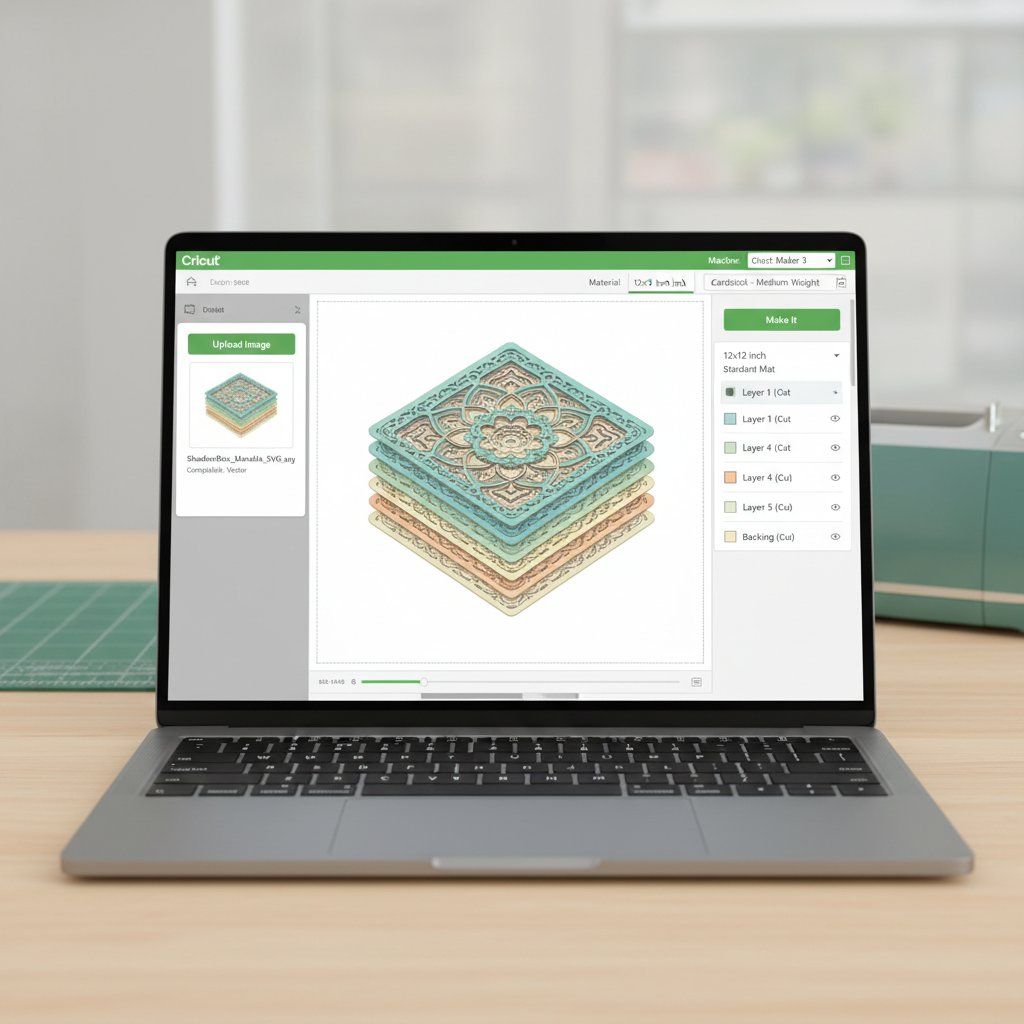
Cricut Design Space interface showing shadow box template being imported and prepared for cutting

Once you've downloaded your printable paper cut shadow box template, importing it into Cricut Design Space is straightforward. Following these steps ensures your template uploads correctly and cuts as designed.

Uploading SVG Files to Cricut Design Space

Step 1: Locate your downloaded template file. SVG templates usually download as ZIP files containing multiple SVG files (one per layer) or a single multi-layer SVG file. Extract ZIP files to a folder on your computer before uploading.

Step 2: Open Cricut Design Space and create a new project.

Step 3: Click the "Upload" button in the left panel.

Step 4: Click "Upload Image," then click "Browse" to navigate to your template file.

Step 5: Select the SVG file and click "Open." Cricut Design Space recognizes SVG files automatically.

Step 6: The template appears in your uploads area. Click on the uploaded image, then click "Insert Images" to add it to your canvas.

Step 7: Your shadow box template appears on the canvas. Multi-layer templates may appear as grouped objects with all layers stacked. You can ungroup to work with individual layers or keep them grouped to maintain alignment.

Verifying Template Size and Resizing if Needed

Before cutting, verify the template dimensions match your frame size. Click on the template to select it, then check the dimensions shown in the toolbar.

Most templates import at the designer's recommended size. If you need to resize for a different frame:

  1. Select all layers together (click and drag across the design or hold Shift while clicking each layer)
  2. Lock the aspect ratio (click the lock icon)
  3. Enter your desired width or height in the dimension fields
  4. All layers resize proportionally together

Critical: Never resize individual layers separately. All layers must scale together at the same percentage to maintain proper alignment during assembly. Mismatched layer sizes create visible gaps and misalignment in finished shadow boxes.

Leave 0.25-0.5 inches of clearance on all sides for your frame opening. If your frame's interior opening is 7.5 x 7.5 inches, size your template to 7 x 7 inches maximum.

Cutting Individual Layers

Shadow box templates contain multiple layers that need to be cut separately on individual cardstock sheets. Here's how to cut one layer at a time:

Step 1: In your template on the canvas, identify the individual layers. Many templates label layers (Layer 1, Layer 2, etc.) or number them.

Step 2: To cut a single layer, select that layer and hide or delete the others temporarily. Alternatively, copy the layer to a new project to isolate it.

Step 3: With only one layer visible, click "Make It" to send the design to your cutting machine.

Step 4: Select "Medium Cardstock" as your material (or the weight matching your project cardstock).

Step 5: Load your cardstock onto a StandardGrip mat and insert it into your Cricut machine.

Step 6: Press the blinking "Go" button to begin cutting.

Step 7: After cutting completes, carefully remove the mat and peel away the cut layer.

Step 8: Weed out all the small cutout pieces using your weeding tool.

Step 9: Write the layer number on the back in pencil so you remember the assembly order.

Step 10: Repeat this process for each remaining layer, cutting them in order.

Keep cut layers organized in numerical order in a folder or envelope to prevent damage before assembly.

How to Import and Use Templates with Silhouette

Silhouette Studio handles shadow box templates slightly differently than Cricut Design Space, but the process is equally straightforward once you understand the workflow.

Importing SVG Files into Silhouette Studio

Step 1: Open Silhouette Studio.

Step 2: Go to File > Open (or File > Merge if adding to an existing project).

Step 3: Navigate to your downloaded shadow box template file. If it's in a ZIP archive, extract it first.

Step 4: Select the SVG or DXF file and click "Open."

Step 5: The template imports onto your workspace. Multi-layer designs typically import as grouped objects.

Step 6: If layers are grouped, you'll need to ungroup them to work with individual layers. Right-click on the design and select "Ungroup." You may need to ungroup multiple times for complex multi-layer templates.

Step 7: Once ungrouped, each layer is individually selectable and moveable.

Important note: Some shadow box templates import better as DXF files in Silhouette Studio, especially if SVG files show unexpected grouping or layer organization issues. If your SVG doesn't import cleanly, check if the designer included a DXF version and try importing that instead.

Adjusting Settings for Cardstock

Before cutting, configure Silhouette Studio settings for your cardstock weight:

Step 1: Select your material from the Send panel. Choose "Cardstock, Medium Weight" for 65-80 lb cardstock.

Step 2: If cutting manually, set these typical starting values:

  • Blade Depth: 3-4 (adjust based on your specific cardstock thickness)
  • Force: 10-14 (start at 10 for 65 lb, increase to 12-14 for 80 lb cardstock)
  • Speed: 6-8 (slower speeds work better for intricate details)

Step 3: Always perform a test cut before cutting your actual project layers. Use the test cut feature or cut a small section on scrap cardstock to verify settings produce clean cuts without tearing or incomplete cuts.

Step 4: Adjust one setting at a time if test cuts aren't perfect. If cuts don't go completely through, increase blade depth or force. If paper tears or shows drag marks, decrease force or blade depth.

Cutting and Managing Layers

With settings optimized, cut your shadow box layers:

Step 1: Isolate the layer you want to cut by moving it to your cutting mat area and moving other layers outside the cutting area, or by deleting/hiding other layers temporarily.

Step 2: Position the layer on your virtual cutting mat, ensuring it fits within your actual mat dimensions with proper margins.

Step 3: Load cardstock onto your physical cutting mat, smoothing it firmly with your scraper or brayer.

Step 4: Load the mat into your Silhouette machine.

Step 5: Click "Send" in Silhouette Studio to send the layer to your machine.

Step 6: The machine cuts the layer. Remove the mat carefully when cutting completes.

Step 7: Peel away the cut layer, then weed out small cutout pieces with your pick tool.

Step 8: Label the back with the layer number in pencil.

Step 9: Repeat for remaining layers, cutting them in numerical order.

Silhouette users should clean their cutting mats regularly between layers, as the small cutout pieces can accumulate and reduce mat adhesion for subsequent cuts.

Tips for Getting Perfect Results from Templates

Even with high-quality templates, following best practices ensures your finished shadow box looks professional and impressive.

Use Fresh Blades for Clean Cuts

Dull blades are the number one cause of ragged edges, incomplete cuts, and torn intricate details. For multi-layer shadow box projects cutting 8-12 layers of cardstock, start with a fresh or nearly-new blade.

If you're cutting a 10-layer shadow box, consider changing your blade halfway through (after layer 5) to maintain cutting quality on remaining layers. The cost of a replacement blade ($5-10) is minimal compared to the frustration of redoing layers ruined by dull blade cuts.

Test Cut on Scrap Cardstock First

Never start cutting your actual project layers without testing settings on scrap cardstock. Cut a small section featuring some of the template's intricate details to verify:

  • Cuts go completely through the cardstock
  • Edges are clean without tears or drag marks
  • Small details don't fall off during weeding
  • Your mat provides sufficient adhesion

Testing takes 2-3 minutes but prevents wasting expensive cardstock on poorly optimized cuts.

Keep Layers Organized During Cutting

As you cut each layer, immediately:

  • Weed out cutout pieces while the layer is still on the mat (easier than weeding after removal)
  • Write the layer number on the back in pencil
  • Place the layer in a protective folder in numerical order
  • Store completed layers flat to prevent bending or curling

Organization prevents the common mistake of assembling layers in the wrong order, which ruins the intended visual effect.

Follow Template Instructions Exactly

Template designers test their designs extensively and provide specific guidance for materials, spacing, and assembly order. Follow these instructions precisely:

  • Use recommended cardstock weights (typically 65-80 lb)
  • Follow specified layer assembly order (some templates number from front to back, others from back to front)
  • Use recommended foam spacer thickness (usually 5mm)
  • Note any special assembly instructions for specific layers

Deviating from instructions often creates alignment problems or reduces the intended lighting effect.

Double-Check Alignment Before Gluing

Before adding adhesive to any foam spacers or layers:

  • Arrange all cut layers in order on a flat surface
  • Hold them up to a light source to preview the alignment and lighting effect
  • Verify you weeded all cutout pieces (missed pieces show as unexpected solid areas when backlit)
  • Confirm you're assembling layers in the correct order

This dry-fit check catches errors before they become permanent. Fixing misalignment after gluing layers together is extremely difficult and often requires remaking layers.

Position Spacers in Solid Areas Only

Foam spacers must be placed strategically:

  • Only on solid areas of each layer (not in cutout sections)
  • Far enough from edges that they won't be visible from the front
  • Distributed evenly for stable, balanced support
  • Never directly behind intricate cutouts where they might show through

Hold each layer pair up to light before pressing them together to verify spacers won't be visible through any cutouts in the final illuminated shadow box.

Even with quality templates, you may encounter challenges. Here's how to troubleshoot common issues:

Template Won't Upload or Import

Problem: SVG file won't upload to Cricut Design Space or import into Silhouette Studio.

Solutions:

  • Try uploading/importing as DXF instead of SVG (if designer provided both formats)
  • Unzip compressed files completely before uploading
  • Check file size (very large files over 10MB sometimes fail to upload)
  • Try uploading on a different browser or updating Design Space/Silhouette Studio
  • Contact the template seller for support or alternative file formats

Layers Don't Align Correctly

Problem: When stacking cut layers, edges or design elements don't line up properly.

Solutions:

  • Verify you resized ALL layers together at the same percentage (most common cause)
  • Check that you didn't accidentally flip or rotate any individual layers
  • Ensure you're assembling layers in the correct order per instructions
  • Verify your cutting machine settings didn't cause size distortion (test cuts too large or small)
  • Contact template seller if alignment issues exist in the template design itself

Intricate Details Won't Cut Cleanly

Problem: Very small or delicate cutout areas tear, fall off, or don't cut completely through.

Solutions:

  • Use a fresh, sharp blade
  • Increase blade force/pressure slightly
  • Decrease cutting speed for more precise cuts
  • Try "Cardstock for Intricate Cuts" setting in Cricut Design Space
  • Ensure cardstock is firmly adhered to cutting mat with no lifted edges
  • Some ultra-intricate templates may exceed your machine's capabilities—choose less complex designs

Template Size Doesn't Match Frame

Problem: Template dimensions don't fit your shadow box frame opening.

Solutions:

  • Resize template proportionally (lock aspect ratio) to fit frame with 0.25-0.5 inch clearance
  • Verify you're measuring the frame's interior opening, not exterior dimensions
  • Account for mat/backing board thickness if your frame includes one
  • Some templates specify "finished size" vs. "design size"—check product description
  • Consider purchasing a frame matching the template's original size instead of resizing

Missing Layers or Files

Problem: Downloaded template is missing layers mentioned in instructions.

Solutions:

  • Check if template downloaded as ZIP file requiring extraction
  • Verify you downloaded all parts if template was split into multiple downloads
  • Re-download from your purchase account (files sometimes corrupt during download)
  • Contact seller immediately—missing files indicate an incomplete product

Conclusion

Using printable paper cut shadow box templates transforms the shadow box creation process from intimidating design challenge to enjoyable assembly project. Whether you start with free templates to practice fundamental skills or invest in premium designs for impressive gift-quality results, templates provide the professional design foundation that ensures successful outcomes.

The key to template success is choosing quality designs from reputable sources, following included instructions carefully, using proper cutting settings for your cardstock, and maintaining precise alignment during assembly. As covered in our complete guide to making layered paper cut shadow boxes, the technical skills of cutting, weeding, and assembly become easier with practice.

Start your template journey with 1-2 free designs to master the basic workflow. Once you're comfortable with the process, premium templates unlock dramatically more impressive results with intricate details, professional depth, and stunning illuminated effects that make memorable gifts and beautiful home decor.

Your Cricut or Silhouette machine, quality cardstock, a well-designed template, and careful assembly create shadow boxes you'll be proud to display or gift. Download your first template today and experience how much easier printable paper cut shadow box templates make this rewarding craft.