Step-by-Step: Importing Shadow Box SVG Files
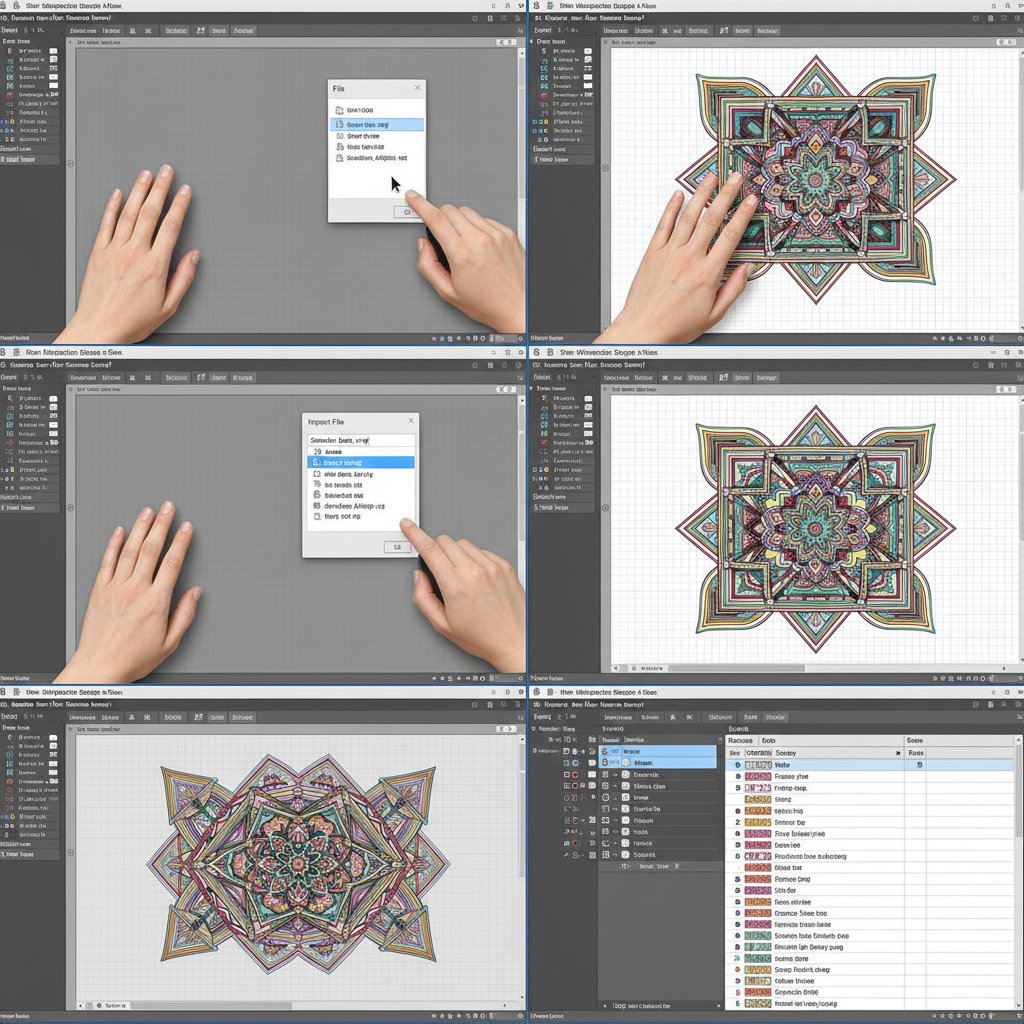
With your software configured and files extracted, you're ready to import your shadow box design.
Method 1: File > Open (Recommended for Most Users)
This method opens the SVG directly onto your workspace, perfect for immediate cutting preparation.
Step 1: In Silhouette Studio, click File in the top menu
Step 2: Select Open (or use keyboard shortcut: Ctrl+O on Windows, Cmd+O on Mac)
Step 3: Navigate to the folder where you extracted your shadow box SVG file
Step 4: Select your SVG file from the list (you may need to change the file type filter to "SVG files" if you don't see it)
Step 5: Click Open or double-click the filename
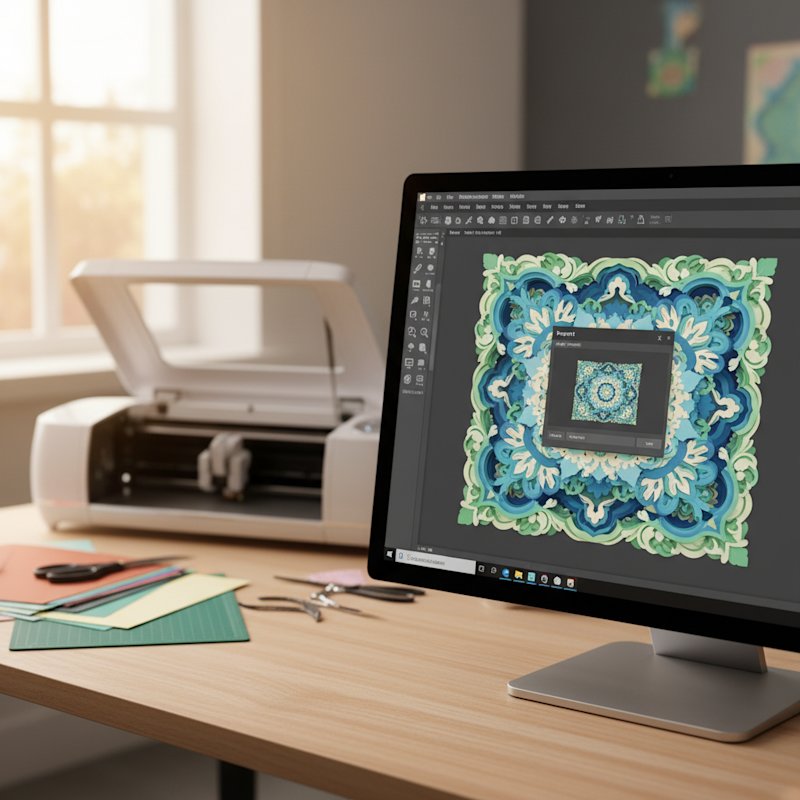
Your shadow box design appears on the canvas, typically as a grouped object containing all layers. The position should be centered if you configured import settings correctly.
Method 2: Import to Library (Best for Templates You'll Use Repeatedly)
This method permanently adds the SVG to your Silhouette Studio library, making it easy to reuse without navigating to file locations each time.
Step 1: Click File > Library > Import to Library
Step 2: Navigate to your extracted shadow box SVG file
Step 3: Select the file and click Open
Step 4: Silhouette Studio imports the file to your library. Access it anytime by clicking the Library icon in the left panel and browsing to the imported design
When to use this method: If you plan to create multiple versions of the same shadow box (different colors, sizes, or as gifts), importing to your library saves time. For one-time projects, Method 1 (File > Open) is quicker.
Method 3: Drag and Drop
For users comfortable with file management, drag-and-drop offers the fastest import.
Step 1: Open your file browser (File Explorer on Windows, Finder on Mac) and navigate to your extracted SVG file
Step 2: Resize your file browser window so you can see both it and Silhouette Studio simultaneously
Step 3: Click and hold the SVG file, then drag it onto the Silhouette Studio workspace
Step 4: Release the mouse button to drop the file
The design imports instantly to wherever you dropped it on the canvas.
Note: Drag-and-drop imports to the workspace only, not to the library. Use Method 2 if you want library storage.