Articles 12 min read

Cut Paper Shadow Box Layers with Cricut Step-by-Step

Your comprehensive guide to cut paper shadow box layers cricut.

Cut Paper Shadow Box Layers with Cricut Step-by-Step

Cut Paper Shadow Box Layers with Cricut Step-by-Step

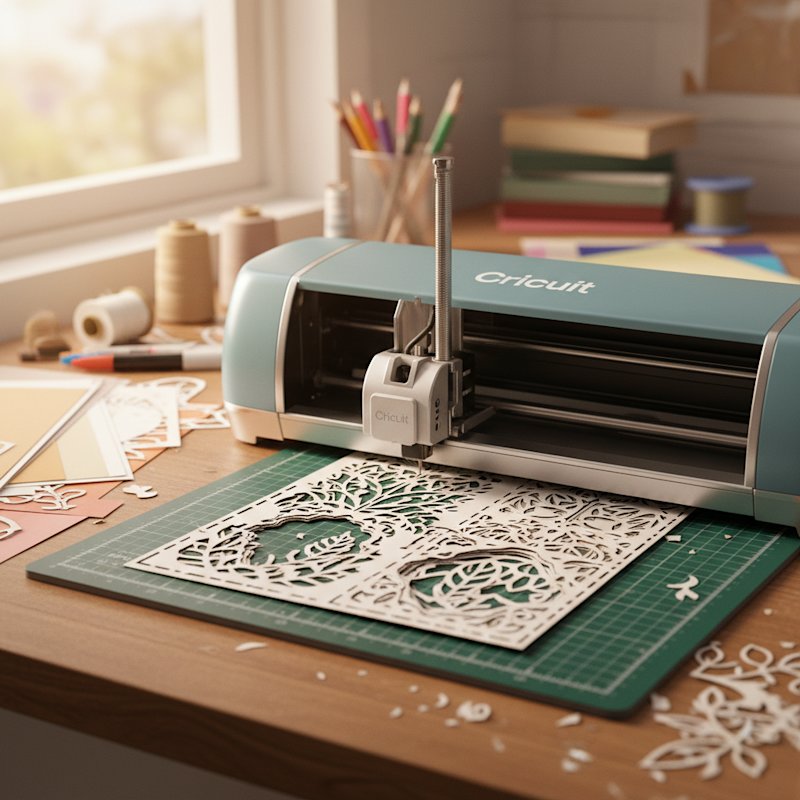
The cutting phase is where your shadow box project truly begins to take shape. In our complete shadow box guide, we covered the entire process from materials to final display. Now let's dive deep into the critical cutting phase, where precise technique and optimal settings make the difference between crisp, professional layers and frustrating do-overs.

Cutting paper shadow box layers with a Cricut requires more than just loading cardstock and hitting the go button. The intricate cutouts, delicate details, and precision alignment needed for multi-layer projects demand careful preparation, optimal machine settings, and strategic cutting techniques. Whether you're working with a Cricut Maker, Cricut Explore Air 2, or Cricut Joy, these proven techniques will help you achieve clean cuts and build confidence creating stunning layered shadow boxes.

Why Shadow Box Cutting is Different

Shadow box projects place unique demands on your cutting machine that differ significantly from simpler vinyl or paper crafts.

Multiple identical cuts matter: Unlike a one-time vinyl decal where slight imperfections disappear once applied, shadow box layers must align precisely with each other. When you stack 8-10 layers, even minor cutting inconsistencies become visible as misalignment, gaps, or crooked edges. Every layer must be cut identically at the exact same size.

Intricate detail density: Shadow box designs typically feature far more intricate cutouts than standard paper crafts. A single layer might contain dozens of small windows in a building scene, delicate branch patterns in tree designs, or fine filigree details in floral compositions. These tiny cutouts push your machine's precision capabilities and require optimal settings.

Cardstock weight challenges: The 65-80 lb cardstock ideal for shadow boxes is thicker than standard copy paper but thinner than heavy chipboard. This mid-weight range requires precise blade depth and pressure settings. Too light and cuts don't go through completely; too heavy and you get torn edges or overcut drag marks.

Understanding these unique challenges allows you to approach shadow box cutting with appropriate expectations and preparation strategies that prevent frustration and wasted materials.

Pre-Cutting Preparation

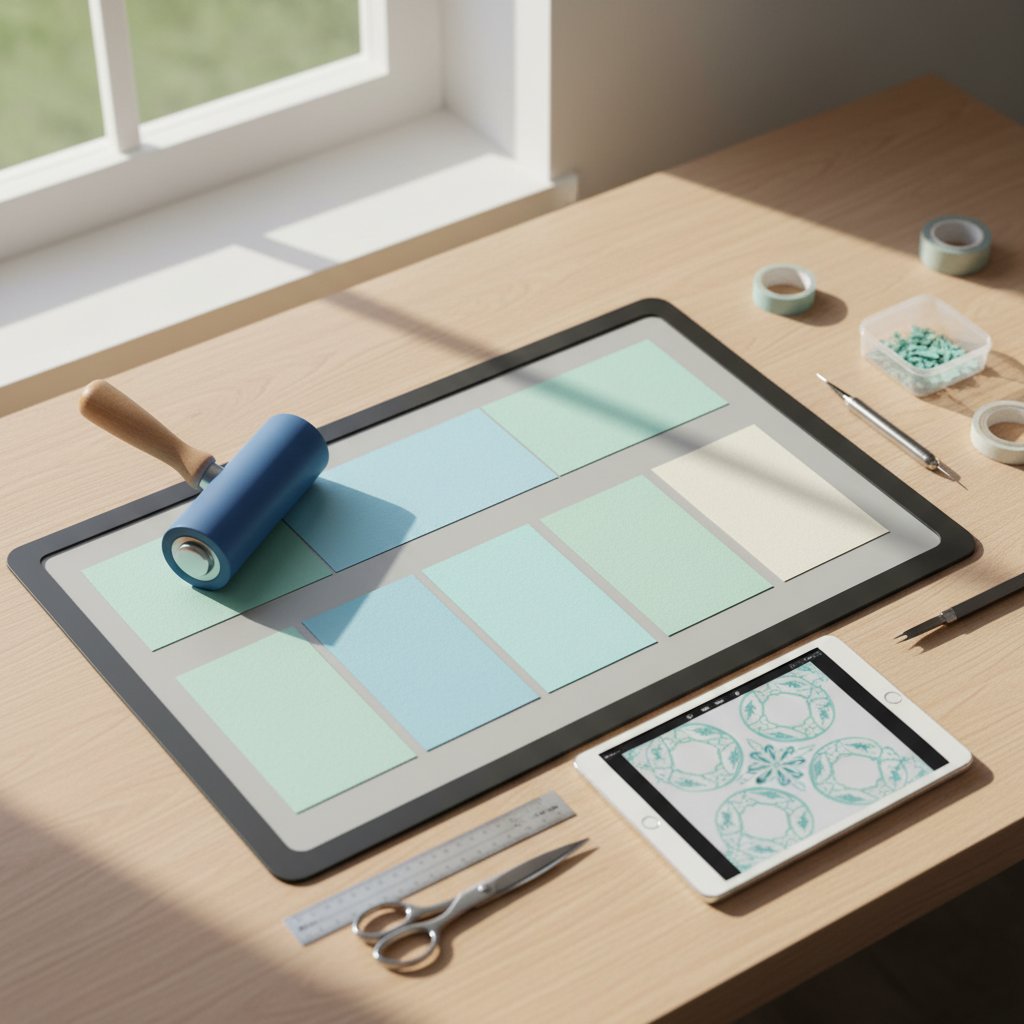
Overhead view of Cricut cutting mat preparation showing clean StandardGrip mat with cardstock sheets, brayer tool, and organized workspace for shadow box project Check out our assemble layered papercut shadow boxes for more details. Check out our import multi-layer shadow box svgs in silhouette studio for more details.

The work you do before your first cut determines whether your project flows smoothly or becomes an exercise in troubleshooting.

Prepare Your Cutting Mat

Your cutting mat's condition directly impacts cut quality. A mat that's too sticky tears paper when you remove it; a mat that's lost adhesion allows paper to shift during cutting.

For shadow box projects, your mat should:

  • Feel moderately sticky (not aggressively grabbing, but definitely adhering)
  • Be free of debris, paper fibers, and previous project residue
  • Show no visible damage or curling edges
  • Provide even adhesion across the entire surface

Cleaning your mat: If your mat has accumulated debris or lost some stickiness, wash it with warm water and mild dish soap. Allow to air dry completely (2-4 hours) before using.

StandardGrip (green) mat is ideal for 65-80 lb cardstock shadow box projects. It provides enough hold to keep paper stable during cutting without being so aggressive that it tears paper during removal.

Prepare Your Cardstock

Flatten curled or warped cardstock: If your cardstock has been stored rolled or shows any warping, you must flatten it before cutting. Place sheets under heavy books overnight. Even slight curls can cause the paper to lift from the mat during cutting, resulting in missed cuts on intricate details.

Check for consistent thickness: Not all cardstock labeled "65 lb" is identical. For shadow box projects where all layers must cut identically, use cardstock from the same brand and purchase lot when possible. Test cut one sheet from each color to ensure consistent results.

Organize Your Digital Files

Before loading that first sheet of cardstock, organize your files to streamline the cutting process.

In Cricut Design Space:

  1. Select your imported shadow box design
  2. Right-click and choose "Ungroup" (you may need to do this multiple times)
  3. Move each layer to a different position on the canvas so they don't overlap
  4. Verify all layers have identical dimensions (e.g., all 8x8 inches)
  5. Save your prepared file with a descriptive name

Optimal Cricut Settings for Shadow Box Cardstock

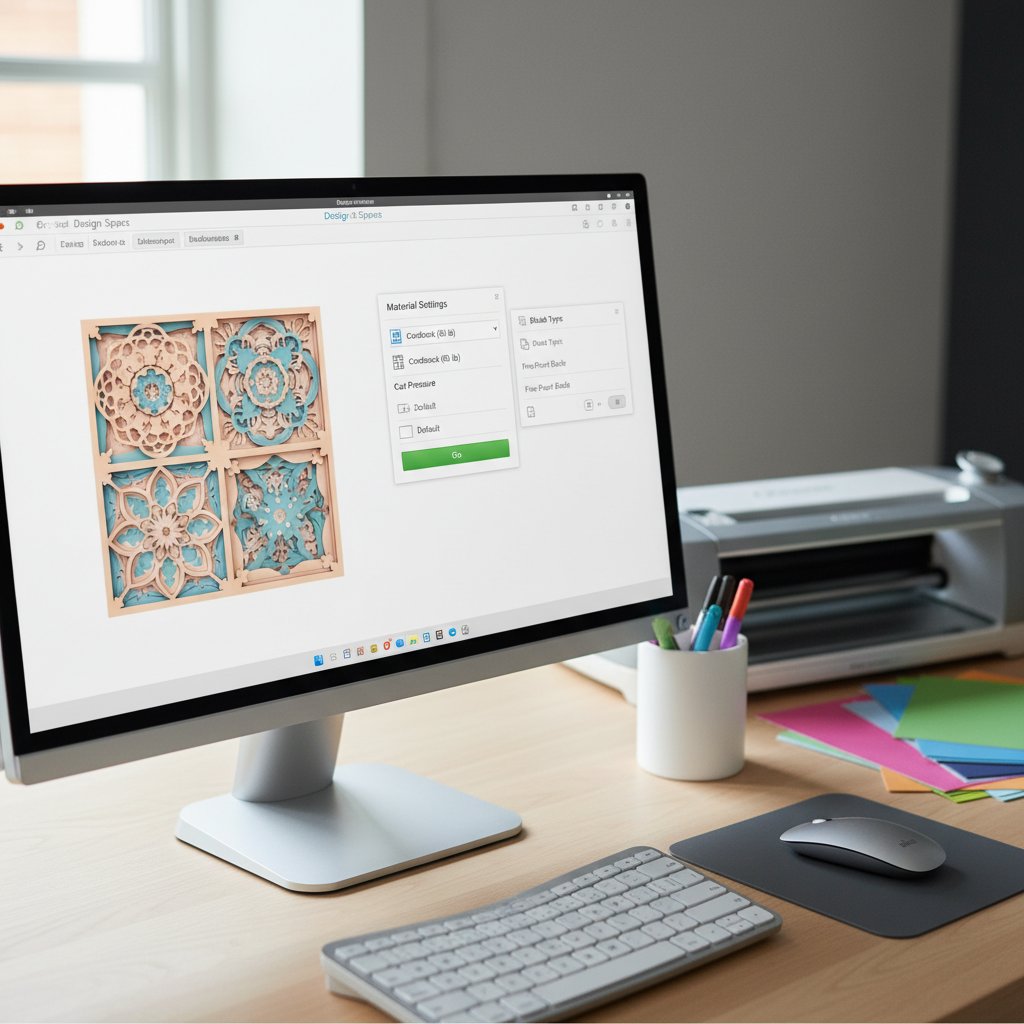
Close-up of Cricut Design Space software interface showing material settings panel for cardstock cutting with shadow box layer design visible on computer screen

Machine settings make or break shadow box cutting success. Understanding what each setting does and how to adjust it for your specific cardstock ensures clean, complete cuts without damage.

Material Settings for Shadow Box Layers

Cricut Design Space includes hundreds of material presets. For shadow box cardstock, several settings work well:

"Medium Cardstock" setting: Your starting point for most shadow box projects using 65-80 lb cardstock. This preset uses default medium pressure, single pass, and Fine-Point Blade. Start here and adjust if needed.

"Cardstock for Intricate Cuts" setting: Specifically designed for projects with lots of tiny cutouts and delicate details. It uses slightly higher pressure, slower speed, and enhanced precision. For shadow box projects with intricate cutouts smaller than 0.5 inches, this setting often produces better results.

"Heavy Cardstock" setting: If your cardstock is on the heavier end (75-80 lb) or if Medium Cardstock isn't cutting completely through, step up to Heavy Cardstock. This increases pressure and sometimes adds a second pass.

The Critical Test Cut Process

Never cut all your layers without first running a test cut. This single step prevents wasted cardstock and frustration.

Use actual project cardstock: Don't test on copy paper or different cardstock. Use a scrap piece from the exact same cardstock you'll use for your project.

Cut a representative section that includes:

  • At least one intricate detail with small cutouts
  • Some solid edges for checking edge quality
  • A variety of line types (curves, straight lines, corners)

Evaluate the test cut results:

Perfect cut indicators:

  • Paper cuts completely through with no attached fibers
  • Edges are clean and smooth, not ragged or torn
  • Small intricate pieces remove cleanly without tearing
  • Mat shows slight scoring marks but isn't deeply cut
  • No drag marks extending beyond cut paths

Incomplete cut indicators: Paper still attached at some points, especially in curves. Solution: Increase pressure by one level (Default → More) OR add a second pass.

Overcut indicators: Torn or ragged edges, drag marks extending beyond cut lines, mat heavily scored. Solution: Decrease pressure by one level OR slightly increase cut speed.

Adjust one variable at a time: If your test cut isn't perfect, change only pressure OR speed OR passes, then test again.

Blade Maintenance

Your blade condition dramatically affects shadow box cutting success.

When to use a fresh blade: Shadow box projects with 8-10 intricate layers place significant demand on your blade. Use a fresh or nearly-new blade when:

  • Starting a multi-layer shadow box project
  • Cutting very intricate designs with tiny details
  • Working with higher-weight cardstock (75-80 lb)

Signs your blade needs replacement:

  • Previously perfect settings now produce incomplete cuts
  • Increased tearing or ragged edges
  • Small details don't cut cleanly anymore
  • You hear struggling sounds from the machine

Step-by-Step Cutting Process

With preparation complete and settings optimized, you're ready to cut your shadow box layers.

Loading Cardstock Onto Your Mat

Step 1: Position cardstock: Place your cardstock sheet on the cutting mat, aligning the paper edges with the mat's grid lines. Leave at least 0.5 inches of empty mat around all edges.

Step 2: Secure cardstock: Use your brayer or scraper to firmly adhere the cardstock to the mat. Start in the center and work outward toward the edges. Pay special attention to all four corners and paper edges, which lift easily.

Step 3: Load mat: Load the mat into your Cricut machine using the load/unload button. Ensure the mat loads straight and smoothly.

Cutting Your First Layer

Step 1: Select the layer: In Design Space, select only the specific layer you want to cut first (typically Layer 1).

Step 2: Verify settings: Click "Make It" to go to the cutting screen. Verify your material selection matches what worked in your test cut.

Step 3: Start the cut: Press the Cricut's flashing button to begin cutting. Listen for smooth, consistent cutting sounds. If you notice any problems (strange noises, visible incomplete cuts), pause and investigate.

Step 4: Inspect the cut: Once cutting completes, press load/unload to eject the mat. Before removing cardstock, inspect the cut to verify all lines went through completely.

Removing Cut Cardstock from the Mat

Proper removal technique prevents tearing or damaging your perfectly cut layer.

Flip the mat over: Turn the entire mat over so the cardstock is face-down against your work surface. This allows you to peel the mat away from the paper rather than peeling paper off the mat.

Peel from one corner: Starting at one corner, slowly and gently peel the mat back at a low angle (almost parallel to your work surface). Don't pull straight up, which can tear the paper.

Use your spatula for stubborn areas: If certain areas aren't releasing cleanly, slide your spatula carefully between the cardstock and mat to help separate them.

Weeding: Removing the Cut Pieces

Weeding shadow box layers requires patience and technique.

Work in good lighting: Position your work under a bright lamp or near a window. Poor lighting leads to mistakes and eyestrain.

Use your weeding tool correctly: Position the tool at the edge of a cut piece and apply gentle pressure to lift it.

Weed from largest to smallest pieces: Start by removing larger, easier pieces first. This gives you space to work before tackling the tiniest details.

Support surrounding paper: When removing very small pieces surrounded by delicate cut areas, use your finger to support the surrounding paper. This prevents accidental tearing.

Check the back: After weeding, hold the layer up to light and look from the back. Sometimes small pieces remain stuck in intricate areas. Remove these now to prevent them from falling out during assembly.

Cutting Remaining Layers: Maintaining Consistency

After successfully cutting and weeding your first layer, you'll repeat the process for each remaining layer. Maintaining consistency across all layers is crucial for proper alignment during assembly.

Creating a Cutting Rhythm

Develop a systematic approach that you repeat for each layer:

  1. Load fresh cardstock onto prepared mat
  2. Smooth with brayer, ensuring complete adhesion
  3. Load mat into Cricut
  4. Select appropriate layer in Design Space
  5. Verify settings match your test cut
  6. Cut the layer
  7. Unload mat and inspect cut quality
  8. Remove cardstock using proper technique
  9. Weed the layer completely
  10. Label and store the finished layer

This rhythm becomes automatic after 2-3 layers and helps you maintain focus and quality.

Organizing Layers as You Cut

Label each layer: Using a pencil, lightly write the layer number on the back of each cut layer in a corner that won't be visible in the final assembled shadow box.

Store layers flat and protected: Place completed layers in a folder or envelope. Don't leave them loose where they can be damaged or bent.

Keep layers in order: Arrange stored layers in numerical order (1, 2, 3, etc.) to make assembly easier.

Troubleshooting Common Cutting Issues

Even with perfect initial settings, you might encounter issues when cutting multiple layers.

Problem: First few layers cut perfectly, but later layers have incomplete cuts

This typically indicates blade dulling. Intricate shadow box layers wear blades faster than simpler projects.

Solution: Replace your blade with a fresh one, or slightly increase pressure by one increment.

Problem: Some layers cut perfectly, others of the same color/brand don't

This indicates inconsistent cardstock thickness, even within the same brand and color.

Solution: Run a test cut on each new cardstock sheet before cutting the actual layer. Adjust pressure up or down by one increment for sheets that cut differently.

Problem: Mat starts losing adhesion after 3-4 layers

Shadow box cutting creates significant debris and paper fibers that accumulate on the mat, reducing stickiness.

Solution: Clean your mat between every 3-4 cuts (quick water rinse and air dry), or use multiple mats, rotating between them.

Problem: Machine makes different sounds on certain layers

This can indicate blade problems or material challenges.

Solution: Stop cutting immediately. Check blade installation (remove and reseat). Inspect mat for obstructions or debris. Examine cardstock for thickness irregularities.

Advanced Techniques

Once you've mastered basic cutting, these advanced techniques help you tackle more complex designs.

Cutting with Multiple Cardstock Colors

Many shadow box designs use different colored cardstock for different layers to create depth effects.

Color organization strategy: Group layers by color in your planning phase. For example, if Layers 1, 3, and 5 are all dark blue, cut those three layers consecutively while dark blue cardstock is loaded. This minimizes cardstock changes and saves time.

Track which layer gets which color: Before cutting, create a simple reference sheet listing each layer number and its designated color. Check this reference before cutting each layer.

Dealing with Extremely Intricate Designs

Some premium shadow box templates feature extraordinarily detailed cutouts with elements as small as 0.125 inches.

Use "Cardstock for Intricate Cuts" setting: This preset is specifically optimized for tiny details and usually produces better results than standard Medium Cardstock.

Fresh blade is non-negotiable: Extremely intricate cuts require a perfectly sharp blade. Use a brand new blade for your most detailed layers.

Consider scaled-up designs: If you're consistently having trouble with extremely fine details, consider sizing your entire shadow box design 10-20% larger. An 8x8 inch design scaled to 9x9 inches makes all cutouts proportionally larger and easier to cut while still fitting in a standard frame.

Conclusion

Cutting paper shadow box layers with your Cricut machine is both an art and a science. Success comes from understanding your materials, optimizing machine settings through careful testing, developing consistent technique, and maintaining patience throughout the multi-layer process.

The time you invest in proper mat preparation, accurate test cuts, and methodical layer organization pays dividends when you move to the assembly phase. Perfectly cut layers with clean edges and complete cutouts align easily, create professional results, and showcase your shadow box design beautifully when illuminated.

Start with beginner-friendly 6-8 layer designs to build your cutting skills, then progress to more intricate projects as your confidence grows. Every shadow box you cut teaches you something new about your machine's capabilities, your preferred cardstock brands, and the techniques that work best for your crafting style.

For complete guidance on assembling your cut layers, installing LED lighting, and framing your finished shadow box, refer back to our comprehensive beginner guide. With properly cut layers and the full assembly knowledge, you'll create stunning illuminated shadow boxes that make memorable gifts and impressive home decor.

The cutting phase is where your shadow box vision becomes tangible. Take your time, trust your preparation, and enjoy watching your design emerge layer by layer.