Articles12 min read

Cricut Shadow Box SVG: Find, Prep & Cut Layered Designs

A hands-on, end-to-end workflow for finding a cricut shadow box svg, prepping its layers in Design Space, cutting cardstock cleanly, and assembling real 3D depth — built around an actual 7-layer botanical build with measured results.

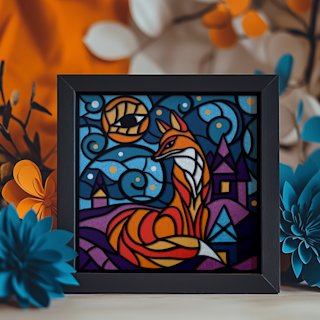
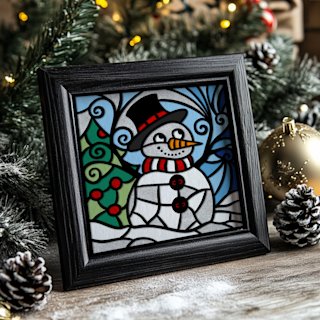
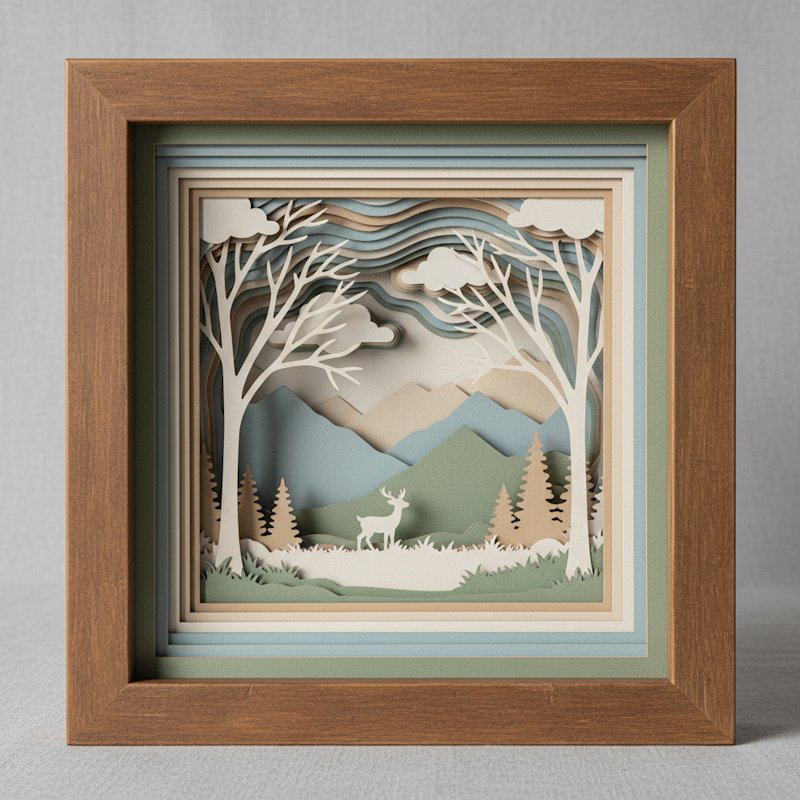
A finished assembled layered paper shadow box in a deep frame showing dramatic dimensional depth

Cricut Shadow Box SVG: The Complete Workflow From Download to 3D Assembly

A cricut shadow box svg is the single file that turns a flat sheet of cardstock into a glowing, three-dimensional scene. But most crafters hit the same wall: the download works, and then nothing lines up. Layers import as one blob, the resize distorts the depth illusion, the blade tears intricate edges, and the finished stack sits flat instead of popping.

I learned this the hard way on a 7-layer botanical build I cut for an 8×8 inch frame. Layer 3 tore on the first pass because I left the default pressure on, and I had to re-cut it before the whole thing would stack evenly. Once I locked in the right workflow — ungroup, resize all layers together with the lock closed, test-cut one layer first, then build back-to-front on 3 mm foam tape — the piece hit 21 mm of measured depth and lit up exactly the way the preview promised. This guide walks through every step that got me there.
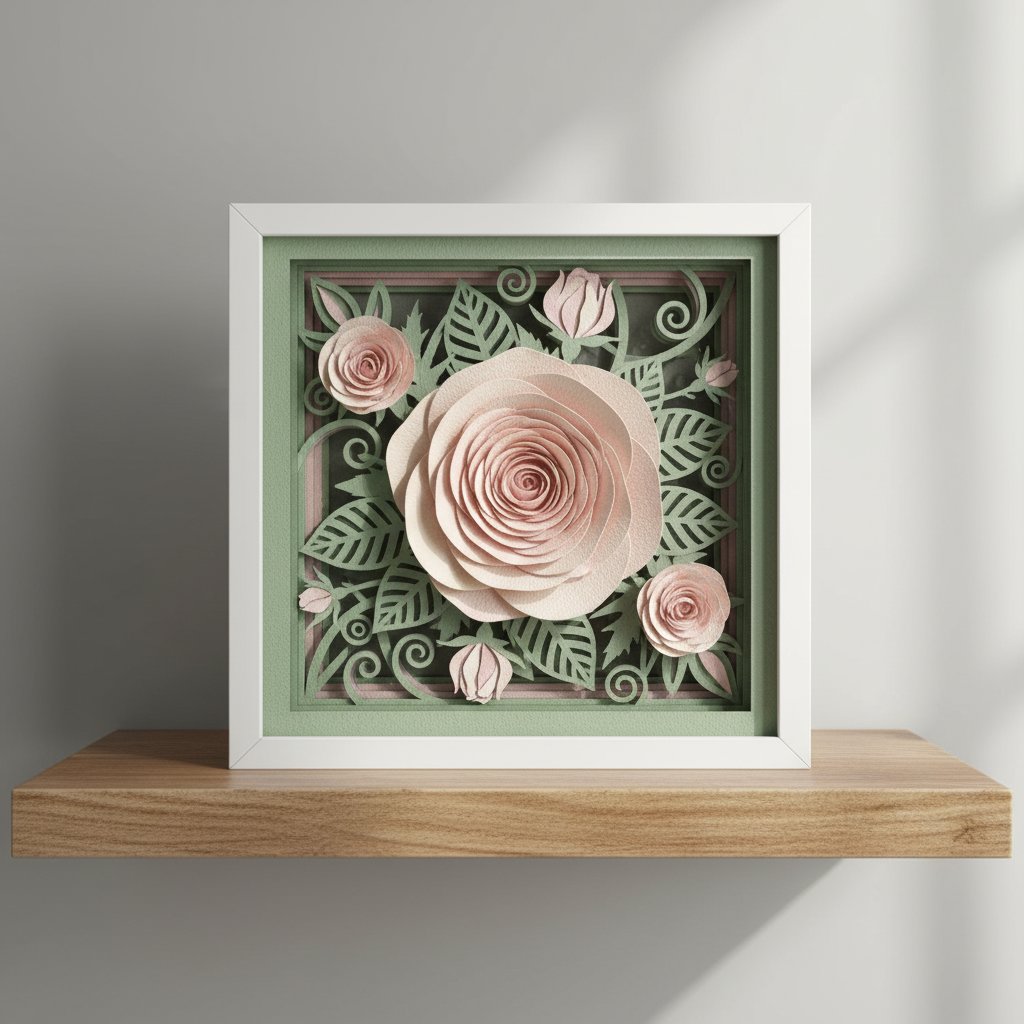
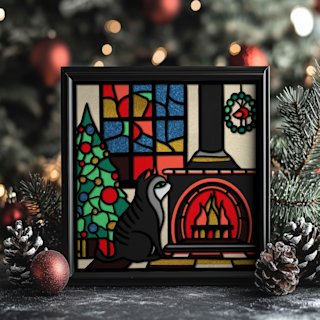
A finished layered paper shadow box of a blooming rose scene in a white frame on a shelf in daylight

We'll cover what makes a shadow box svg different from a single-layer cut, where to find good files, how to prep multi-layer designs in Cricut Design Space, which materials and settings cut cleanly, and how to assemble the stack for real depth. If you want to skip straight to sourcing files, start with our roundup of free shadow box svg templates for Cricut and Silhouette.
What Makes a Shadow Box SVG Different

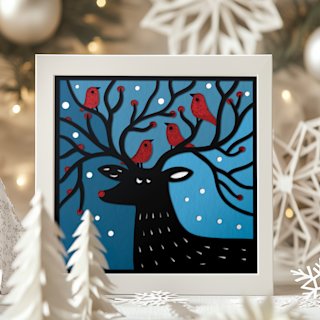
A standard SVG is one cut path — a decal, a sticker, a single shape. A shadow box svg is a stack: typically 6–12 separate layers, each one a slice of the scene at a different depth. Cut them from graduated colors of cardstock, separate them with foam spacers, and backlight the stack, and you get the dimensional glow that makes the format addictive.

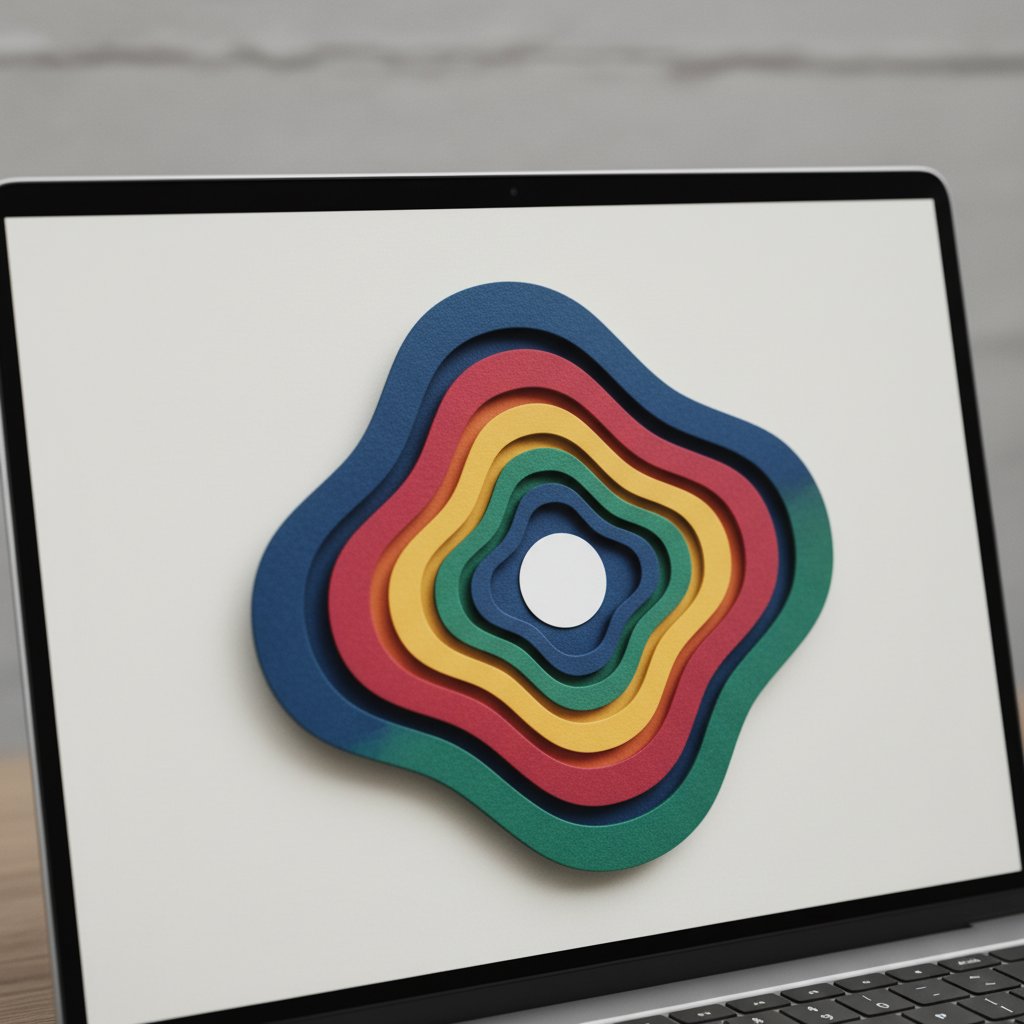
A laptop screen showing nested concentric paper-craft layer shapes in different colors stacked to suggest depth

Three things separate a good shadow box svg from a frustrating one:

  • Per-layer separation. The file should arrive as distinct, selectable layers in Design Space — not one fused object. If you can't click layer 4 by itself, the file needs ungrouping (covered below) or was poorly built.
  • Numbered or labeled layers. Quality designers bake tiny "1, 2, 3" marks into corners so you know the stacking order. Unmarked files mean guessing, and guessing means a flat-looking build.
  • Scalable vector paths. Because it's vector, you can resize the whole design to fit a 5×7 or an 8×10 frame without any quality loss — as long as you resize every layer together.

When you download, look for SVG (not PNG), a layer count that matches the preview, and a frame-size recommendation. Those three signals predict whether the cut will go smoothly.

Where to Find Cricut Shadow Box SVGs

You have two realistic paths: curated free libraries and paid marketplaces. Free files are great for your first two or three builds; paid files usually pay off in cleaner layer separation and actual assembly instructions.

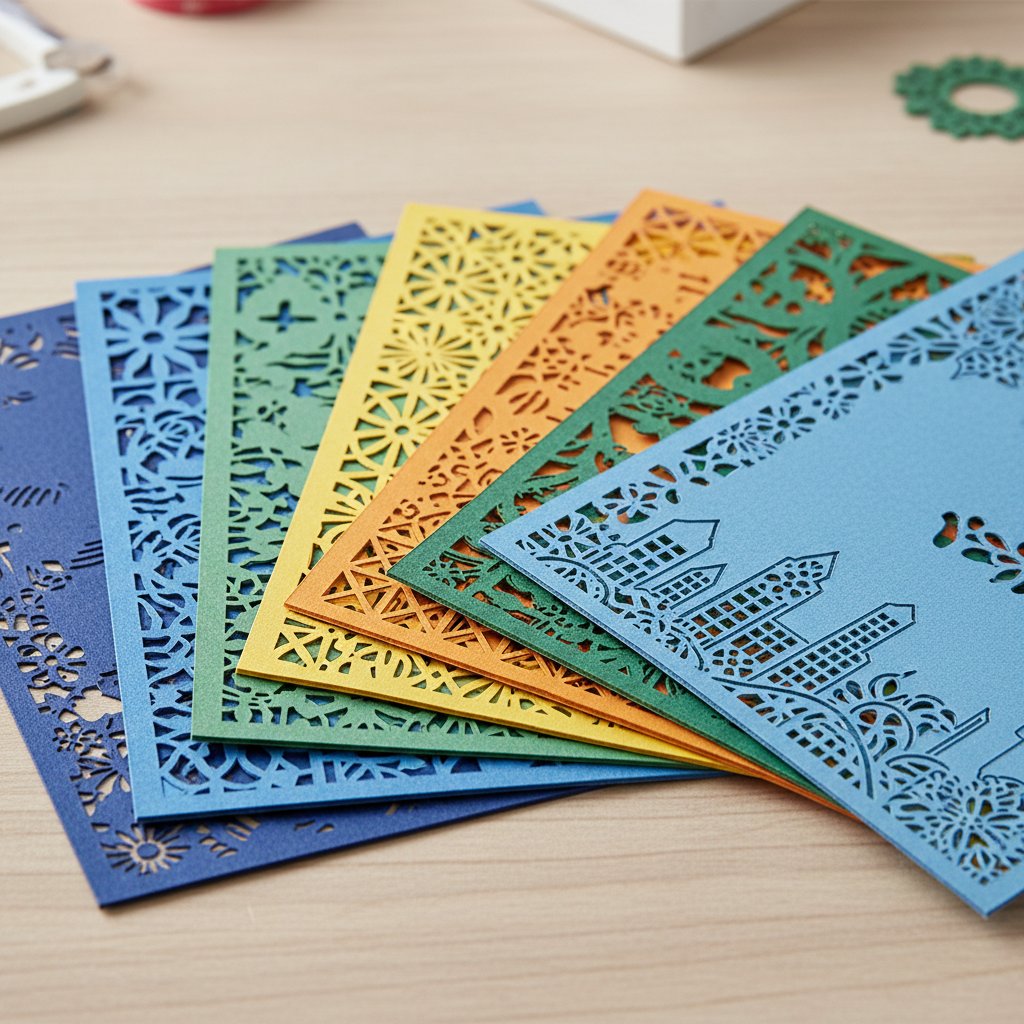
A fanned stack of freshly cut intricate cardstock shadow box layers in graduated colors on a craft table

What to check before you download anything:

  1. File format is SVG. DXF works too, but PNG and JPG are preview images — they will not cut as layered paths.
  2. Stated layer count matches the preview photo. A 9-layer preview sold as a "5-layer file" means missing detail layers.
  3. Frame size and resize notes. Good designers tell you the native size (commonly 8×8 or 8×10 inches) and whether it scales cleanly.
  4. Machine compatibility. Look for explicit Cricut Design Space support, not just Silhouette.

For a vetted starting point, our free shadow box svg templates guide lists files that import cleanly into Design Space, and our Christmas SVG roundup covers seasonal designs if you're building gifts.

Preparing Your SVG in Cricut Design Space

This is the step where most builds go wrong, so we'll take it slowly. The goal: get every layer visible, selectable, and sized to your frame before anything hits the mat.

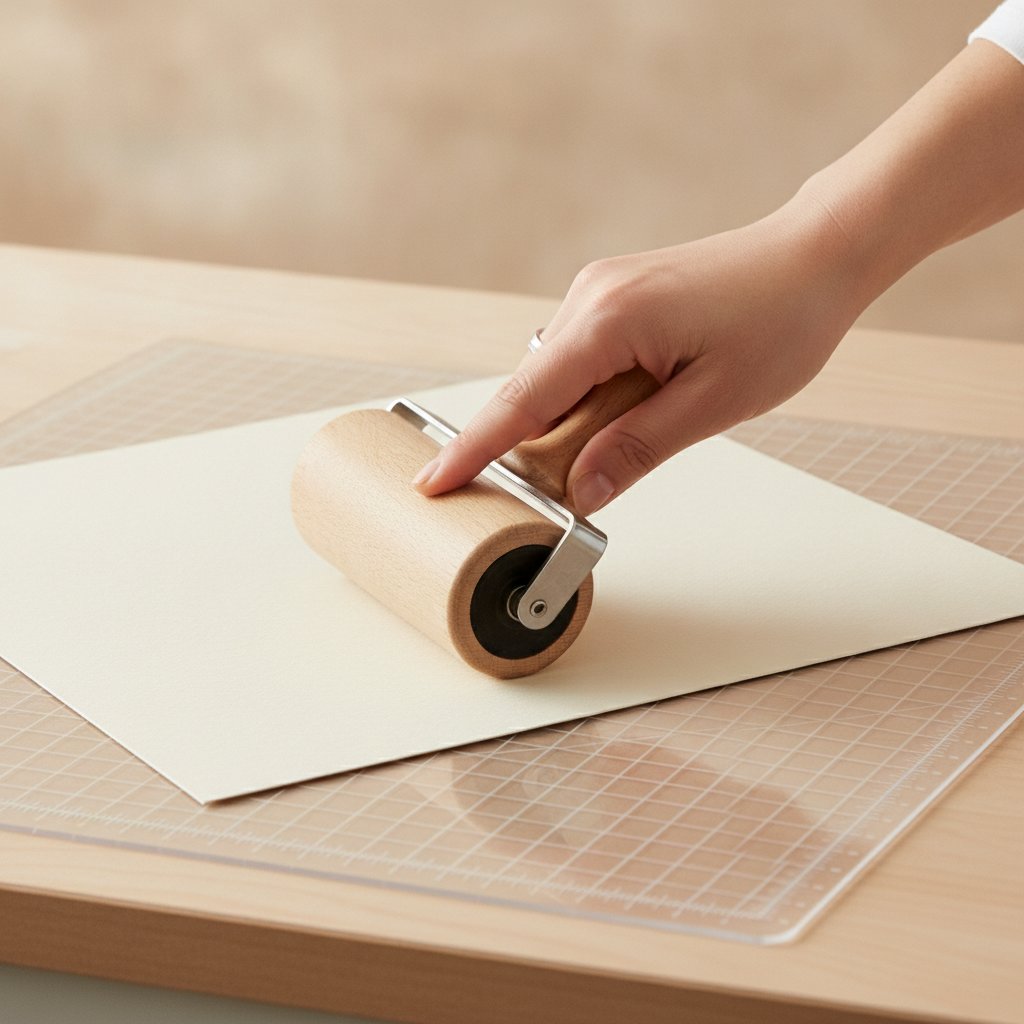
A hand smoothing a sheet of cardstock onto a cutting machine mat with a brayer roller

Step 1 — Upload the SVG. In Design Space, click Upload → Browse → select the .svg file from your unzipped folder (do not upload from inside a zip; it will fail). Insert it onto the canvas.

Step 2 — Ungroup until layers separate. If the file lands as one object, select it and click Ungroup. Keep clicking until the Layers panel shows one entry per layer. On my botanical file this took three ungroups to expose all seven layers.

Step 3 — Resize all layers together. This is the rule that protects alignment: select every layer (drag a box or Ctrl/Cmd+A), confirm the lock icon between Width and Height is closed, then type your target width and press Enter. Resizing layers individually is the number-one cause of gaps in the final stack.

Step 4 — Check cut vs score lines. Some files ship score lines for folds. In the Layers panel, set any score line's operation to Score (not Cut) so the Cricut swaps tools correctly on Maker/Explore models.

Step 5 — Attach per-layer to lock layout. If a single layer contains separate shapes that must stay positioned, select just that layer's shapes and click Attach. This prevents Design Space from rearranging them onto the mat.

For the full click-path with screenshots, the multi-layer SVG import tutorial and our resize shadow box svg for any frame guide go deeper on the sizing math.

Choosing Materials: Cardstock, Spacers, and Frame

The file is only half the project. Materials decide whether the finished piece looks crisp or muddy.

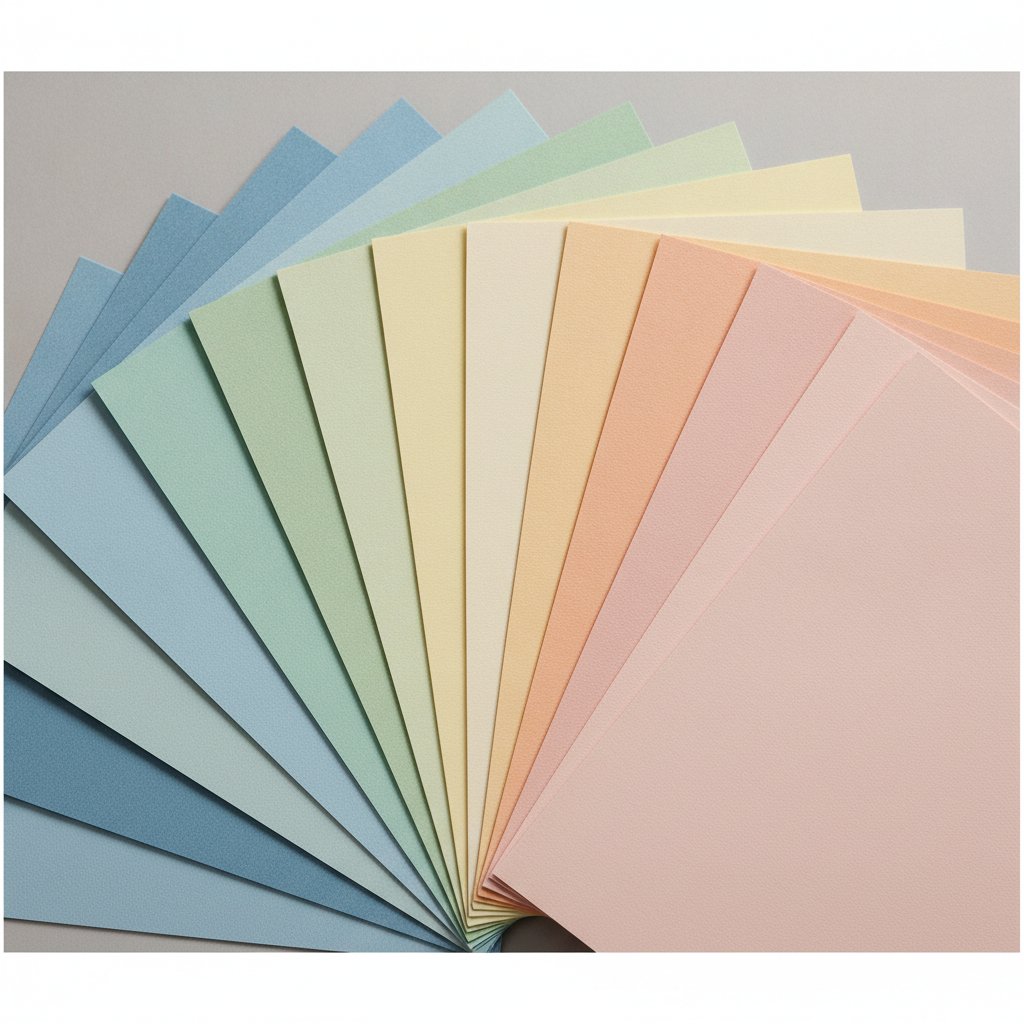
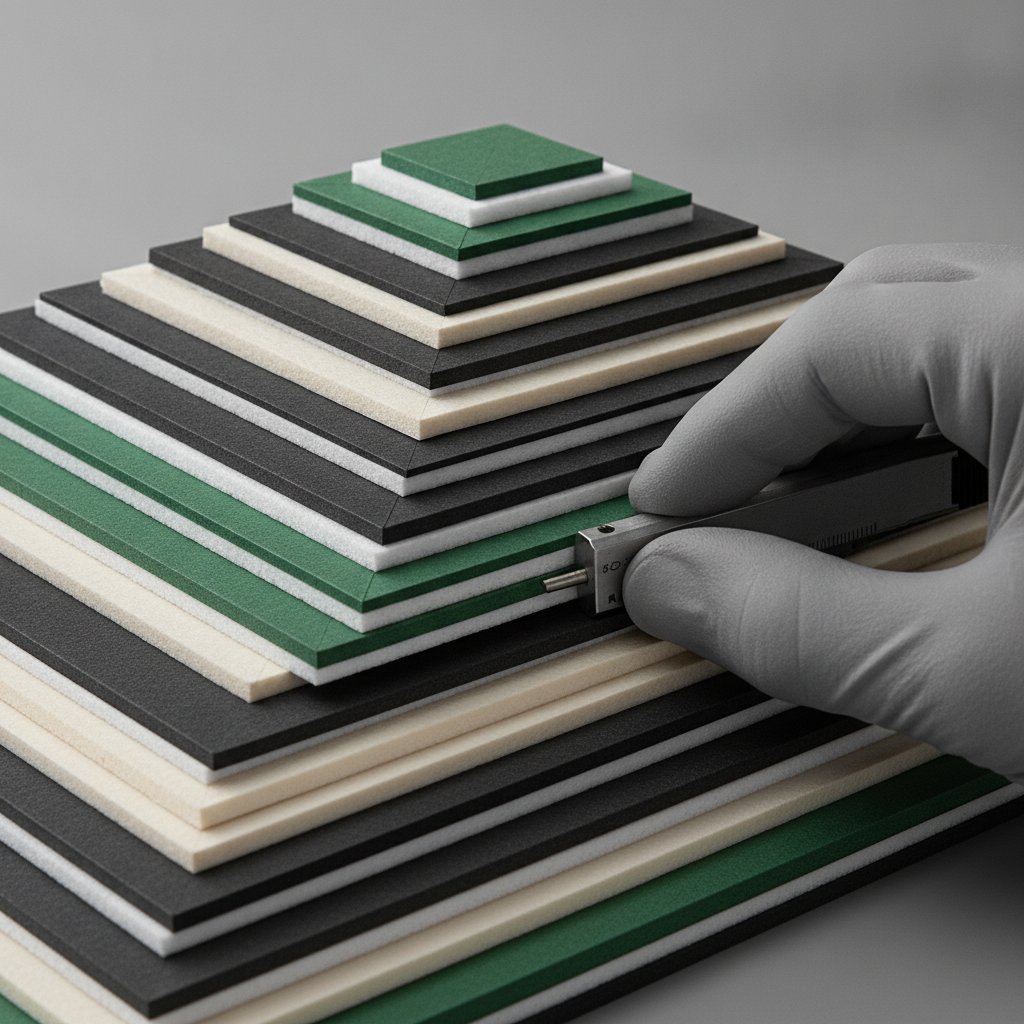
A neat stack of smooth solid-core cardstock sheets in graduated colors fanned out for shadow box layering
  • Cardstock: 65–80 lb cover weight. Lighter paper droops and tears; heavier board strains the blade and blurs detail. Solid-core cardstock (color all the way through) hides white edges when a cut doesn't land perfectly. Our complete cardstock guide breaks down weights by brand.
  • Foam tape or spacers for depth. This is what creates the 3D effect. I used 3 mm foam tape on the botanical build — seven layers at 3 mm each gave the 21 mm stack depth that fit a standard deep frame. 5 mm tape gives a more dramatic pop but needs a deeper frame.
  • Adhesive that stays put. Foam tape handles most spacing; glue dots and a quality craft adhesive secure delicate edges. The glue and adhesive guide compares what bonds cardstock without warping.
  • A frame deep enough for the stack. A standard picture frame is too shallow. You need a shadow box frame with at least 25 mm (1 inch) of interior depth to hold the stacked layers plus backlight. Our frame depth guide matches frame depth to layer count.

Cutting Your Shadow Box SVG

Cricut cuts one layer at a time, so you'll send each layer separately. The trick is a clean first cut and organized output.

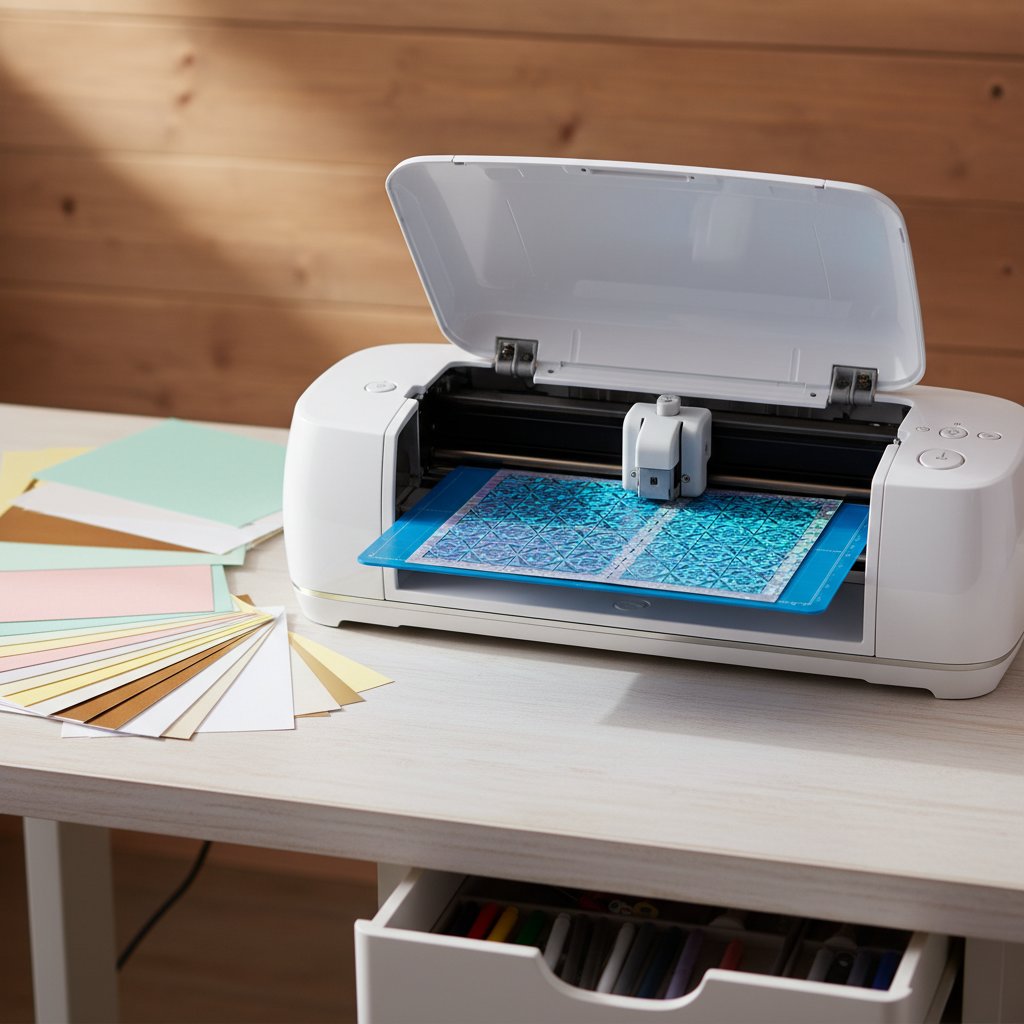
A Cricut cutting machine mid-project on a bright craft desk beside sheets of cardstock

Test-cut one layer first. Before committing full sheets, cut layer 1 on a scrap of your actual cardstock. On the botanical build, this is exactly what saved me — the default pressure tore layer 3, and the test on layer 1 showed the edges lifting. I bumped the cut pressure up one notch (the "More" setting on Explore models) and every layer after that cut clean.

Recommended starting settings for 65–80 lb cardstock:

  • Material: Medium Cardstock (or "Cardstock for intricate cuts" on intricate layers)
  • Blade: Fine-point blade, clean and sharp
  • Pressure: default Medium; if edges lift or don't kiss-cut through, move to More
  • Mat: LightGrip for 65 lb, StandardGrip for 80 lb; brayer the sheet flat so small pieces don't shift
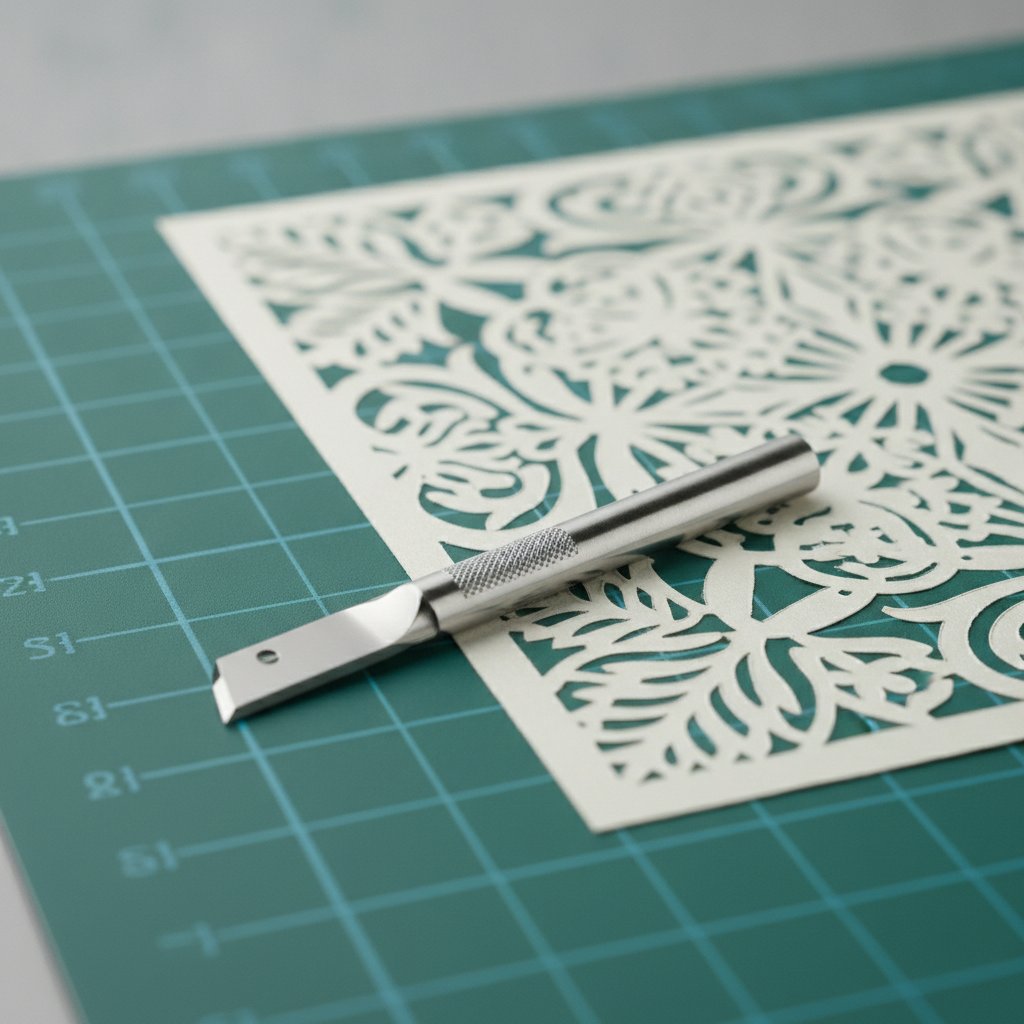
A fresh fine-point cutting blade beside a mat holding a cleanly cut intricate cardstock papercut layer

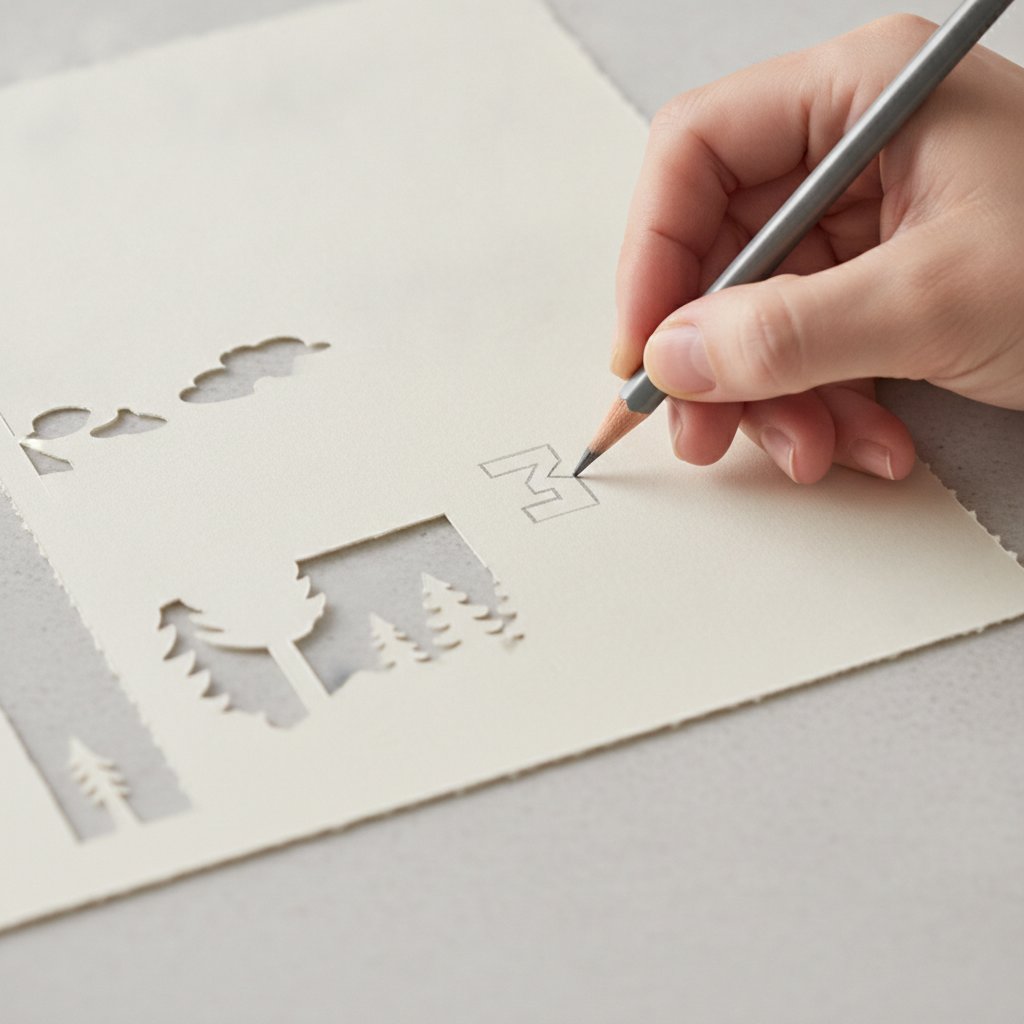
Weed and label as you go. The moment a layer finishes, weed it and write the layer number on the back in pencil. Numbering at the cut stage is the single biggest assembly time-saver — you will not remember which blue is layer 4 versus layer 5 at 11 p.m. For the full settings matrix across paper types, see the Cricut cardstock settings mastery guide.

Assembly: Building Real 3D Depth

Cutting is mechanical; assembly is where depth either appears or doesn't. Build back-to-front, so layer 1 (the frontmost detail) goes on last.

A dry-fit test stack of cut cardstock papercut layers separated by foam spacers being checked for depth

Dry-fit first. Stack all layers with foam tape but uncommitted, and sight down the edges. If any layer floats or gaps, recheck your resize — a single layer resized off-ratio ruins alignment.

Apply foam tape strategically. Full backing gives even depth but hides backlight; perimeter strips plus a few cross-braces let light through while keeping the layer rigid. On the botanical build I used perimeter strips on the detailed front layers and full backing on the plain back layer.

Use registration for alignment. A cheap lightbox (or a tablet on a white screen) lets you see through the cardstock to align cutouts layer-by-layer. Pin registration — two small alignment holes punched through every layer — is bulletproof for repeated builds.

A hand writing a layer number in pencil on the back of a freshly cut cardstock papercut layer

Secure the stack in the frame. The back layer adheres to the frame's backing board; each subsequent layer stacks forward on its spacers. Leave 2–3 mm clearance so the stack never presses the glass. The full spacer-and-glue workflow is in our layered shadow box assembly guide.

Project Walkthrough: A 7-Layer Botanical Build

Here is the exact build I referenced in the intro, so you can see the workflow end-to-end with real numbers.

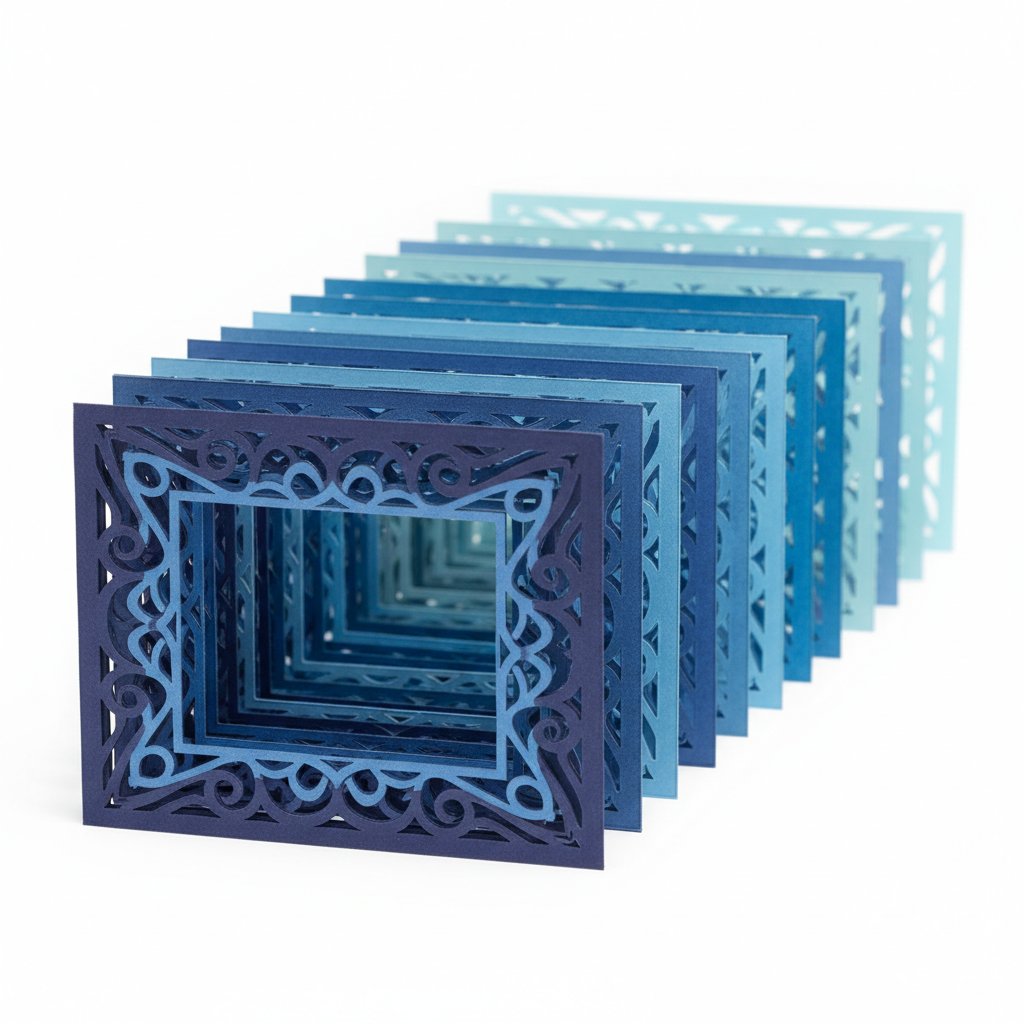
A neat row of identical cut cardstock shadow box layers in graduated blue tones laid out in order
  • File: a free 7-layer botanical svg, native size 8×8 inches
  • Frame: 8×8 inch shadow box, 30 mm interior depth
  • Cardstock: 80 lb solid-core, seven graduated greens-to-cream
  • Design Space prep: ungrouped 3×, all layers selected, lock closed, resized to 7.5×7.5 inches (0.25 inch clearance per side)
  • Cut settings: Fine-point blade, "Cardstock for intricate cuts," pressure bumped to More after layer 1 test revealed edge lift
  • Re-cut: layer 3 only — the first pass tore two petals; second pass at More pressure was clean
  • Spacers: 3 mm foam tape, perimeter strips on layers 1–5, full backing on layers 6–7
  • Result: 21 mm measured stack depth, even backlight, all seven layers aligned without gaps

The lesson that cost me a sheet of cardstock: always test-cut layer 1 and trust the test over the default setting. The 90 seconds spent on a scrap prevented tearing every detailed layer.

Troubleshooting Common Cricut Shadow Box SVG Problems

  • Cuts aren't clean (edges fuzzy or not cut through). Blade is dull or pressure too low. Swap to a fresh fine-point blade and step pressure up to More. Also check the mat — a dirty mat lets cardstock shift mid-cut.
  • Layers won't align when stacked. Almost always a resize error. You resized layers individually, or the lock icon was open. Re-select all layers, lock the aspect ratio, and resize together.
  • Paper tears when weeding. Blade depth is too aggressive or the design is too intricate for the pressure. Drop to "Cardstock for intricate cuts" and slow down. A too-sticky mat also tears light paper — switch to LightGrip for 65 lb.
  • Depth doesn't pop. Foam tape is too thin or you skipped spacers on middle layers. Move from 2 mm to 3 mm (or 5 mm) tape and add cross-braces so layers don't sag into each other.
  • SVG imports as one solid shape. You uploaded a PNG, or the file needs ungrouping. Re-upload the .svg and Ungroup repeatedly until the Layers panel shows every layer.
  • Backlight looks uneven. The front layers are blocking light. Switch full-back foam to perimeter strips on detailed layers so light passes through the cutouts.

FAQ: Cricut Shadow Box SVGs

Can I resize a shadow box svg?
Yes — that is the whole point of vector files. Select every layer, keep the aspect-ratio lock closed, and resize them all together by the same percentage. Never resize layers individually or they will not stack.

What paper weight is best?
65–80 lb cover-weight cardstock. Lighter tears and droops; heavier blurs detail and strains the blade. Solid-core cardstock hides imperfections better than white-core.

How many layers should a beginner start with?
5–7 layers. That range gives obvious depth without the alignment headaches of a 12-layer file. The botanical walkthrough above was 7 layers and is a forgiving first build.

Can I use regular adhesive instead of foam tape?
You can glue layers, but you lose the depth. Foam tape (or foam board spacers) is what creates the 3D pop. Flat glue turns a shadow box into a collage.

Which file formats work in Cricut Design Space?
SVG and DXF both cut as vector paths. PNG and JPG import as printable images, not cut paths — fine for Print Then Cut, wrong for layered shadow boxes.

Do I need a special blade?
A clean, sharp fine-point blade handles 65–80 lb cardstock. Use the Deep-Point blade only for very heavy boardstock; it is overkill and less precise on standard cardstock.

From SVG to Glowing 3D Art

A cricut shadow box svg stops being intimidating the moment you treat it as a sequence rather than a single file: find a well-built layered SVG, ungroup and resize every layer together in Design Space, test-cut layer 1 before committing full sheets, cut and label one layer at a time, then build back-to-front on foam spacers. Do those five things and the depth appears on its own.

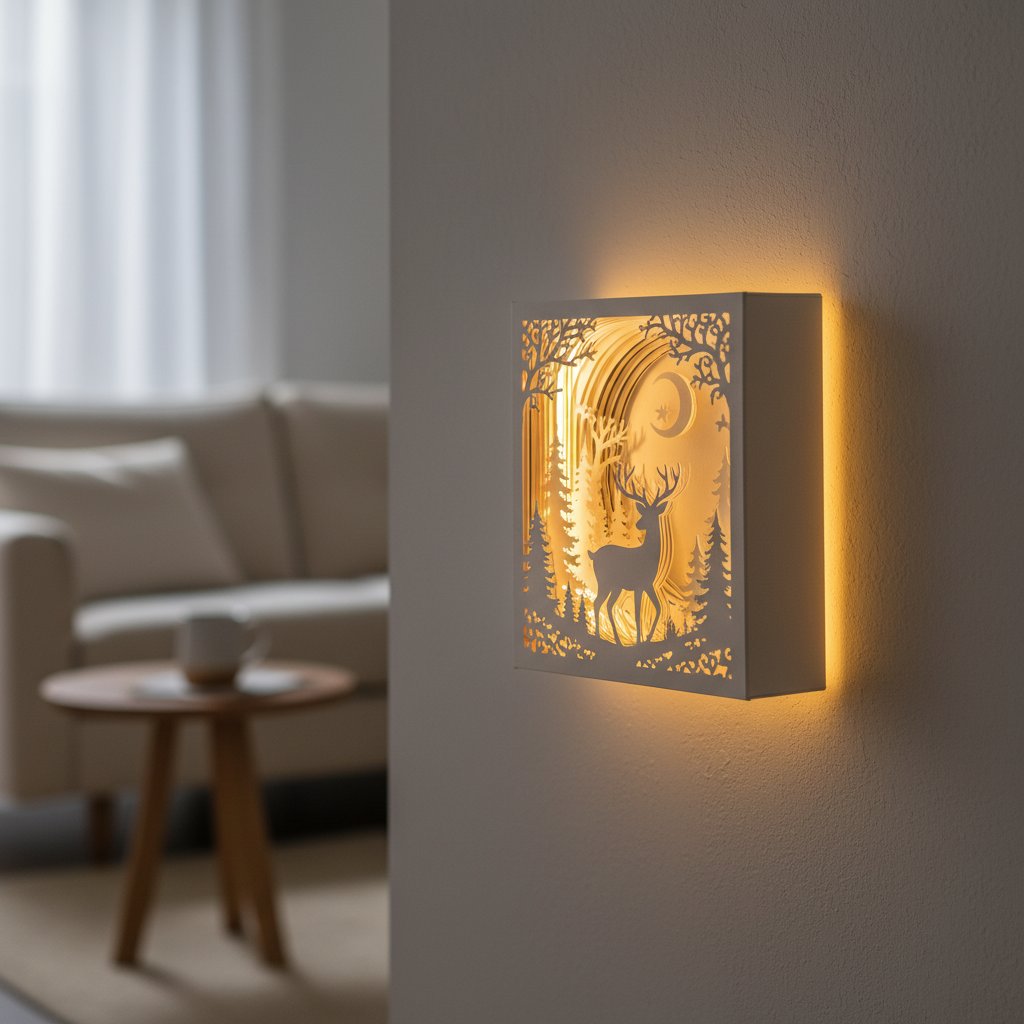
A finished illuminated layered paper shadow box hanging on a wall with warm LED backlight glowing through the layers

The 7-layer botanical build proved the workflow to me: one re-cut on layer 3, 21 mm of measured stack depth, and a finished piece that lit up exactly like the preview. Start with a 5–7 layer file, run the test cut, and the rest of the steps repeat on every shadow box you make afterward. Once the mechanics are second nature, the free shadow box svg templates guide and the Design Space import tutorial are your next stops for sourcing and prepping your second project.