Articles13 min read

Free Paper Cut SVG Download — How to Find Quality Files That Actually Cut Clean

A sourcing and vetting guide for free paper cut SVG downloads — where to look, how to tell a good file from a bad one, and how to test before you waste cardstock.

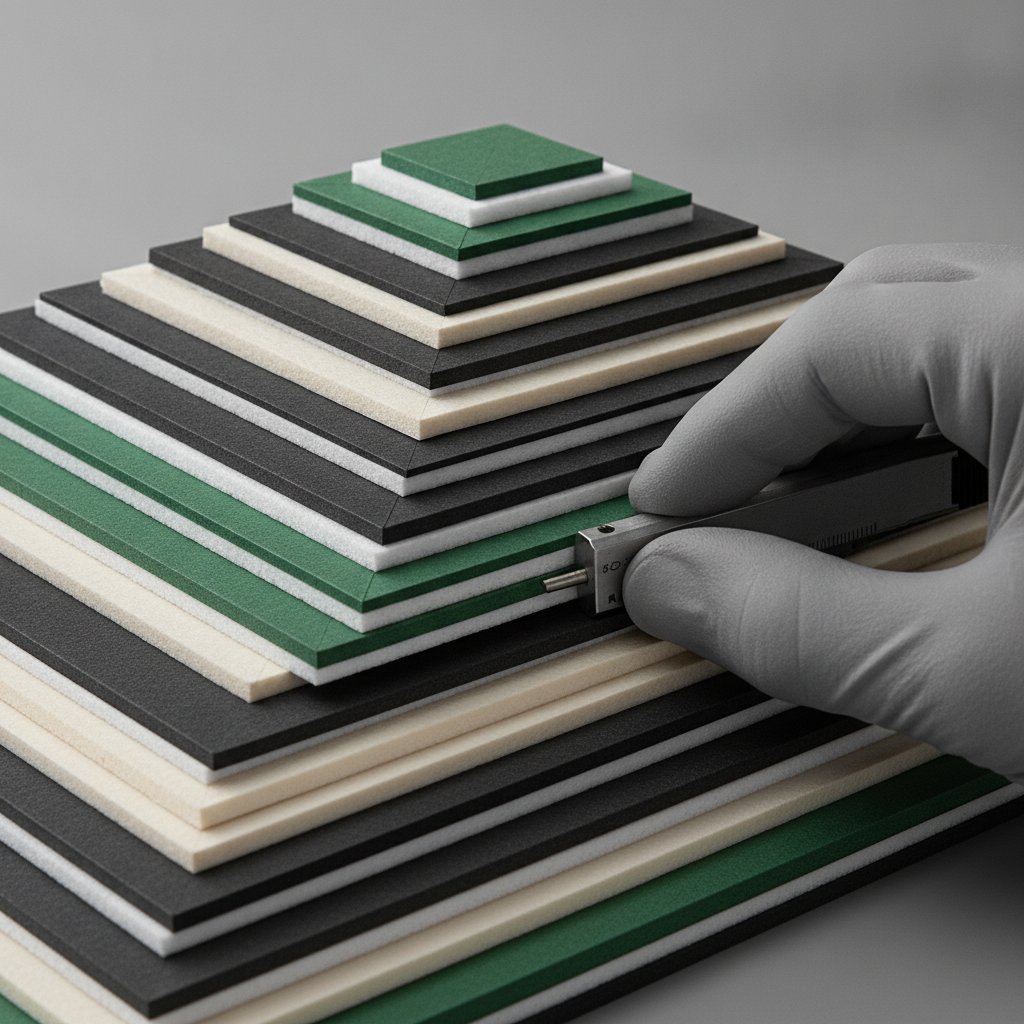
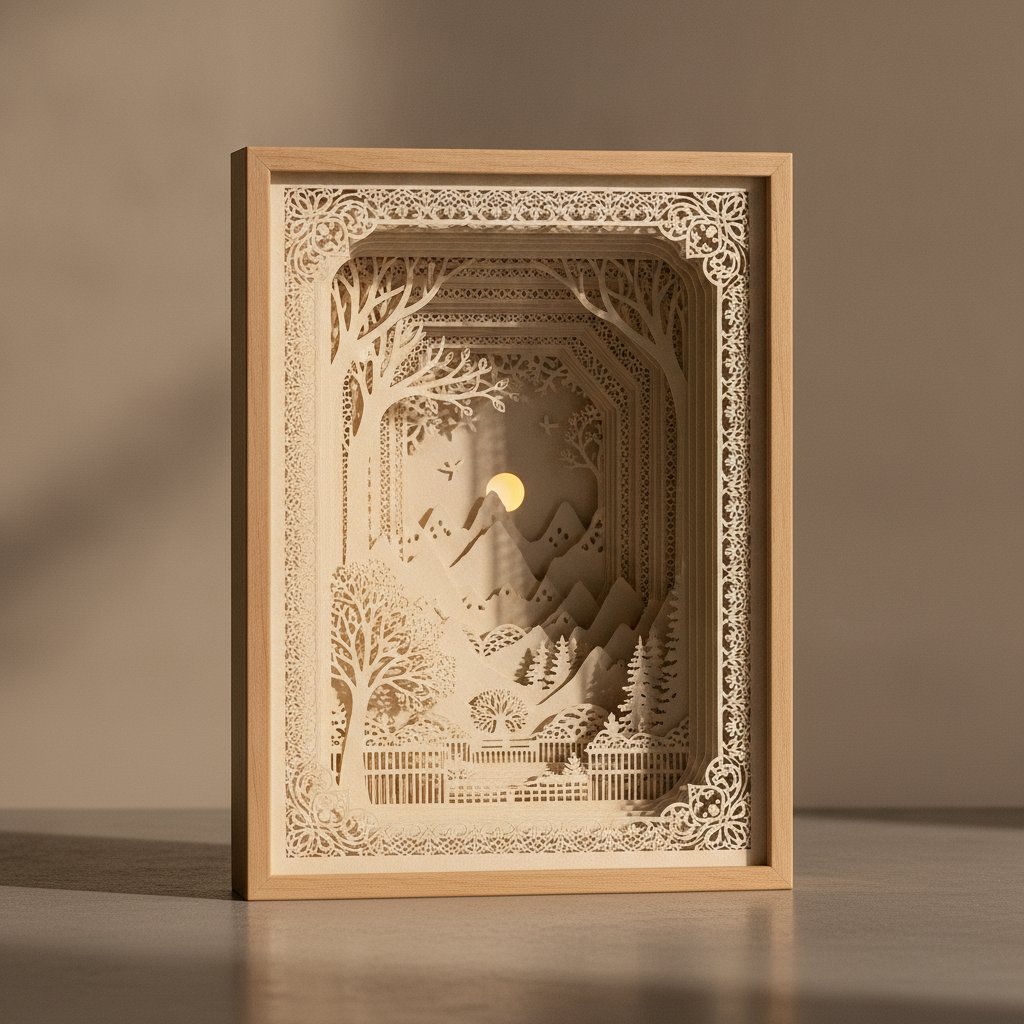
Deep layered paper-cut shadow box viewed at an angle showing paper layers receding into depth

A free paper cut SVG download sounds like a great deal — until you cut it. We learned this the hard way. Early on, we grabbed a "free 3D paper cut SVG" from a marketplace listing that promised "layered shadow box design." It downloaded as a single flat shape. Our Cricut dutifully cut one outline. Weeded it. Stacked it. It looked exactly like what it was: a silhouette, not a shadow box. One wasted sheet of 80 lb cardstock and an hour we'll never get back.

That experience is what turned us into file-vetting obsessives. Across the free paper cut SVGs we've tested since, the pattern is consistent: a minority are genuinely good — separated layers, clean vector paths, sensible complexity, a license that actually lets you use what you make. The majority are flat art mislabeled as "3D," downloads stripped of their layer structure, or files so dense with nodes that the blade tears the paper on the first pass.
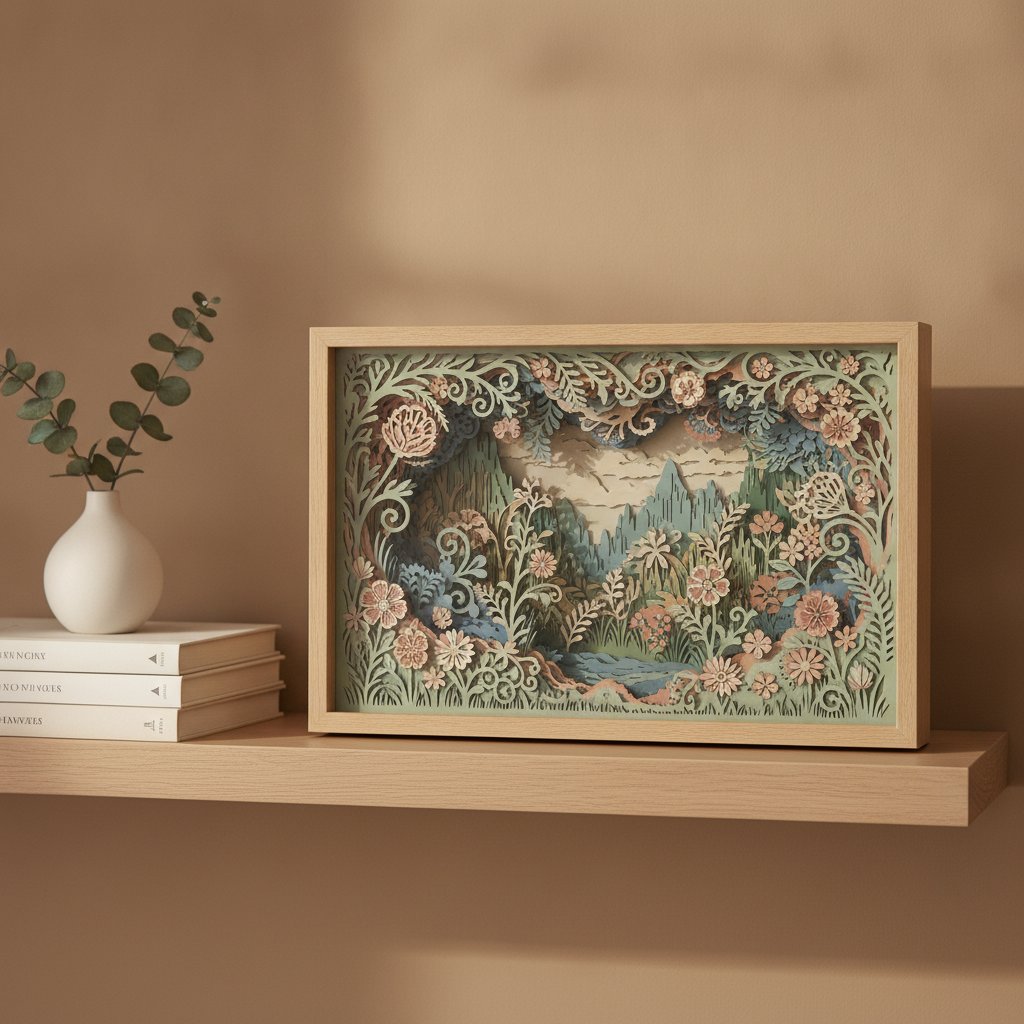
A finished layered papercut floral shadow box displayed as home decor on a styled shelf

This guide is the checklist we wish we'd had before that first wasted cut. You'll learn what a free paper cut SVG download should actually contain, where to find the good ones, how to vet a file in under two minutes, and how to run a test-cut so you never commit a full sheet of cardstock to an unproven file again. We focus on shadow boxes — our specialty — but the same framework works for paper cut greeting cards, layered wall art, and light box designs.
What "Free Paper Cut SVG" Actually Means

Before you download anything, know what a legitimate free paper cut SVG package should contain. "SVG" is not a magic word — it's one file format among several, and the contents of the ZIP matter more than the headline.

The formats you should receive:

  • SVG — the vector file your Cricut Design Space or Silhouette Studio (Designer Edition and up) reads as editable, separated cut paths. This is the file that actually does the work. - DXF — a CAD-compatible vector format. Useful if you're on a base-level Silhouette Studio edition that can't import SVG, or if you're cutting on an older machine. - PDF — a print-and-view reference of the finished design, plus often an assembly diagram. You don't cut the PDF; you use it to preview and to confirm layer order. - A license or terms file — plain-English text stating what you can and can't do with the file. If there's no license at all, treat the file as personal-use-only by default (more on this in the licensing section).

The most common trap — a PNG dressed up as an SVG. Some "free paper cut SVG" downloads are really a single raster PNG (a flat pixel image) renamed with an .svg extension, or bundled alongside an SVG that's just a traced bitmap. When you import it, Design Space shows one flat object with no layers. You can cut its outline, but you can't separate it into the stacked layers that create real depth. That's not a paper cut file — it's a coloring-book outline.

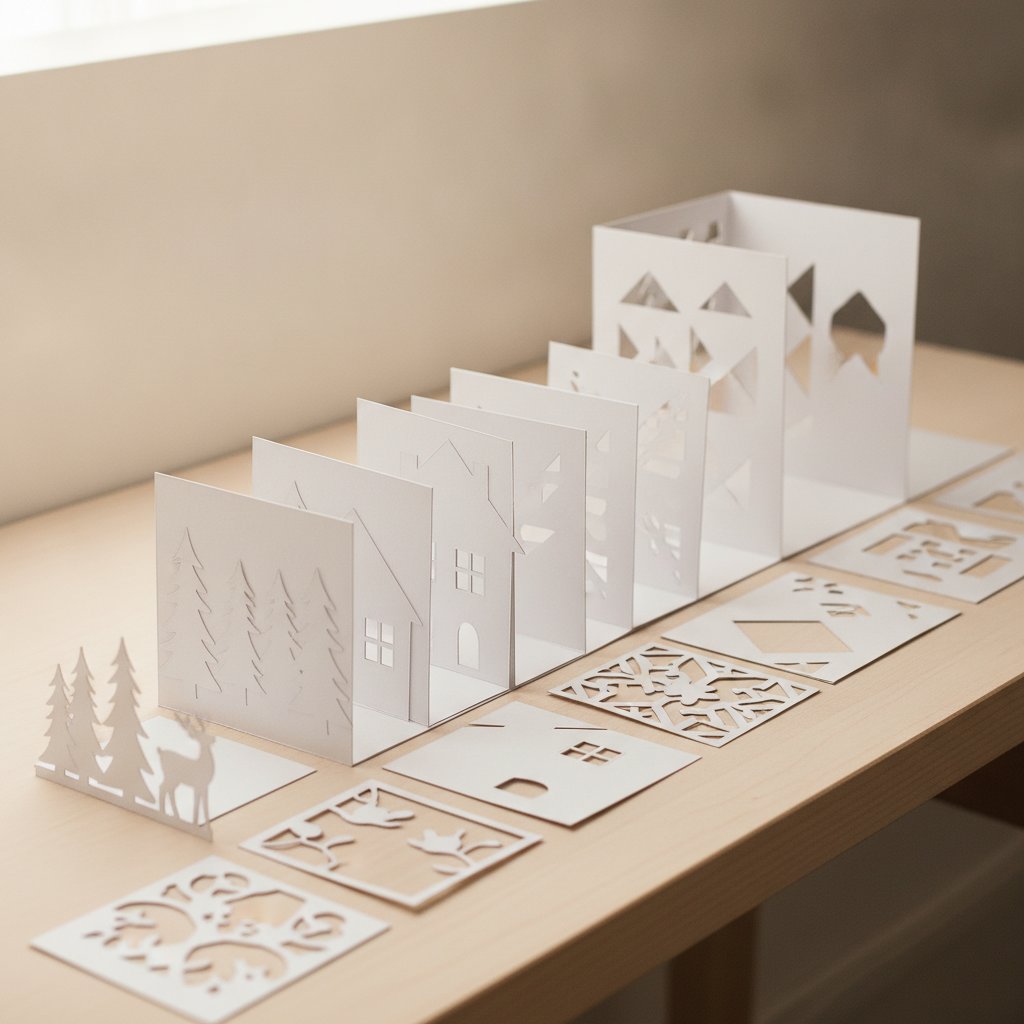
Neatly cut white cardstock shadow box layers organized in sequence across a workspace ready for assembly

The fast import test: upload the file to Design Space and look at the Layers panel before you cut a thing. A genuine layered paper cut SVG will show multiple, selectable, color-coded layers. A flat file shows one. If you see one layer where the listing promised "5-layer depth," close it and move on — you've just saved yourself a sheet of cardstock. For a full walkthrough of that import-and-inspect step, our Cricut Design Space tutorial for beginners covers the Layers panel in detail.

Where to Actually Find Free Paper Cut SVG Downloads

Not all free sources are equal. They split into four types, and the vetting you'll need to do depends on which one you're downloading from.

1. Curated craft blogs and resource lists. Maker-educators who publish "best free SVG" roundups have usually already filtered out the flat and broken files. These are the safest starting point — the curation is the value. The trade-off: the selection is smaller, so you may not find a specific subject.

2. Marketplace free sections. Etsy, Creative Fabrica, Design Bundles, and Vecteezy all host free SVG sections alongside their paid catalogs. Volume is huge; quality is wildly inconsistent. Treat every free marketplace file as unverified until you've run the vetting checklist below. Watch for files that require a subscription "free trial" to access — that's a billing funnel, not a free download.

3. Designer freebies and email lists. Individual designers (ourselves included) give away a tested free file in exchange for an email signup. This is the category where you're most likely to get a genuinely cut-ready file with assembly instructions, because the designer is using the freebie to showcase paid work. Our own freebies page and our free shadow box SVG template fall in this group — we cut and photograph every free file before publishing it.

4. Aggregators and "free download" walls. Avoid sites that scrape paid designs and re-host them behind download walls, pop-up ads, or shortened links. The files are often stolen (so the license is void), frequently corrupted, and sometimes bundled with unwanted software. If a download page looks like an ad farm, leave.

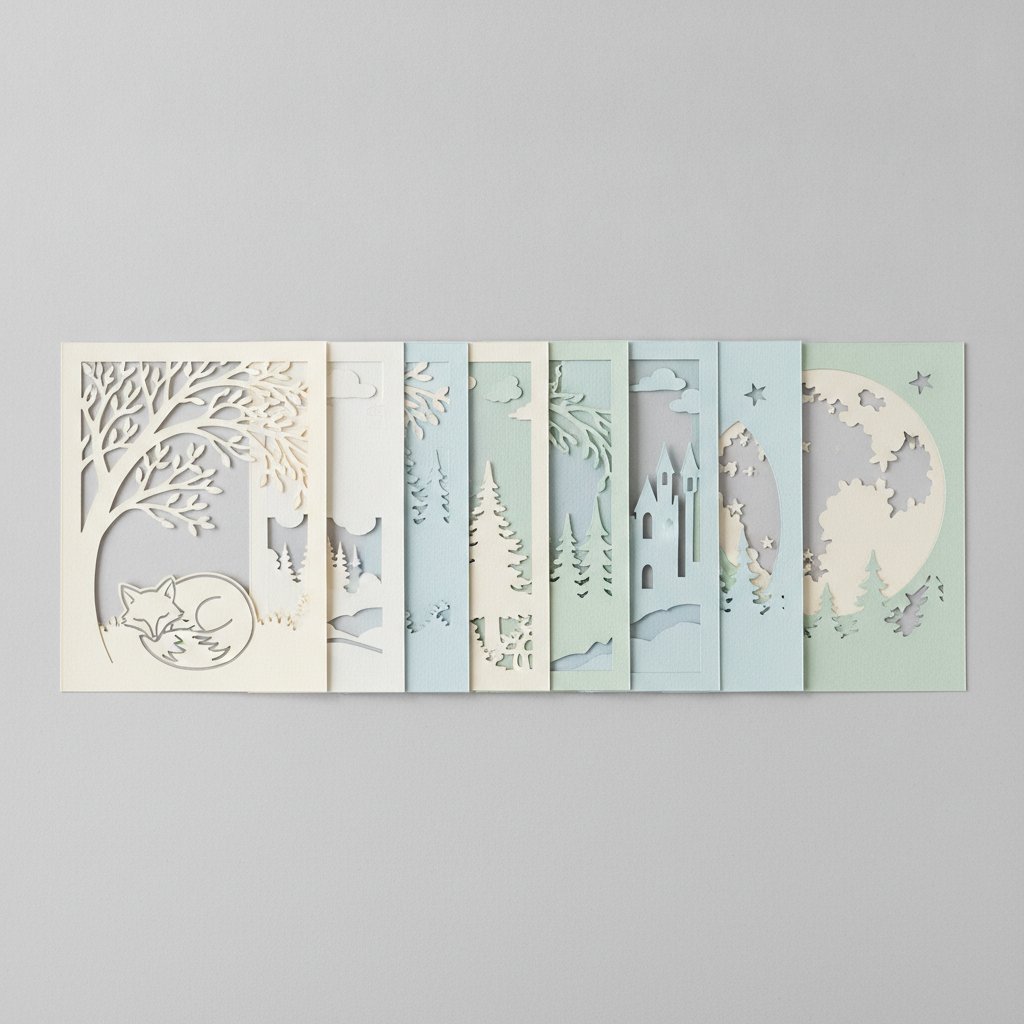
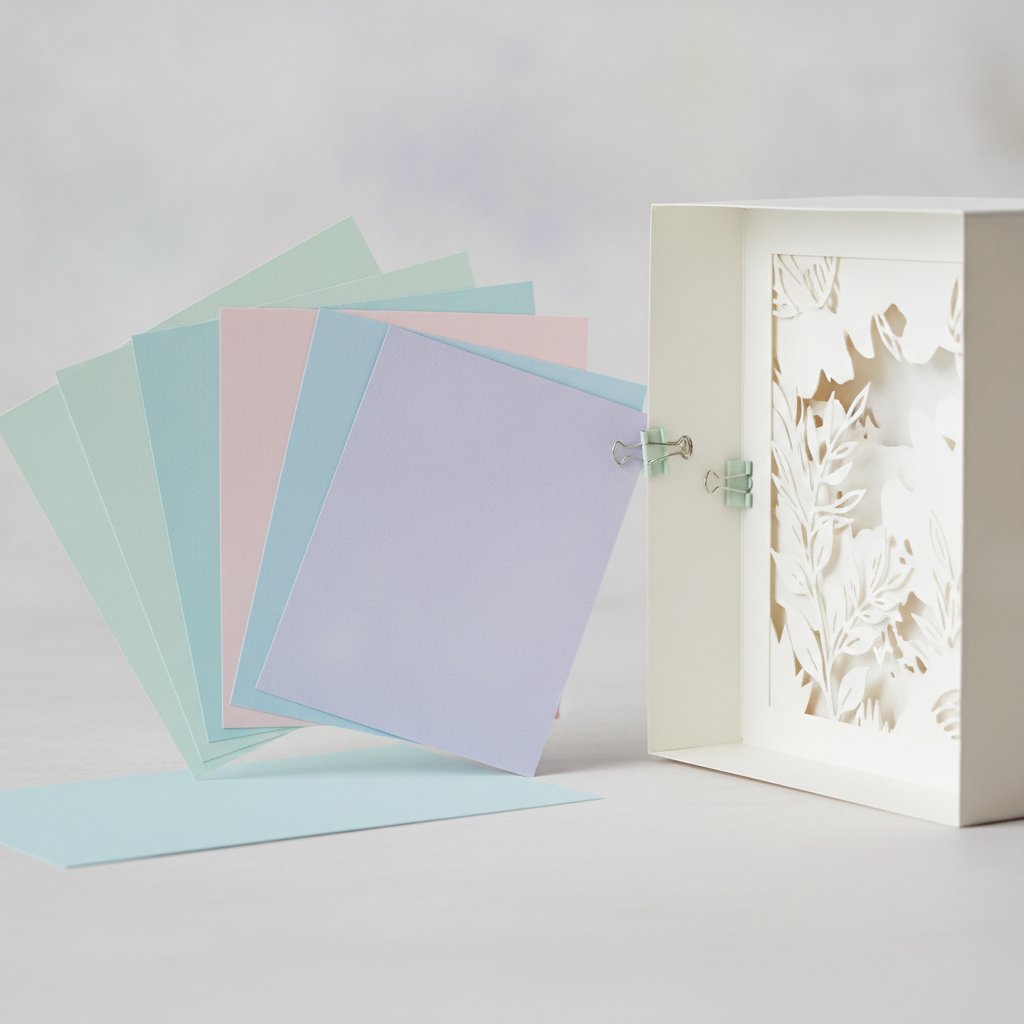
A fanned stack of soft pastel cardstock sheets beside a partly assembled papercut shadow box

The honest summary: curated blogs and designer freebies are where the good free files live. Marketplaces are a numbers game that rewards careful vetting. Aggregators aren't worth the risk.

How to Tell a Good Free Paper Cut SVG from a Bad One

The individual cut paper layers of a shadow box laid out in a row before assembly to review depth and detail

Once you've found a candidate file, run this checklist. It takes about a minute once you're in the habit, and it's the single biggest cardstock-saver in paper cutting.

1. Separated, ungroupable layers. In Design Space or Silhouette Studio, you should be able to select the design and ungroup it into distinct layers. One layer=no depth. Aim for the layer count the project type implies (shadow boxes typically 5–8 layers; greeting cards 2–4; layered wall art 3–6).

2. Clean vector paths. Zoom to 200% and look at the curves. Smooth, economical paths with well-placed nodes cut cleanly. Jagged edges, stray dots, or paths that double back on themselves mean a slow cut and torn paper. Excessive node density is a red flag — it usually means the designer auto-traced a photo instead of drawing clean vector art.

3. Registration or alignment marks. For any multi-layer paper cut, the file should include marks or a built-in frame that lets you stack layers precisely. Without them, alignment is guesswork and the 3D effect collapses.

4. Stated machine compatibility. A trustworthy listing says outright: "Cricut and Silhouette, SVG + DXF included." If a free file doesn't mention which machines or formats it supports, assume it's untested.

5. A real preview, not just a render. Look for a photo of the cut and assembled piece — not just a digital mockup. A designer who tested the file has cut photos. If the only image is a glossy 3D render, the file may never have touched a blade.

When a file fails two or more of these, skip it. There are plenty of free paper cut SVGs out there; you don't need to rehabilitate a bad one. For a deeper look at what separates premium, tested files from the rest, our shadow box SVG guide walks through the design standards we hold our own files to.

See What a Properly Layered Paper Cut SVG Looks Like
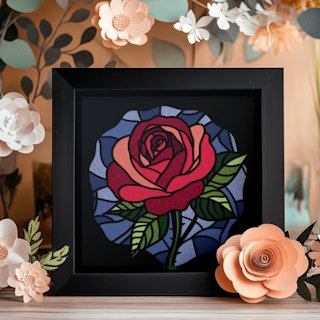
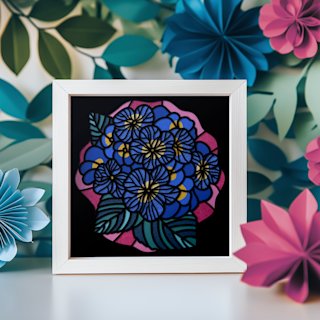
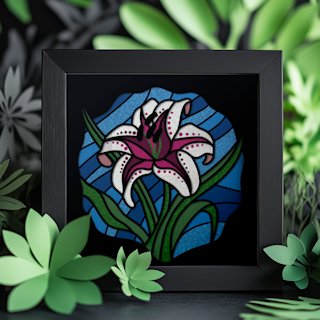
These floral shadow box templates are the kind of file the checklist above is built to find — separated layers, clean paths, tested cut settings. Use them as your reference standard for "this is what good looks like" when you're vetting free downloads.

The Download-to-Test-Cut Workflow: Never Cut Blind

Vetting catches the obviously bad files. The test-cut catches the subtly bad ones — files that look clean but tear, shift, or misalign once the blade is moving. This is the workflow we use on every new file, free or paid.

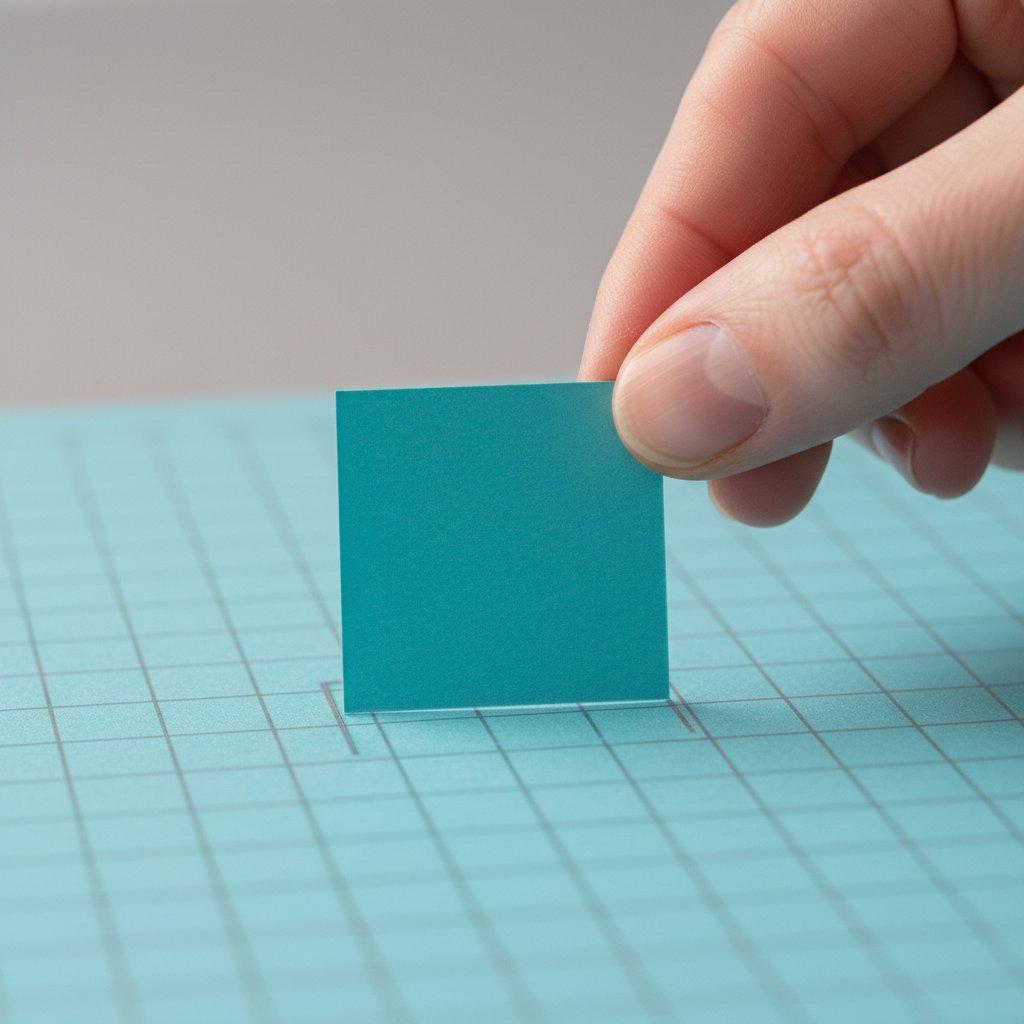
A test-cut square of cardstock being peeled from a Cricut cutting mat showing clean edges

Step 1 — Download and unzip. Save the ZIP, then extract the whole folder (don't open files from inside the ZIP — some cutting software misreads them that way). Confirm the SVG, DXF, and any PDFs are present.

Step 2 — Import as a test, don't size yet. Upload the SVG into Cricut Design Space or Silhouette Studio. Before resizing, open the Layers panel and confirm the layer count matches what the listing promised. This is your last chance to bail for free.

Step 3 — Size all layers together. Select every layer at once, then scale to your frame. Never resize layers one at a time — they won't line up when you assemble. (Our guide to sizing and resizing shadow box SVGs covers the math for any frame size.)

Step 4 — Test-cut one layer on scrap. Send only the most detailed layer to the machine, on a scrap piece of the cardstock you'll actually use. This single step answers three questions at once: are your cut settings right, is the file's detail cuttable at this size, and is your blade sharp enough. Thirty seconds of cutting saves a full sheet every time.

A dry-fit test stack of cut cardstock papercut layers separated by foam spacers being checked for alignment

Step 5 — Adjust, then commit. If the test tears, drop pressure a notch or switch to an "intricate cuts" setting and re-test. If detail closes up, scale the whole design up. Only when the test-cut is clean do you load a fresh sheet and cut the full project. Our Cricut cardstock troubleshooting bible walks through every test-cut failure mode and fix.

Paper Cut SVGs for Every Project Type
Free downloads are great for practice. When you want a file that's already passed the test-cut stage — across shadow boxes, wall art, and statement pieces — these tested papercut templates each demonstrate a different layering challenge.

Free Paper Cut SVG Licensing: What You Can Actually Make

"Free" does not mean "yours to do anything with." Every paper cut SVG is automatically copyrighted by its designer the moment it's created. A free download is the designer granting you specific usage rights — not handing over ownership. Most free SVGs you'll find are personal use only by default: you can cut them for yourself or as gifts, but you can't sell the finished pieces, even at a local craft fair.

What to check before you sell anything made from a free file:

  • Look for an explicit commercial-use clause in the license file or listing. Some designers cap commercial use at a unit count (commonly 100–500 finished pieces). - If you can't find any license text, the safe assumption is personal use only. "I couldn't find the rules" is not a defense. - Reselling, redistributing, or sharing the digital file itself is almost never allowed — not for free files, not for paid ones. Send people to the designer's page instead.

This is exactly why we publish our license terms in plain English. Our free shadow box SVG includes small-business commercial use up to 200 finished physical pieces — so a crafter can actually sell what they make from a free file, within clear limits. If you're planning to sell at scale, our paid bundles carry more generous commercial terms, documented in each listing. For the broader background on designing and licensing papercut files, our papercut SVG guide covers it end to end.

Free vs Premium Paper Cut SVGs: When Each Makes Sense

An intricate premium papercut shadow box with ten finely detailed layers creating dramatic depth

Free files and premium files aren't enemies — they're tools for different jobs. Knowing which to reach for saves money and frustration.

Reach for a free paper cut SVG download when:

  • You're learning your machine and want to practice the cut-and-assemble workflow without financial pressure. - The project is simple — a 2–4 layer card, a one-off gift for a friend, a practice piece to test a new blade or mat. - You want to sample a designer's style before buying a bundle.

Reach for a premium, tested file when:

  • The project matters — a wedding gift, a piece for sale, a holiday centerpiece you'll display for years. - You want depth and detail that free files rarely deliver (8–12+ layers, intricate registration, fine foregrounds). - You need assembly guidance — spacer maps, layer-order diagrams, recommended cut settings — that free files usually omit. - You need clear, documented commercial rights to sell the finished work.
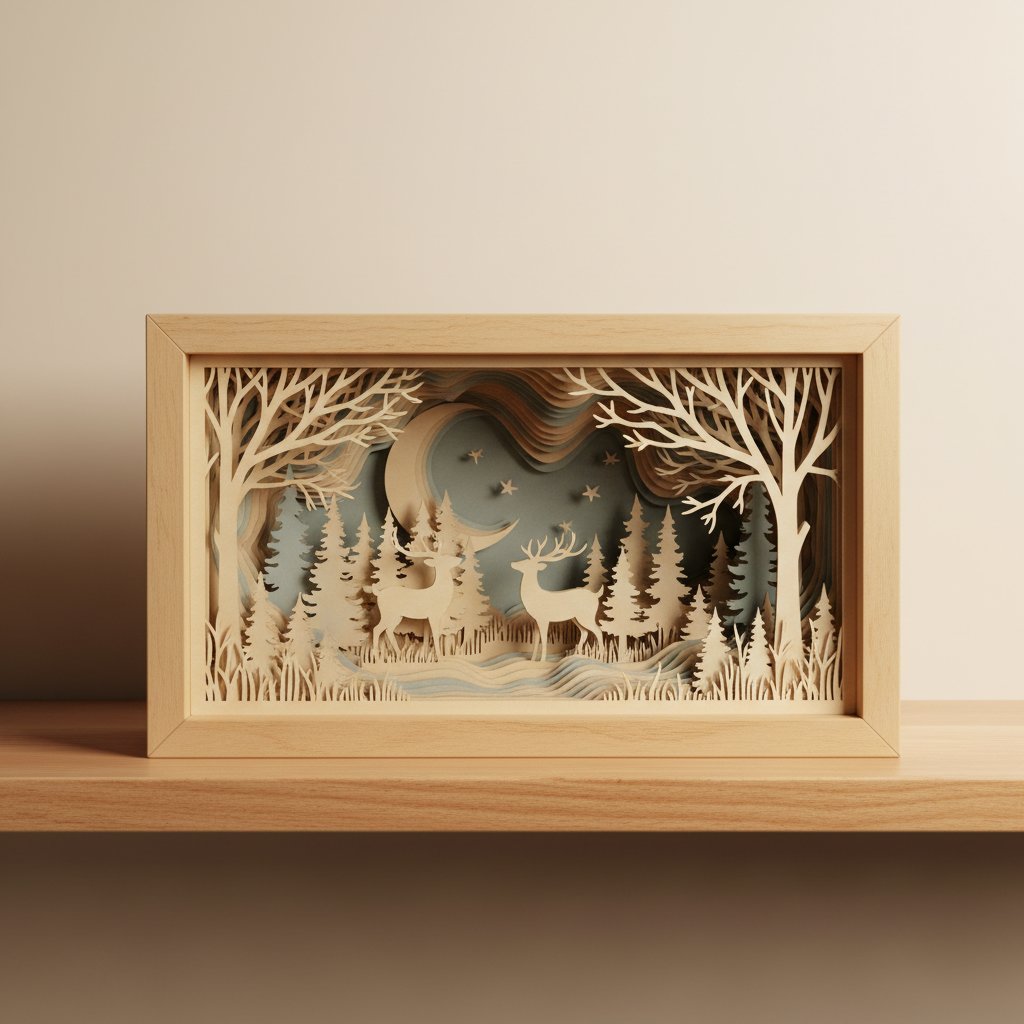
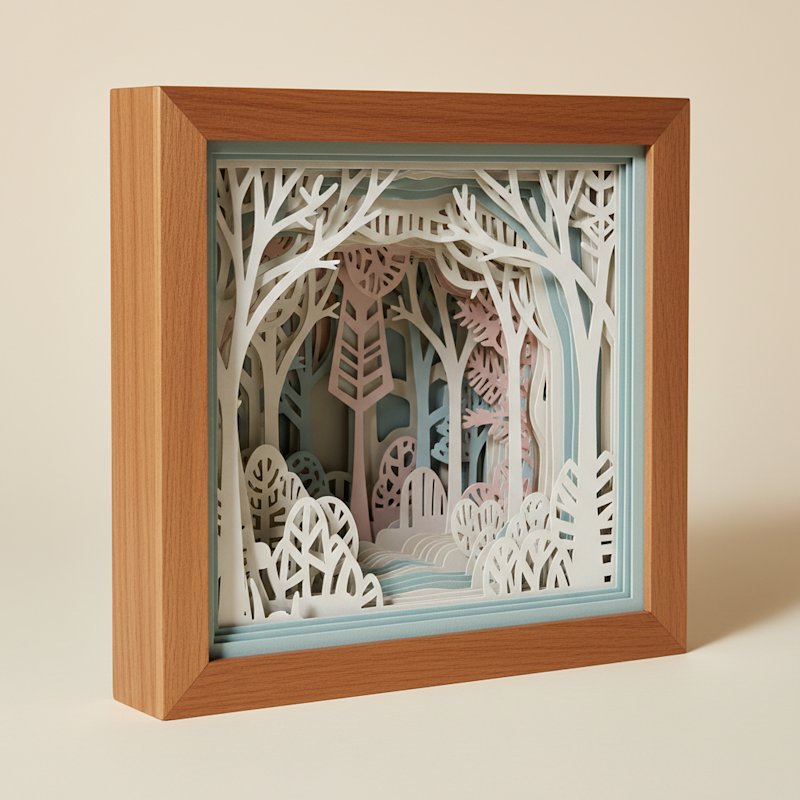
Finished intricate layered paper-cut woodland shadow box displayed on a wood shelf

The quality gap isn't theoretical. A well-designed premium shadow box SVG with ten tested layers produces the kind of depth that stops people mid-scroll; a typical free file produces a pleasant silhouette. Both have a place on your craft table. For a wide selection of tested designs, browse our shadow box SVG collection and our broader papercut SVG templates.

Tested Designs for the Projects That Matter
When a free download won't cut it — gifts, sales, show-stopping depth — these are our most-tested shadow box templates. Every one is cut-and-photographed before release, with assembly guidance and clear commercial licensing.

Common Free Paper Cut SVG Problems (and Fixes)

Even after vetting, a few issues show up repeatedly with free files. Here's what to do when they hit.

"The file won't import." You're probably trying to open the file from inside the ZIP, or you have the DXF when your software needs the SVG (or vice versa). Extract the full folder first. On base-level Silhouette Studio, use the DXF; on Cricut Design Space or Silhouette Designer Edition, use the SVG. Our Design Space import guide covers the exact menu path.

"The listing said 3D but it's flat." You've met the most common free-file failure. Confirm in the Layers panel — one layer means it was never a layered design. Don't try to fake depth by stacking copies; the result never reads as real layering. Move on to a file that's actually layered, or grab our free tested shadow box SVG as a known-good baseline.

"The layers don't line up." Almost always caused by resizing layers individually instead of as a group, or by a mat loaded slightly crooked. Re-open the original SVG, select all, and resize together. If misalignment is minor, trim edges with a craft knife rather than recutting. Our shadow box layer alignment fix has the step-by-step.

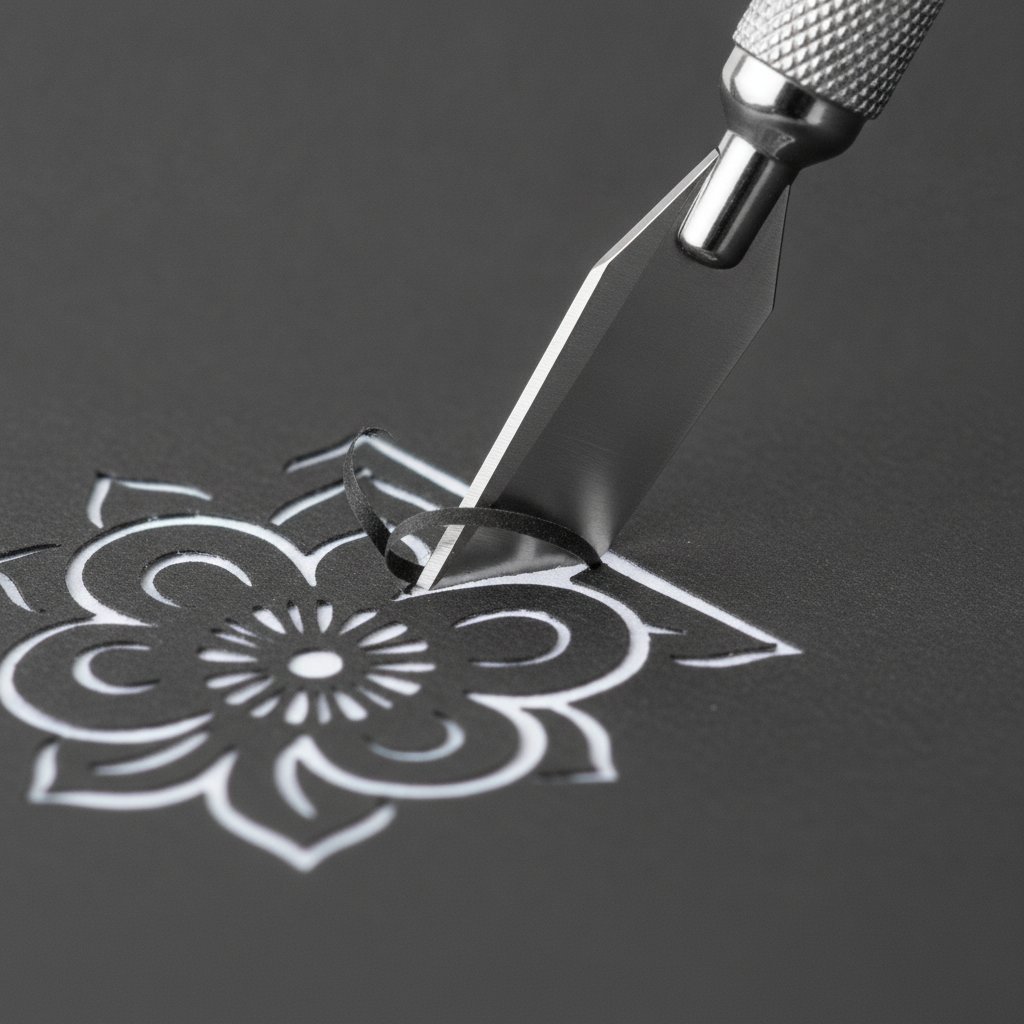
A fresh sharp craft knife making a clean precise cut through dark cardstock on an intricate design

"The blade tears the paper on the first cut." Usually a dull blade or pressure set too high for thin cardstock — not the file's fault. Replace the blade, drop pressure one notch, and use an "intricate cuts" setting. Our best cardstock guide for shadow boxes tells you which weights to pair with which layers.

1.Is a free paper cut SVG download really free, or is there a catch?
Genuinely free files exist, especially from designers who use a freebie to showcase their paid work. The common "catch" is an email signup in exchange for the file — which is fair value if the file is tested and the designer lets you unsubscribe. Watch out for marketplace listings that require a "free trial" subscription to access the download; those are billing funnels, not free files. Our own free shadow box SVG is free with an email signup and includes a real commercial license.
2.Can I sell things I make from a free paper cut SVG?
Only if the license explicitly allows commercial use. Most free SVGs are personal-use only, which means you can cut them for yourself or as gifts but cannot sell the finished pieces. Always check the license file before selling anything. Some designers (including us) grant limited small-business commercial use — our free shadow box SVG allows up to 200 finished physical pieces.
3.Can I use free paper cut SVG files with both Cricut and Silhouette?
Yes, as long as the file includes the right format. Cricut Design Space reads SVG directly. Silhouette Studio reads SVG on Designer Edition and above; the base edition needs a DXF file. Before downloading, check that the listing includes SVG and ideally DXF as well, so you're covered regardless of your software edition.
4.What file format do I need for a paper cut SVG download?
SVG is the primary format — it's the vector file your cutting software turns into separated cut paths and layers. A good download also includes DXF (for older or base-edition software) and a PDF reference or assembly diagram. Avoid "SVG" files that are really a single PNG or JPEG renamed — those import as one flat object with no layers.
5.How do I know if a free paper cut SVG is safe and legal to use?
Download from curated craft blogs, designer freebies pages, or the official free sections of reputable marketplaces — not from aggregators or ad-walled "free download" sites that often re-host stolen files. Check that a license or terms file is included, and that the listing shows cut-and-assembled photos rather than only a digital render. When in doubt, treat the file as personal-use-only.
6.How many layers should a good free shadow box SVG have?
A satisfying shadow box usually has 5–8 separated layers — enough to create real depth without overwhelming a beginner. Free files sometimes claim "3D" but deliver only one or two layers, which produces a flat silhouette rather than a shadow box. In your cutting software's Layers panel, count the selectable layers before you commit cardstock.
7.Why does my free SVG tear when I cut it?
Tearing is usually a hardware or settings problem, not the file. The most common cause is a dull blade; the next is pressure set too high for thin cardstock. Replace the blade, drop pressure one notch, and use an "intricate cuts" setting on Cricut. A mat that's too sticky (brand-new) can also tear delicate cuts when you peel the paper off. Our Cricut cardstock troubleshooting guide walks through every fix.
8.Where can I get a free paper cut SVG that's actually been tested?
Our free shadow box SVG template is cut and photographed on both Cricut and Silhouette before publication, and includes step-by-step cut settings, an assembly guide, and a small-business commercial license. It's a reliable known-good file to benchmark other free downloads against.

Stop Wasting Cardstock on Unproven Files

A free paper cut SVG download is only a bargain if the file actually cuts clean and the license lets you use what you make. The framework here — know the formats, source from the right places, run the 60-second vet checklist, and never skip the test-cut — turns "free" from a gamble into a reliable part of your craft workflow.

Your next steps

  1. Grab a known-good free file. Start with our free shadow box SVG template — it's tested on Cricut and Silhouette, ships with assembly guidance, and includes a commercial license. It's the perfect benchmark for vetting everything else you download. 2. Run the test-cut workflow on any new free file before committing a full sheet of cardstock. 3. Check the license before you sell or gift anything you make.

When you're ready for designs with more depth, tested settings, and clear commercial rights, our shadow box SVG collection and papercut SVG templates are built to the same standard. For project inspiration, browse our Cricut shadow box ideas, or start from the beginning with our complete guide on how to make a layered paper cut shadow box.


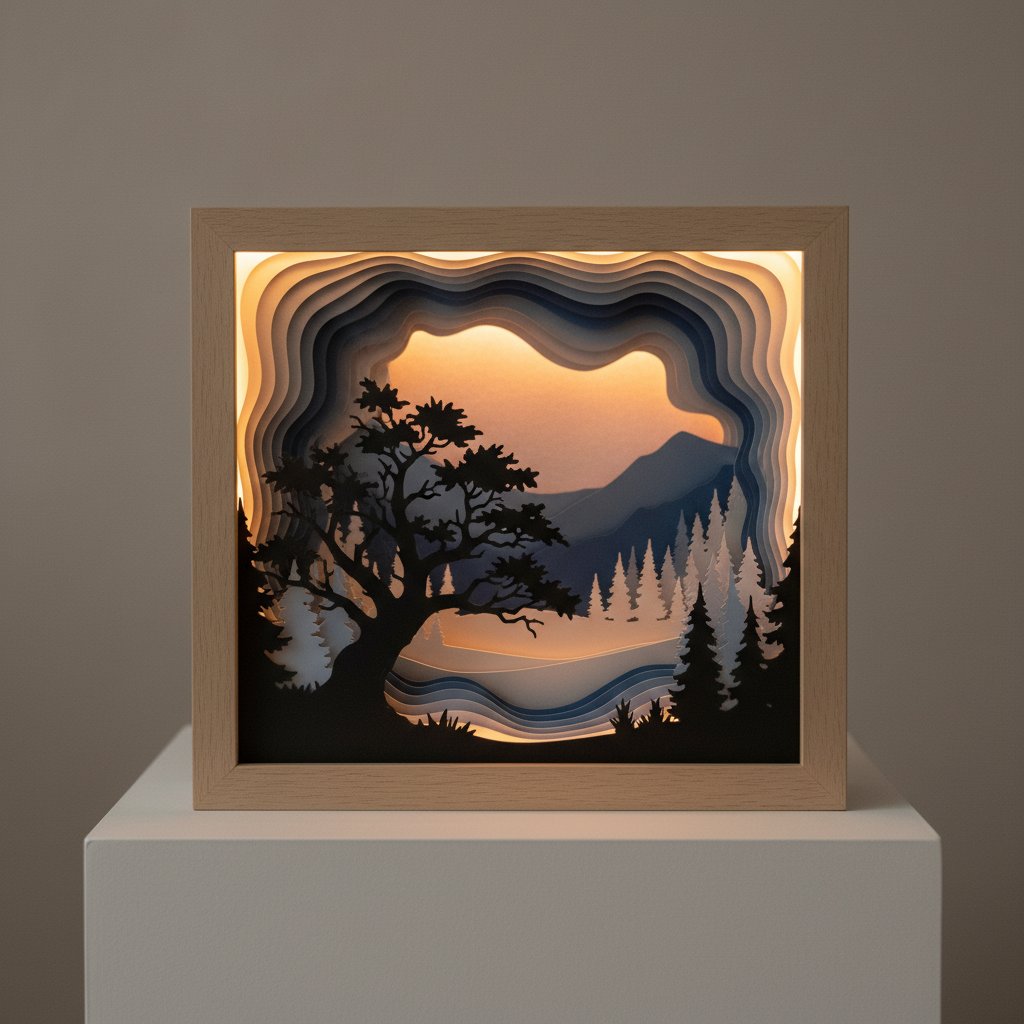
Layered paper cut shadow box nature scene with tree silhouettes showing dramatic depth through multiple layers

At Mural Moods Art, every SVG we release — free or paid — is cut and photographed on real machines first. Visit us at muralmoodsart.com to see the full collection and grab your free file.