Articles21 min read

Paper Cutting Techniques for Beginners with Cricut

A skill-by-skill walkthrough that takes you from your first clean cut to intricate, multilayer paper art — built around the design fundamentals and Cricut techniques most beginner guides skip, with a real-build troubleshooting flow for when a cut goes wrong.

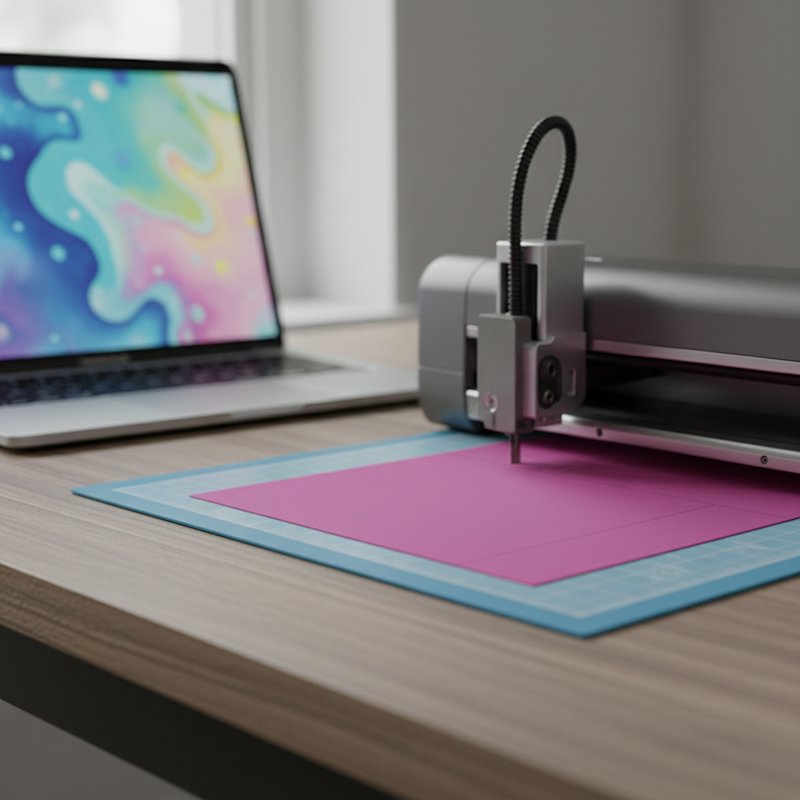
A cutting machine cutting a layer of colored cardstock on its mat with a laptop open beside it showing a blurred abstract design

The first intricate papercut I ran on a Cricut looked perfect on screen — a delicate tree with hundreds of thin branch lines — and came off the mat in three torn pieces. The blade was sharp, the cardstock was right, the settings were correct. The design was the problem: I had drawn branches thinner than the blade could cut without severing them, and I had no idea that was a thing until the cut failed. That failure is what pushed me to learn paper cutting as a set of techniques rather than a single "hit Make It" event.

Paper cutting techniques for beginners with Cricut is the craft of choosing the right cut method for each shape — when to let the machine do everything, when to add scoring for folds, when to stack multiple layers for depth, and most of all how to design (or pick) artwork the blade can actually reproduce. Most beginner guides stop at "load paper, pick Cardstock, press go." That gets you one clean silhouette. This guide goes further: it treats paper cutting as a progression of five techniques — basic cutting, design fundamentals, intricate cutting, scoring, and multilayer stacking — and shows you exactly when and why to use each one.

If you have not yet unboxed your machine or run your first cut, pair this guide with our Cricut paper cutting for beginners setup walkthrough — that one covers machine setup, first test cut, and mat basics. This article assumes you can already cut a single clean silhouette and want to add technique. By the end you will be able to design cut-friendly artwork, dial in settings for any paper, fold with the scoring stylus, and stack a multilayer piece with real depth.
1. Understanding Paper Cutting with Cricut

On a Cricut, "paper cutting" is not one technique — it is a family of five, each driven by a different combination of blade, mat, setting, and design rule. Understanding which technique a project needs is the single biggest leap a beginner can make, because it turns a pile of confusing Cricut accessories into a small toolkit you reach for on purpose.

The five techniques, in the order most beginners learn them, are basic cutting (one blade, one layer, clean silhouette), intricate cutting (fine detail and thin bridges on a single layer), scoring (fold lines made by a stylus or wheel instead of a cut), multilayer cutting (several single layers stacked with spacers for depth), and mixed-material cutting (cardstock combined with vellum, metallic, or glitter sheets). Every Cricut paper project is some combination of these five. A flat greeting card is basic + scoring. A shadow box is multilayer + (sometimes) intricate. A backlit piece is multilayer + mixed-material.

What the Machine Is Actually Doing

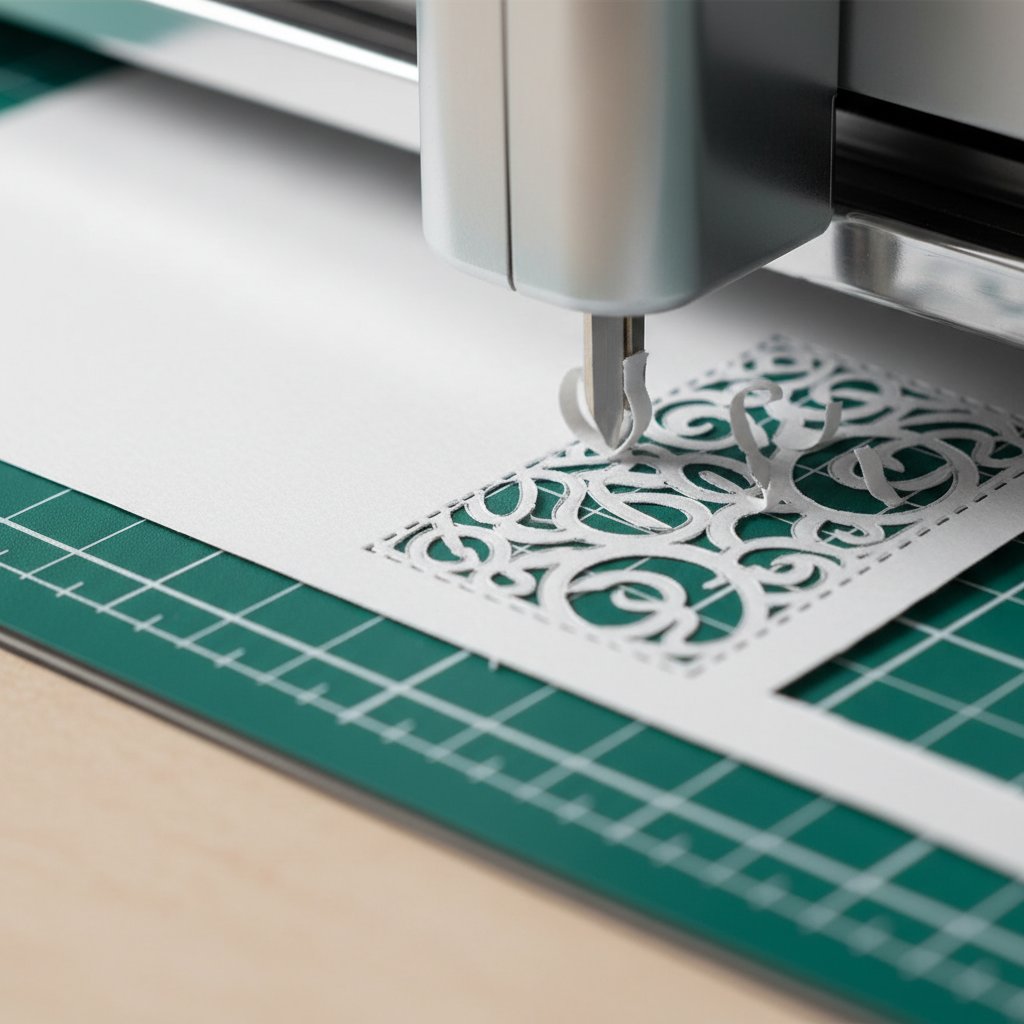
Close-up of a Cricut blade cutting an intricate filigree pattern into cardstock on a cutting mat

A Cricut drags a small tungsten-carbide blade along a programmed path at a set pressure and speed. Three variables decide whether a cut succeeds: blade sharpness (a dull tip tears instead of slices), pressure (too low and the cut stops short of the mat, too high and it scores the mat and dulls the blade), and mat grip (paper that lifts or shifts mid-cut gets dragged into a ball). Master techniques by learning which variable each one depends on most — intricate cutting lives or dies on blade sharpness, multilayer depends most on consistent mat grip, scoring depends almost entirely on pressure and a correctly installed stylus.

The Skill-Builder Mindset

The reason most beginners plateau at "one clean silhouette" is that they keep cutting the same kind of project and call every failure a settings problem. The faster path is to add exactly one new technique per project: first a clean single-layer cut, then a project with interior cutouts (weeding), then an intricate design, then a fold, then a second layer. Each section below is one rung on that ladder, with the design rule and the Cricut setting that makes it work.

2. Essential Cricut Tools and Accessories for Paper Cutting

You do not need the whole accessory wall. Paper cutting across all five techniques needs a short, specific list, and each tool maps to one or two techniques above. Buying them in this order matches the skill progression, so you only buy a tool when a technique actually requires it.

The Core Five (covers basic and intricate cutting)

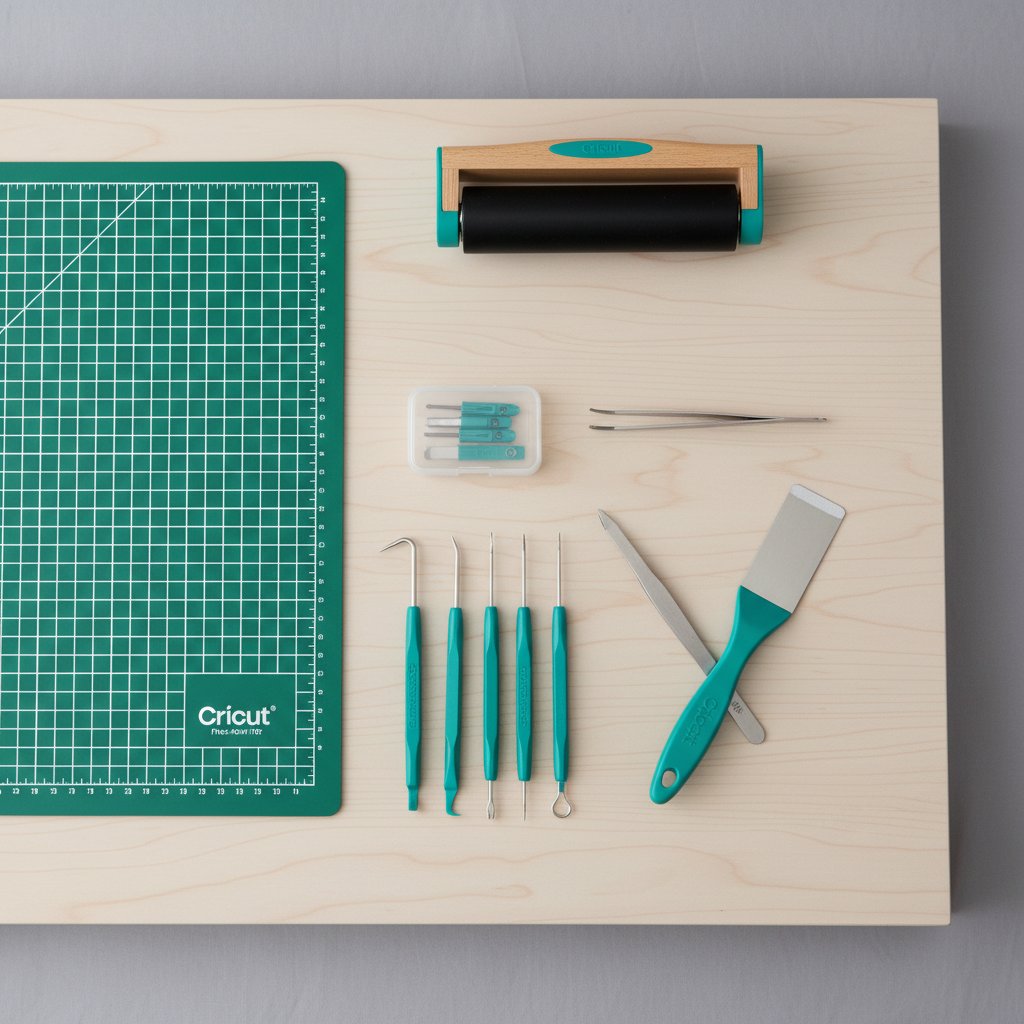
Flat-lay of Cricut crafting accessories including cutting mat, blades, weeding tools, brayer and tweezers
  • Fine-point blade and housing — the everyday paper blade. One housing, replaceable blades. This single tool handles basic cutting and most intricate work up to about 80 lb cardstock. If you own one sharp fine-point blade, you can complete the first four techniques on this list. - StandardGrip mat (green) — the default mat for 65–80 lb cardstock. Buy two so one is always de-tackified and ready; mat grip is the variable that breaks most multilayer cuts. - Weeding hook — lifts the small interior pieces (negative space) out of a cut design. Without it, intricate cutting is agony. - Brayer — a rubber roller that presses cardstock flat onto the mat. It eliminates the air pockets that cause skipped cuts on larger and multilayer designs. - Scraper or spatula — lifts finished cuts off the mat without curling them, and cleans paper fibers off the mat between projects.

Tools That Unlock Specific Techniques

  • Scoring stylus (or scoring wheel on Maker) — unlocks the scoring technique for greeting cards, boxes, and folded paper projects. Without a scoring tool you cannot make a clean fold line on a Cricut. - Deep-point blade — unlocks heavy and glitter cardstock (100 lb+). Only buy it when your projects call for thick or specialty paper; the fine-point blade handles everything else. - LightGrip (blue) and StrongGrip (purple) mats — the blue mat unlocks delicate papers (vellum, light specialty); the purple mat unlocks heavy and glitter cardstock. Add them when you start mixing materials.

What to Skip Until You Need It

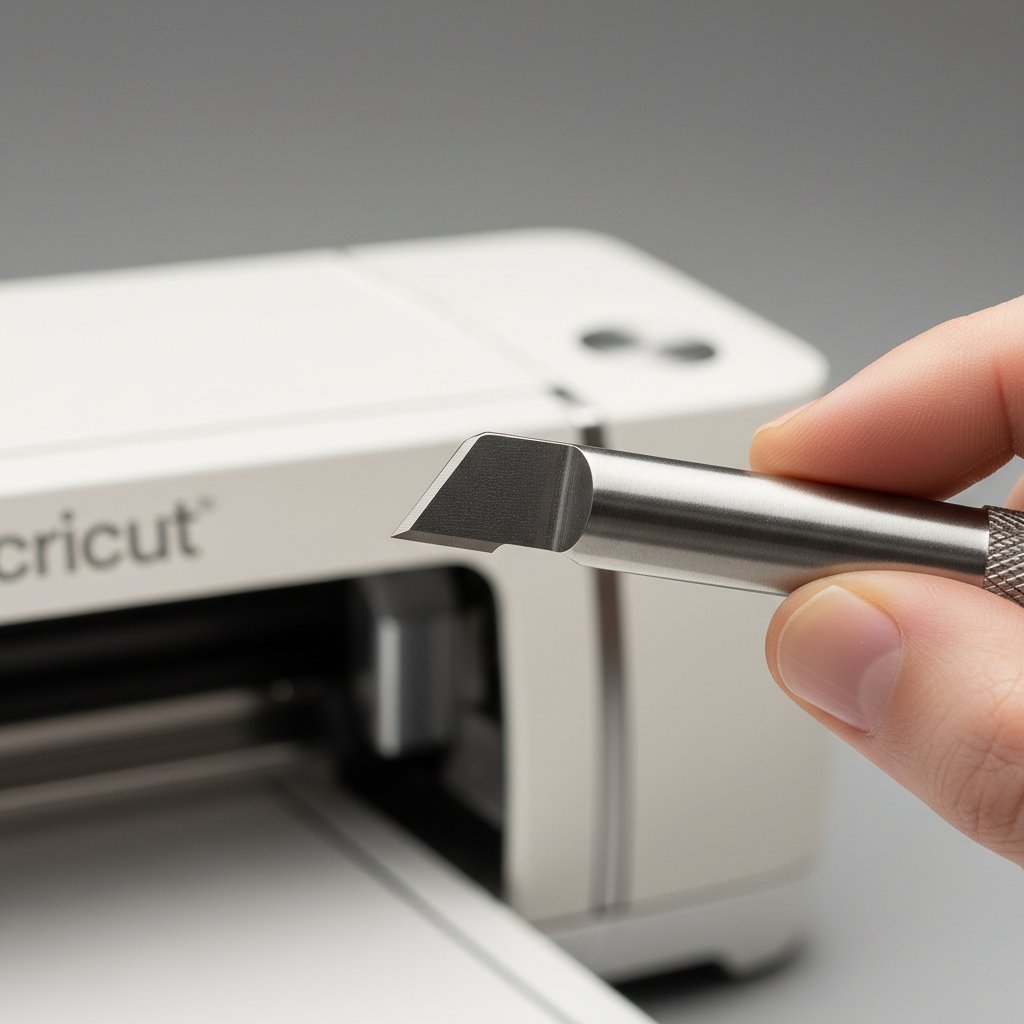
Heavy-duty Cricut knife blade tool held beside a Cricut cutting machine

The knife blade is for balsa wood and chipboard, not paper — leave it until you move beyond cardstock entirely. For a full buying breakdown across hand and machine cutting, our Cricut blade comparison guide maps every housing to the job it actually does, so you buy the blade that matches the technique you are attempting rather than the whole rack.

3. Selecting the Right Paper for Your Cricut Projects

Paper choice is a technique decision, not a colour decision. The weight and finish of the sheet determine which cut technique will work and which will fail. Pick the paper for the technique first, then choose the colour.

Match Paper Weight to the Technique

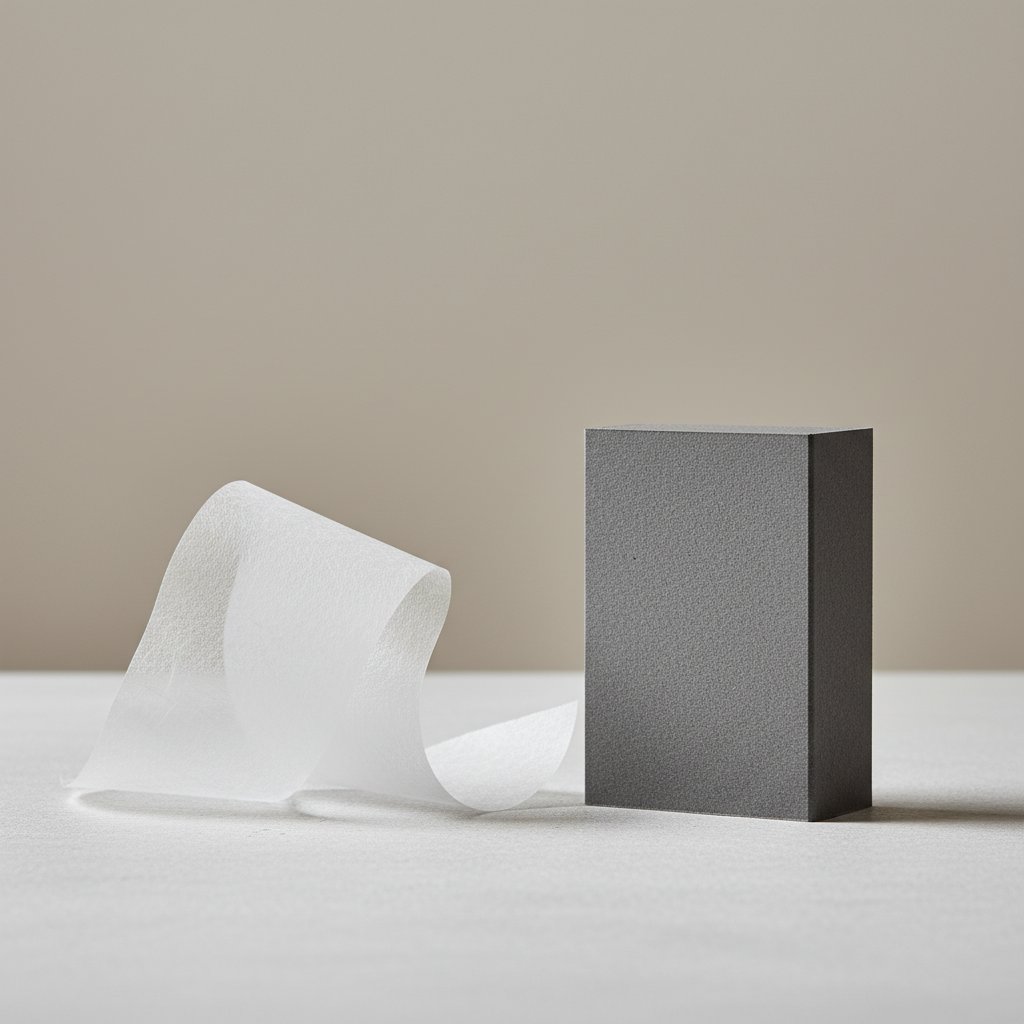
Flimsy thin paper drooping beside sturdy heavy cardstock holding its shape, comparing paper weights

| Paper | Weight | Best for technique | Avoid for | |-------|--------|--------------------|-----------| | Light cardstock | 65 lb (176 gsm) | Basic cutting, first intricate cuts | Very thin bridges, heavy multilayer | | Medium cardstock | 80 lb (216 gsm) | Intricate cutting, multilayer mid-layers | Folding without scoring | | Heavy cardstock | 100–110 lb | Multilayer back layers, dimensional pieces | Intricate filigree (too stiff) | | Vellum | varies | Mixed-material diffusers, backlit layers | High-pressure cuts (it tears) | | Glitter / foil | varies | Accent layers, single bold shapes | Thin detail (flakes mask the cut) |

The single most useful beginner paper is 65 lb solid-core cardstock — it cuts cleanly in one pass on the default Cardstock setting, forgives setting mistakes, and holds a crisp edge. Printer paper (20 lb) is too light for any cutting technique; the mat grip overpowers it. Construction paper sheds fibers into the blade housing. For every weight, finish, and brand with tested settings, our Cricut cardstock types guide is the reference we keep open while cutting.

Specialty Papers and Why They Need Different Techniques

Vellum, metallic, and glitter sheets each break a default cut. Vellum tears under high pressure and shows every adhesive, so it needs a LightGrip mat and lower pressure. Metallic cardstock has a foil skin that can peel at the cut edge — use a multi-cut and a StrongGrip mat. Glitter cardstock dulls blades fast and masks fine detail, so reserve it for bold single-layer shapes. When you are ready to combine these with regular cardstock, our advanced vellum cutting guide covers the mixed-material technique in depth.

4. Basic Cricut Paper Cutting Settings and Optimization

Settings are where technique meets the machine. The right setting applies the correct pressure, speed, and number of passes for the paper in front of you. Beginners often treat the material menu as a guess; treat it as a lookup table instead.

The Setting-to-Pressure Map

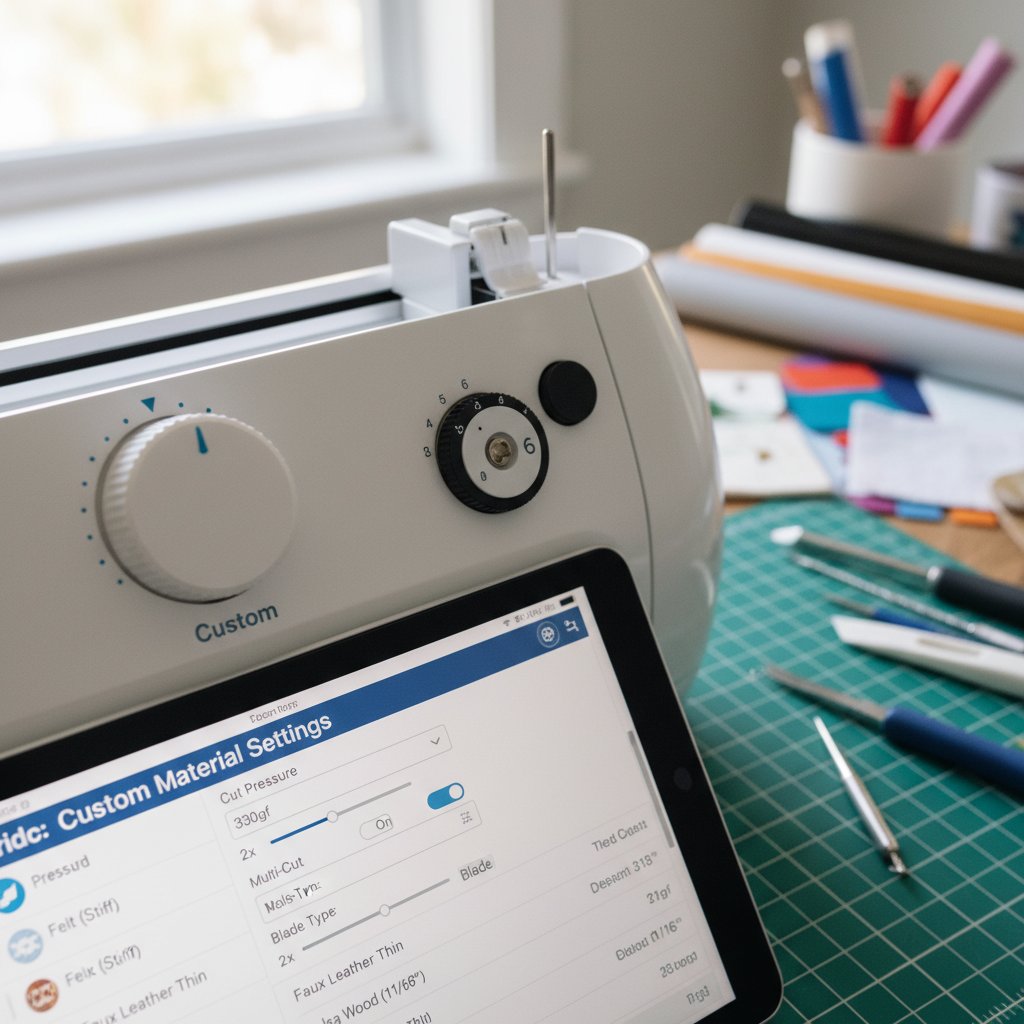
Cricut pressure dial and blade depth adjustment settings for custom cardstock material configuration

| Design Space setting | Paper | Pressure | Multi-cut | |-----------------------|-------|----------|-----------| | Light Cardstock | 60–65 lb | Default | 1× | | Cardstock | 65–80 lb | Default | 1× | | Cardstock (for intricate cuts) | 65–80 lb detailed designs | More | 1× | | Heavy Cardstock | 100–110 lb | More | 2× | | Glitter Cardstock | Glitter sheets | More | 2× |

The rule that fixes 90 percent of incomplete cuts: when a cut does not go all the way through, bump the setting to More before you reach for a different blade. Pressure, not the blade, is the first variable to adjust. For the master reference of tested pressure, multi-cut, and blade combinations across every paper, our Cricut cardstock settings mastery guide is the document we update after every new paper test.

Optimize Before You Cut

Three habits eliminate most setting failures before the blade moves. First, always run the built-in test cut on a corner scrap — it cuts a small triangle and square, takes 30 seconds, and saves every sheet it tests. Second, Attach your design in Design Space so the machine cuts it in one position on the mat instead of spreading pieces across the sheet. Third, match the mat grip to the paper weight — a worn StandardGrip mat lets heavy cardstock lift and snag. For matching every weight to its mat, the Cricut mat guide maps the full range.

5. Design Fundamentals: Creating Cut-Friendly Paper Designs

This is the technique every beginner guide skips, and it is the one that separated my torn-up tree from the clean cuts I make now. A blade is a physical object — roughly 0.5 mm wide — and it cannot cut a line thinner than itself without severing it. Design fundamentals are the rules that keep your artwork inside what the blade can actually reproduce.

The Four Rules of a Cut-Friendly Design

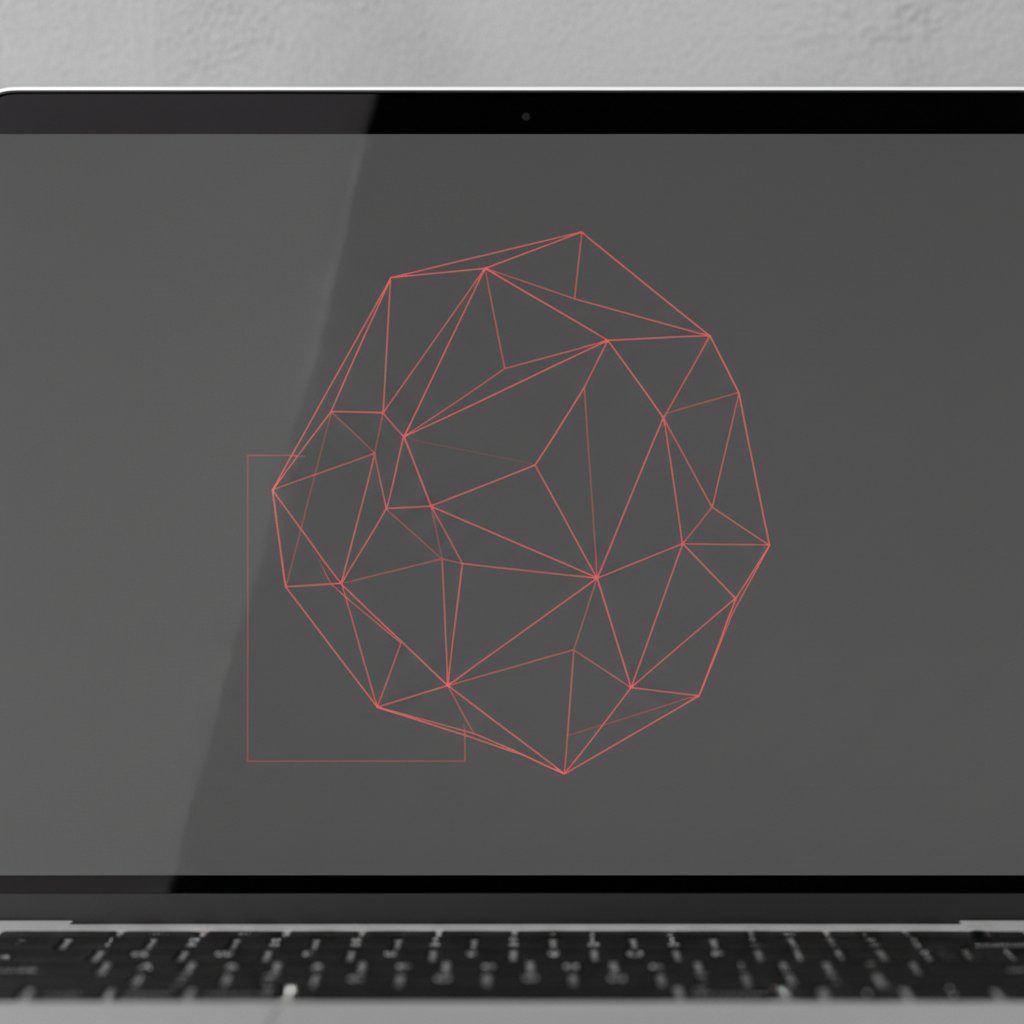
A laptop screen showing an abstract paper-craft shape outlined entirely with thin red cut lines on a dark canvas
  1. Minimum line thickness. Every line, bridge, and strut in the design must be at least as wide as the blade path — about 1 mm for a fine-point blade on 65 lb cardstock, closer to 1.5 mm for intricate work. Thinner lines tear or fall out during weeding. When in doubt, thicken the stroke. 2. Connected paths. Every part of the design must connect to every other part, either directly or through a bridge. A floating shape with no bridge will cut loose and either fall out or shift. In Design Space, use Weld and Attach to join overlapping shapes into a single connected path before cutting. 3. Negative space, not filled space. Paper cutting removes material; the design is defined by what stays. Balance the paper you remove (negative space) against the paper you keep (positive structure). If more than about 60 percent of a region is cut away, the remaining bridges are too sparse to hold together. 4. Bridge the fragile joints. Anywhere a thin line meets a larger shape, add a small bridge — a stub of extra paper — on both sides of the joint. Bridges are how papercutters keep delicate filigree attached to the frame; without them, intricate cuts separate at the joints during weeding.

How to Check a Design Before Cutting

A laptop screen showing nested concentric paper-craft layer shapes in different colors stacked to suggest depth

Before you commit cardstock, zoom the design to 100 percent in Design Space and imagine a 1 mm blade tip tracing every line. Anywhere the tip would have nowhere to land — a point, a hairline, a floating dot — fix it. A faster check: if any line is thinner than the diameter of the fine-point blade housing, thicken it. When you start from a ready-made SVG rather than your own art, these rules are already solved for you, which is why a tested template is the fastest way to learn what "cut-friendly" looks like in practice.

Start With a Cut-Friendly Design
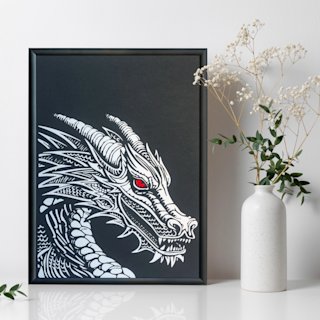
Design fundamentals are easiest to learn on a real file. The Dragon papercut SVG is a bold, single-layer silhouette with continuous connected paths and bridges already in the right places — the ideal design to practice reading a cut-friendly file before you draw your own.

6. Step-by-Step: Your First Simple Paper Cut Project

This is the basic-cut technique, the foundation every other technique builds on. Run it once end to end and the rest of the guide clicks into place. The project is a single-layer silhouette with interior cutouts — a bold shape with negative space to weed.

1. Open and Size the Design

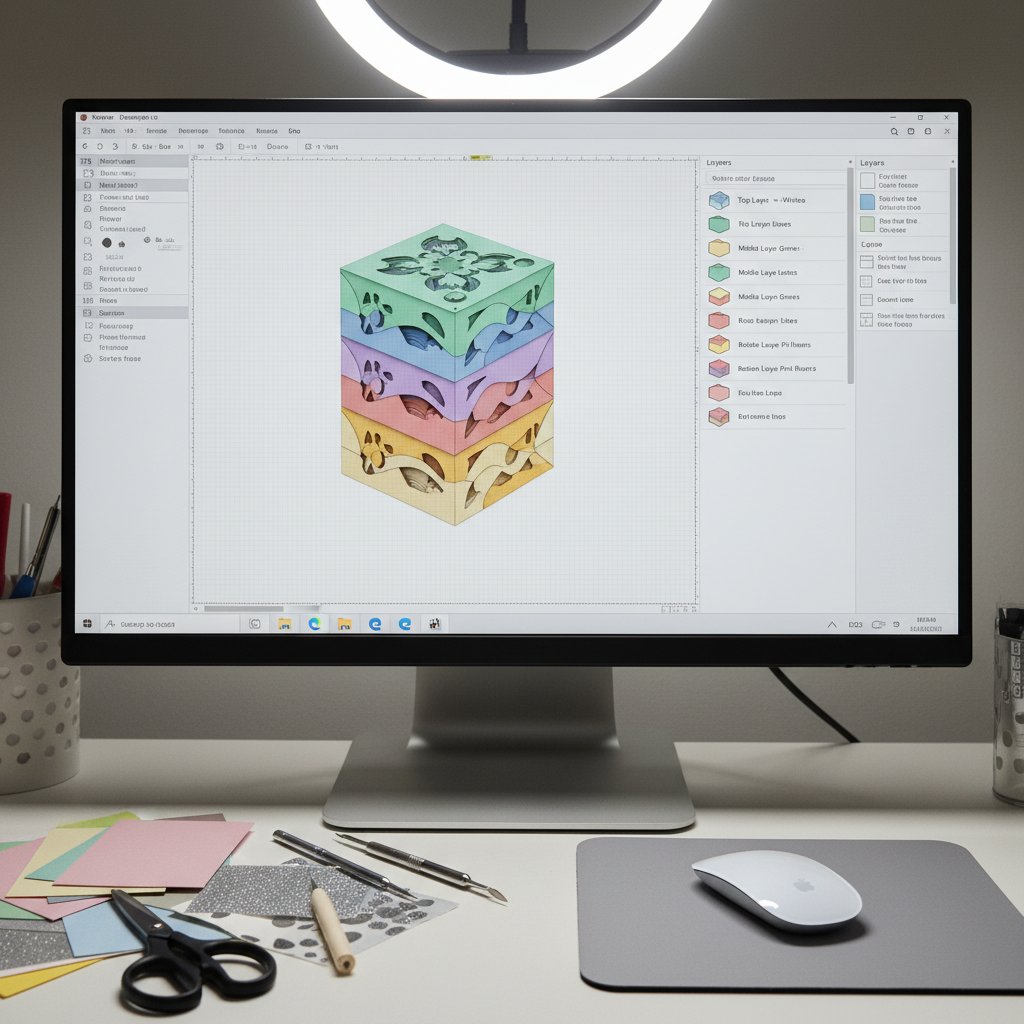
Cricut Design Space interface showing the Layers panel with multiple color-coded shadow box layers organized

Open your SVG in Design Space. Resize it to fit your cardstock with at least a half-inch border on every side. Select all the shapes and click Attach so the machine cuts them as one group in one place on the mat. For the full Design Space workflow — upload, sizing, attach, and make — our Cricut Design Space tutorial for beginners walks through every panel.

2. Test Cut, Then Cut

Place 65 lb cardstock on the StandardGrip mat aligned to the top-left grid corner, brayer it flat, and load the mat. Choose Cardstock as the material. Run a test cut on a scrap corner first. If the triangle and square lift out cleanly, run the full Make It. Watch the first 30 seconds — if the paper lifts, shifts, or the blade only scores, pause and fix the cause (usually a worn mat or a dull blade) before wasting the sheet.

3. Remove and Weed

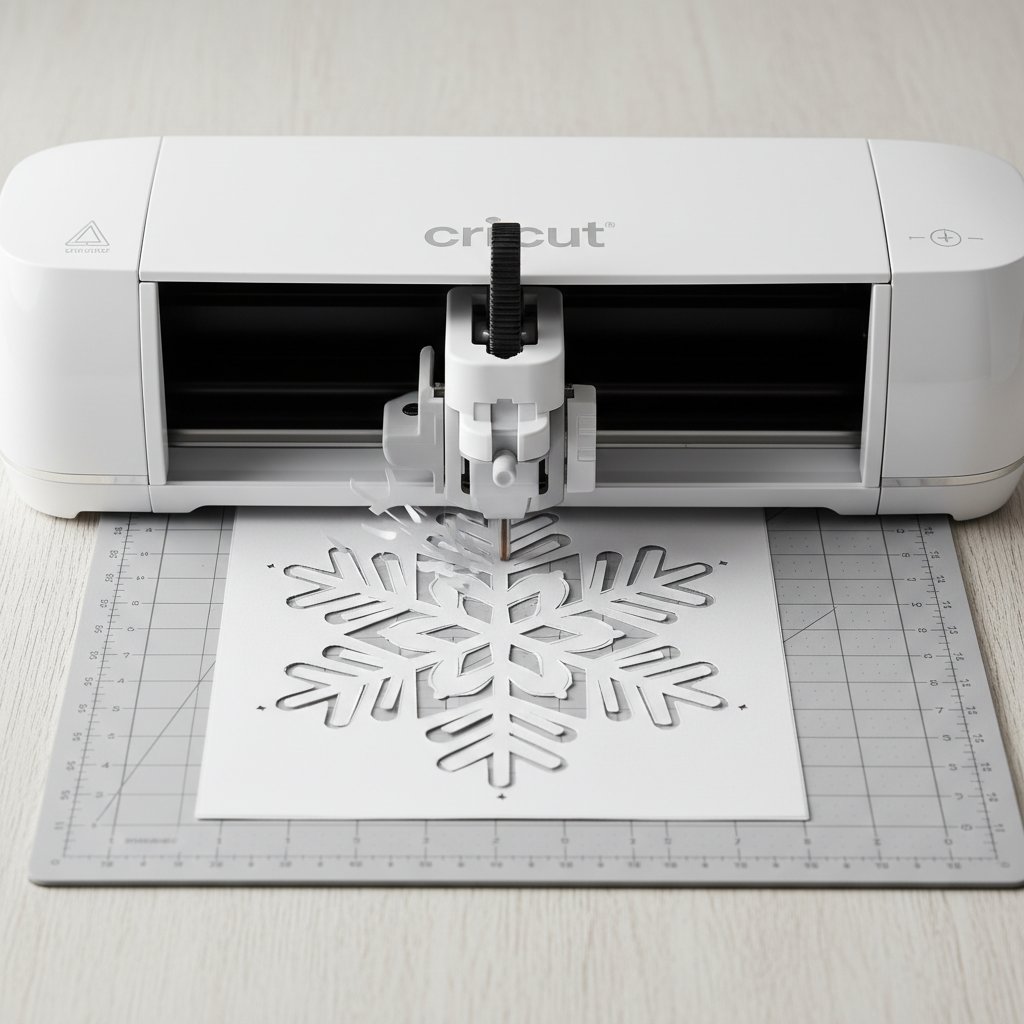
Cricut machine precisely cutting an intricate Christmas snowflake from white cardstock

Flip the mat upside down and curl it back slowly to release the cardstock by its own weight — never pull paper straight up off a tacky mat. Use the weeding hook to lift out the interior negative-space pieces, working from one edge inward. You now have a finished basic cut. From here, the next rung is intricate cutting (section 7), then scoring (8), then multilayer (9).

7. Advanced Techniques: Intricate Patterns and Fine Details

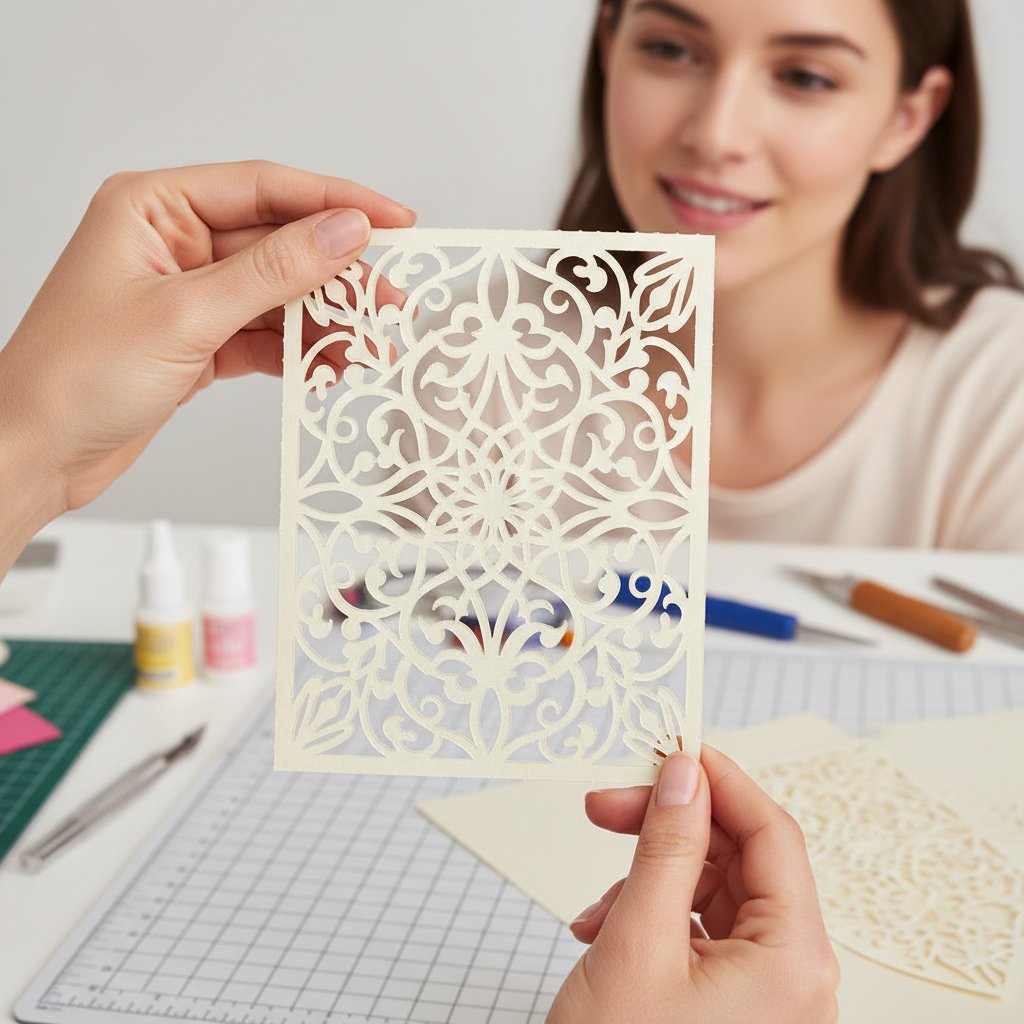
Intricate cutting is the basic technique pushed to its limit — many fine lines, thin bridges, and small interior shapes on a single layer. It is where design fundamentals and blade condition matter most, and where beginners see the most dramatic failures (and the most satisfying wins).

The Three Variables of an Intricate Cut

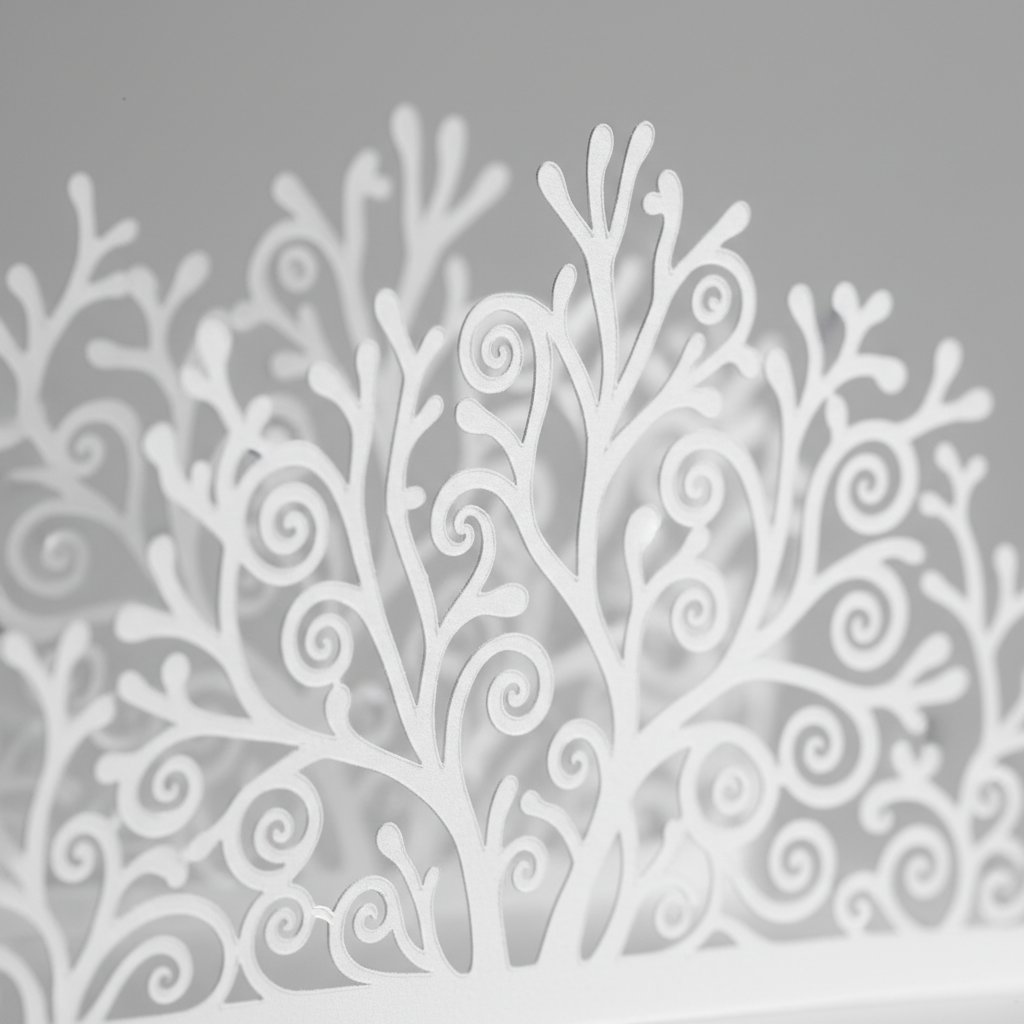
Extreme macro of an intricate cardstock layer with dozens of tiny delicate filigree cutouts and fine branch patterns

Intricate cutting succeeds only when all three line up: a sharp blade (a blade with 25+ prior cuts is too dull for filigree), the Cardstock (for intricate cuts) setting (More pressure, one pass), and a fresh, properly tacked mat (any lift mid-cut severs a thin bridge). If an intricate cut fails, check these three in order — blade, setting, mat — before changing the design.

Step Up the Paper Weight for Fine Detail

Counterintuitively, fine detail cuts better on slightly heavier paper. 80 lb cardstock holds thin bridges more rigidly than 65 lb, so the bridges survive weeding. For a design with very thin lines, switch to 80 lb and the intricate-cut setting. The heavier sheet is stiffer, which is exactly what fragile filigree needs.

Intricate Cut Checklist

Before running an intricate design, run through this checklist — it is the difference between a clean filigree and confetti:

  • Fresh fine-point blade installed (or deep-point blade for 100 lb+) - All bridges 1 mm or wider; no floating shapes - Design Attached in Design Space - Mat freshly cleaned and tacked; cardstock brayered flat - Cardstock (for intricate cuts) setting selected - Test cut passes on a scrap before the full sheet - Plan to weed slowly from one edge with the hook, supporting bridges with a finger

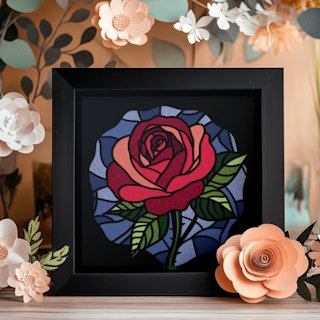
When a stained-glass floral is the project, every petal is an intricate cut — which makes it a perfect design for practising this technique end to end.

Practise Intricate Cutting on a Floral
The Rose stained-glass shadow box SVG is built from dozens of fine petal shapes with pre-engineered bridges — a forgiving way to drill the intricate-cut technique on a design bold enough to survive your first attempts.

8. Using Scoring Stylus for Folded Paper Projects

Scoring is the technique that adds fold lines to paper without cutting them. A score is a shallow crease that weakens the paper along a straight line so it folds cleanly and symmetrically. It is how you make greeting cards, boxes, lanterns, and folded paper art on a Cricut — none of which are possible with a blade alone.

How Scoring Works on a Cricut

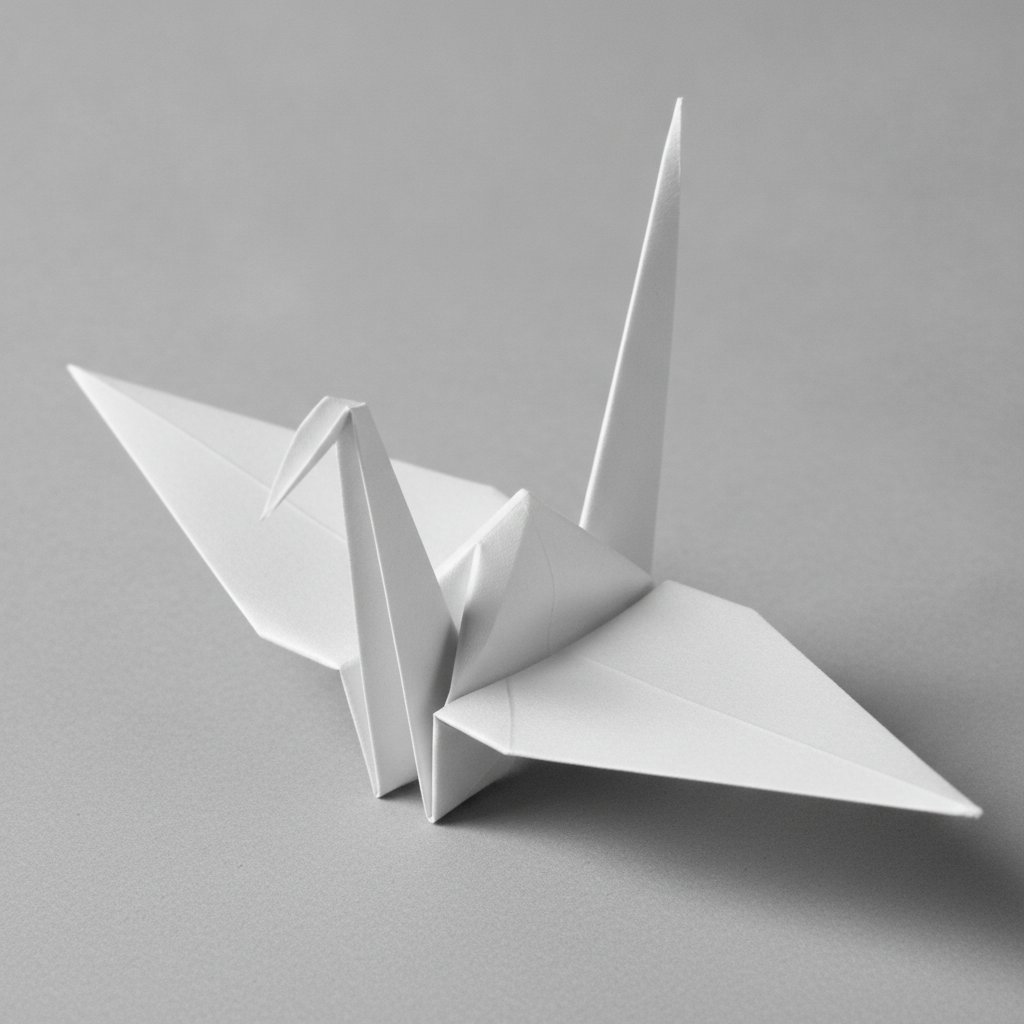
Extreme close-up of a single crisply folded white paper crane showing sharp clean creases and symmetrical wings

Instead of a blade, you load a scoring stylus (Explore and Joy) or a scoring wheel (Maker) into clamp A. The stylus presses a crease along the fold lines; the blade in clamp B then cuts the outline. In Design Space, assign the fold lines to the Score operation and the outline to the Cut operation, then Attach the two so they align on the mat. The machine scores first, cuts second, and you fold along the crease.

Settings and Common Failures

Score pressure matters less than cut pressure, but a score that is too light leaves a weak crease that folds crookedly, and a score that is too heavy cuts through. Use the Score line type with the default pressure for 65–80 lb cardstock; increase pressure for heavy cardstock. The most common scoring failure is forgetting to swap the stylus into clamp A before Make It — Design Space will prompt you, and ignoring the prompt cuts where it should score.

Projects That Need Scoring

A folded greeting card (score the fold, cut the front panel design), a papercraft box (score every fold, cut the tabs), and a paper lantern (score the vertical folds, cut the side pattern) all use the same score-then-cut technique. Once you can combine a score line with a cut outline, you have unlocked the entire family of folded paper projects — and the fold becomes a structural element you can use inside multilayer work for pop-ups and tabs.

9. Multilayer Paper Cutting for Depth and Dimension

Multilayer cutting is the technique that turns flat paper into three-dimensional art. It is not a different cut — each layer is a normal basic or intricate cut — it is a stacking technique: several layers cut separately, aligned on top of each other, and separated by foam spacers so each layer sits a few millimetres behind the one in front. The cumulative gap between layers is what creates depth.

How Depth Is Built

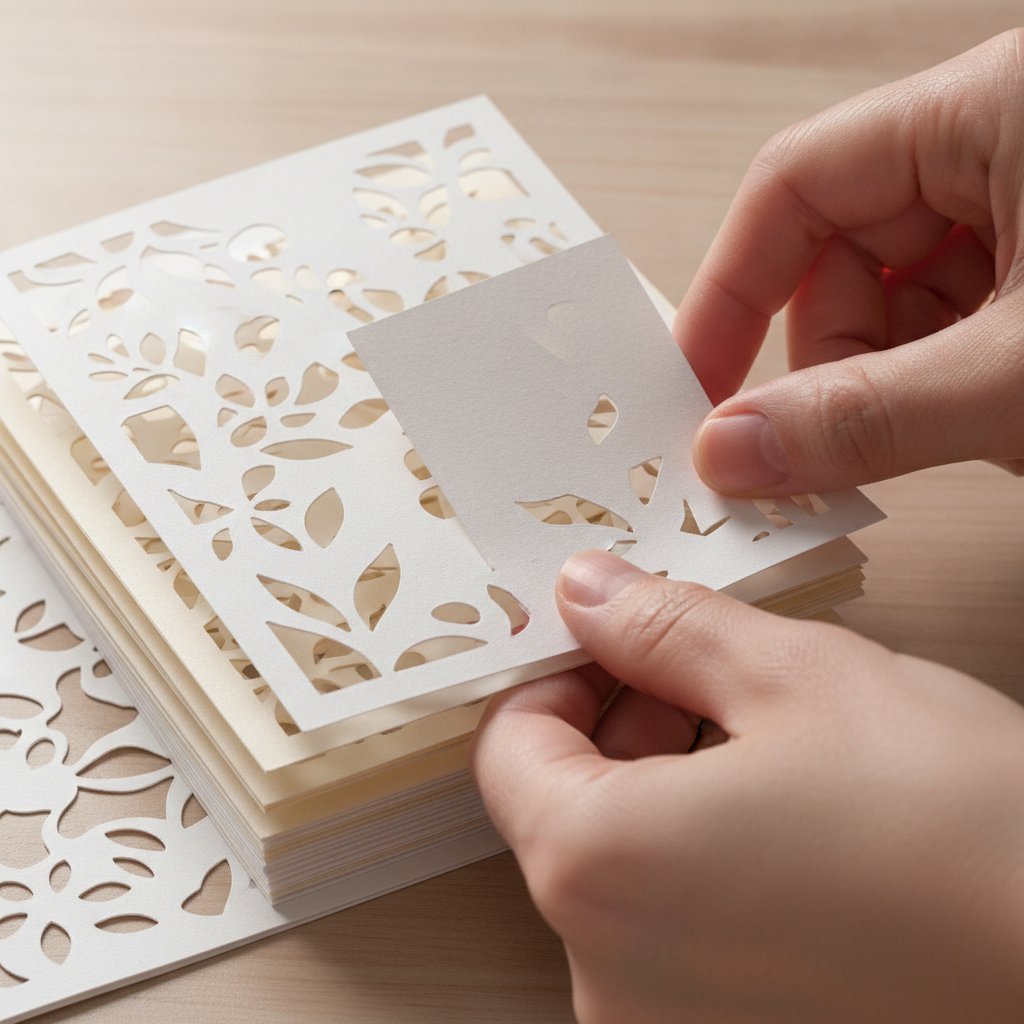
Stacked layered papercut shadow box cardstock layers being aligned by hand showing a slight registration offset

A multilayer piece gets its 3D look from the spacers between layers, not from thick paper. Cut each layer from standard 65–80 lb cardstock, then stack them with foam adhesive or foam board spacers (2–5 mm each) between layers. A six-layer piece with 3 mm spacers in a deep frame produces noticeably more depth than the same design cut from a single thick sheet. The frame depth must exceed the total stack height, or the glass crushes the layers.

The Multilayer Workflow

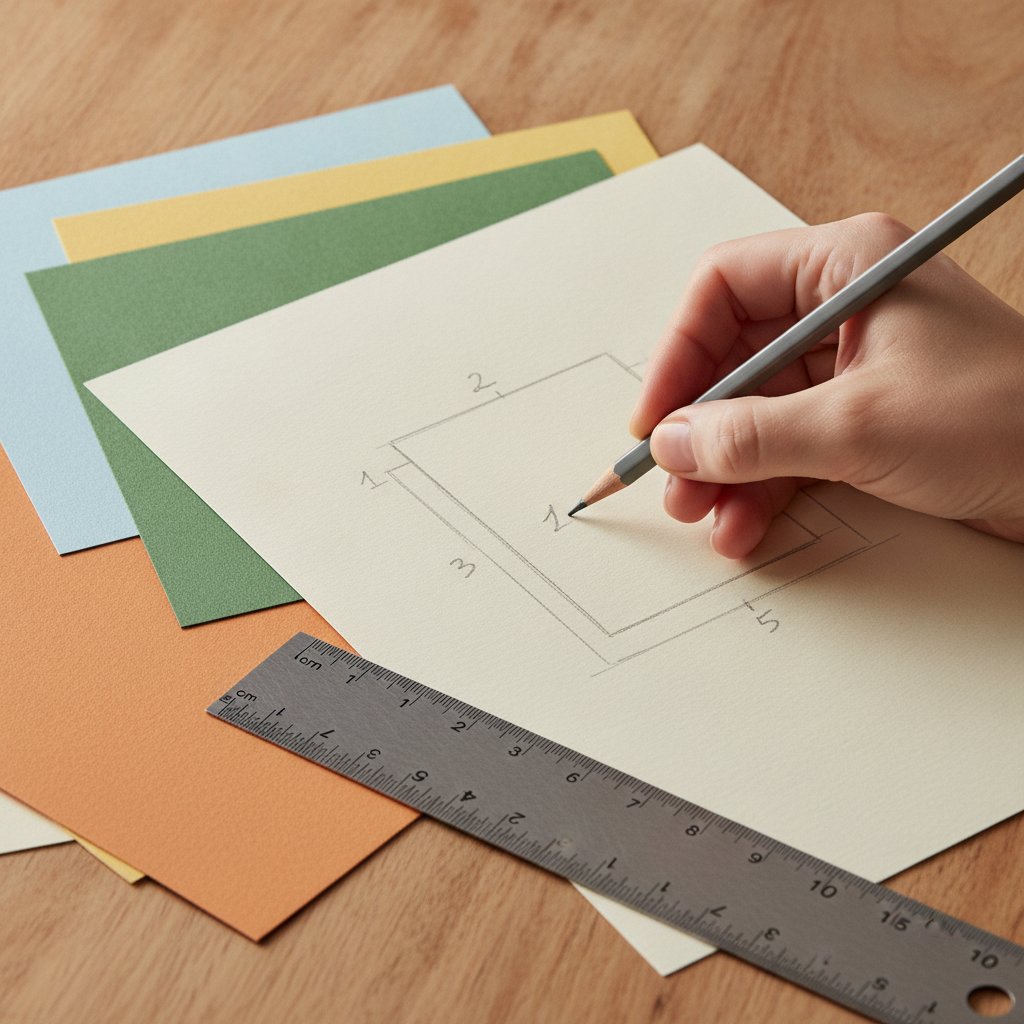
A hand sketching a numbered layer-stack layout plan with a pencil beside sheets of cardstock and a ruler
  1. Plan the layer order. Number the layers back to front before cutting and assign each a colour. Sketching the stack on paper first prevents assembly confusion. 2. Cut each layer with its own setting. The back layer is often a solid silhouette (basic cut); the front layers carry detail (intricate cut). Match the setting to each layer's paper and detail level. 3. Align and stack. Use registration marks or the frame edges to align each layer over the one behind it. Apply spacers at the corners and any long unsupported spans. 4. Frame and light. Mount the stack in a deep frame; add LED light behind the back layer for the glowing shadow-box effect.

For the full stacking path — spacer materials, glue choice, alignment tricks, and frame sizing — our how to assemble layered shadow boxes guide is the step-by-step reference, and the import multilayer SVG in Design Space walkthrough covers the attach-and-group workflow for multi-colour layered files.

Build Your First Multilayer Piece
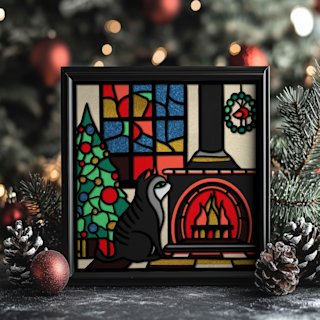
The Cat near the Fireplace shadow box SVG is a six-layer woodland scene with bold, continuous shapes that cut reliably and assemble into a finished, frameable multilayer build — the natural next project once your single-layer cuts are clean.

10. Troubleshooting Common Paper Cutting Issues

Every paper-cutting failure has one primary cause and one primary fix. Work down this flowchart in order — do not jump to "the machine is broken." The cause is almost always one of three things: a dull blade, the wrong pressure, or a mat that is too tacky or too worn.

Paper Tears When You Peel It Off the Mat

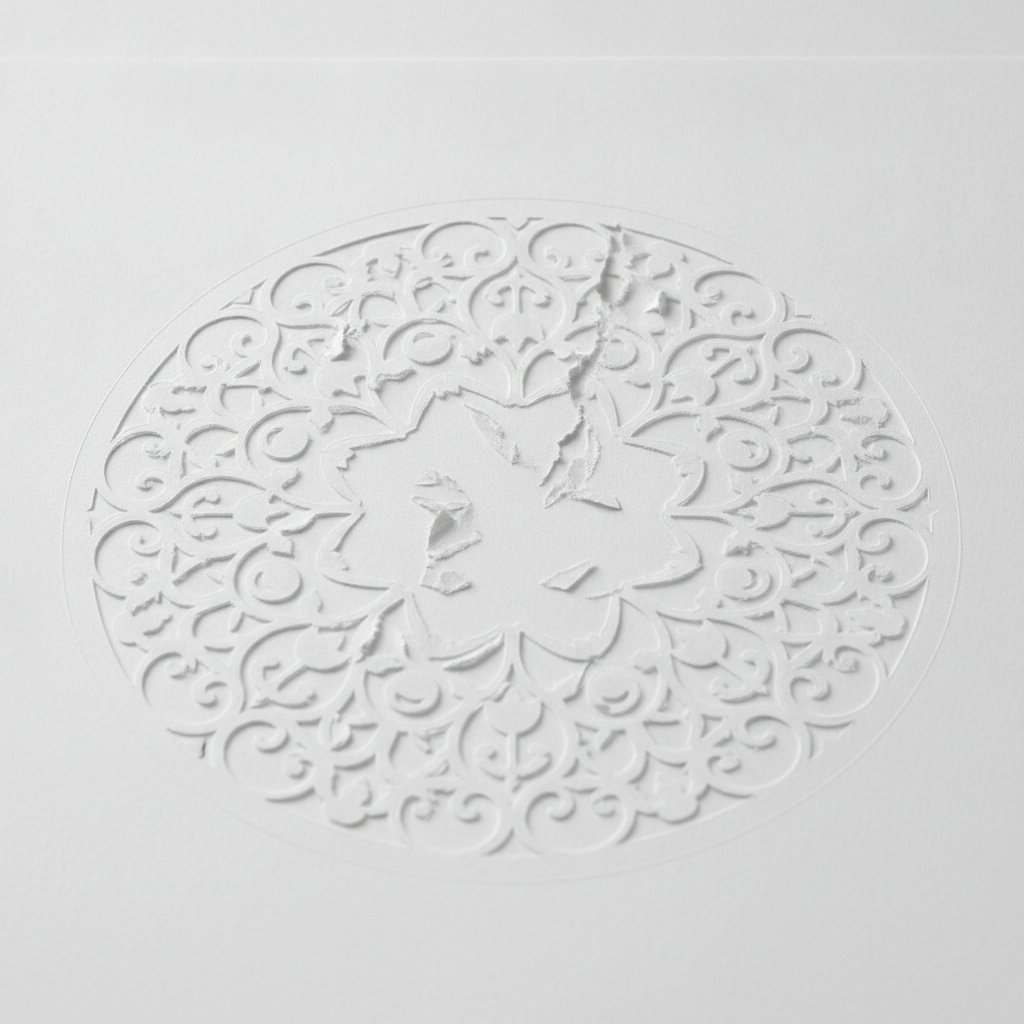
An overly intricate paper cut design on white cardstock torn during weeding with delicate broken bridges

Cause: the mat is too tacky, or you are pulling up instead of rolling back. Fix: flip the mat over and curl it back slowly so the cardstock releases by its own weight; de-tackify a brand-new mat by pressing a clean cotton t-shirt to it once. This is a tackiness problem, not a settings problem.

The Cut Does Not Go All the Way Through

Cause: dull blade, or pressure too low. Fix: bump the material setting to More and retest. If it still falls short, replace the fine-point blade — a dull blade cannot be rescued with more pressure, it only tears. For the full diagnostic flow across every "it did not cut right" scenario, our Cricut cardstock troubleshooting bible is the reference we reach for first.

The Blade Scores Instead of Cuts (Drag Marks)

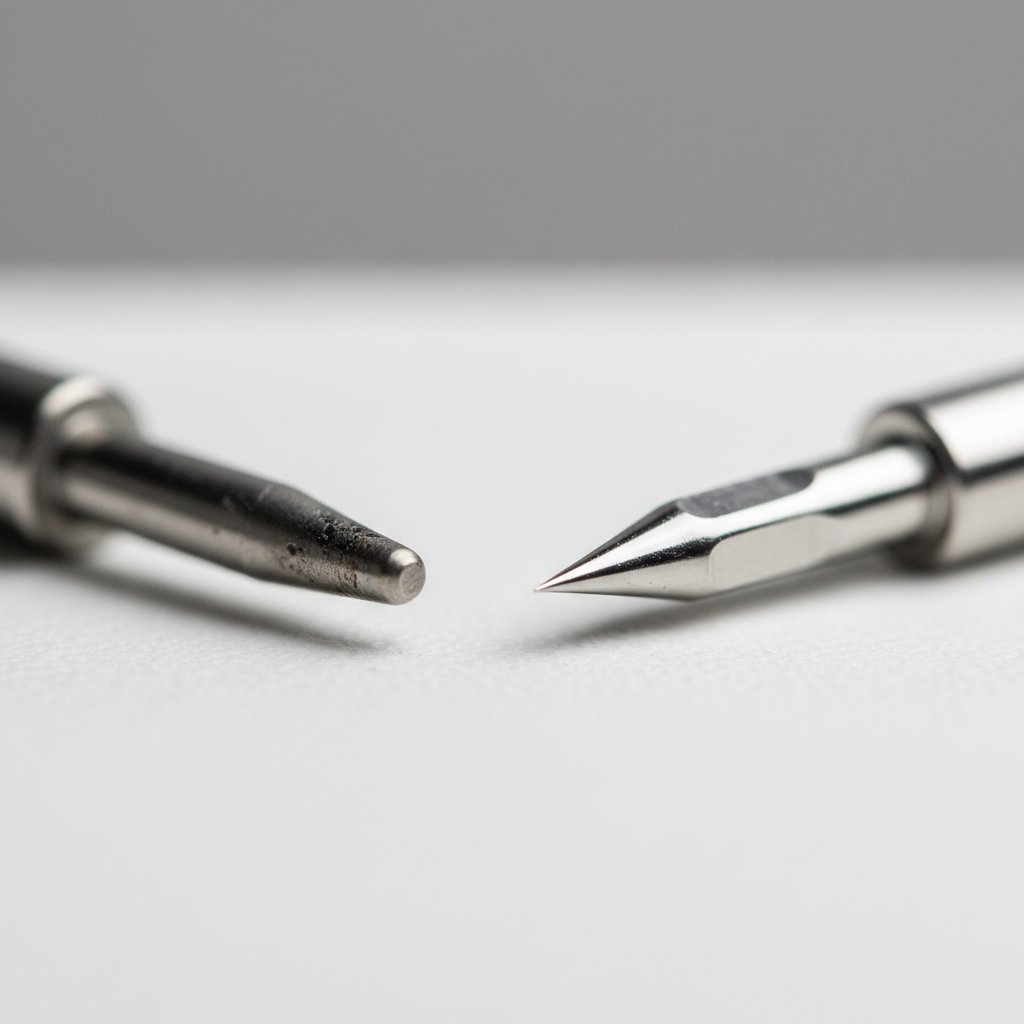
Worn dull Cricut blade beside a sharp new replacement blade in close-up

Cause: the blade housing is dirty or the tip is chipped. Fix: remove the blade, blow out the housing, check the tip under a light for a chip, and reinstall. Paper-dust buildup inside the housing is a silent killer of clean cuts — clean it monthly. A blade that has done 25 or more cardstock projects is likely dull; replace it.

The Mat Will Not Grip the Paper

Cause: the mat is exhausted. Fix: wash it with dish soap and warm water, let it air dry sticky-side-up, and retest. If grip does not return, restick it or replace it. Before you throw a mat out, see our Cricut mat restoration guide.

Intricate Bridges Tear During the Cut Itself

Cause: bridges are thinner than the blade path, or the setting is too aggressive for the detail. Fix: thicken the bridges to at least 1 mm, switch to 80 lb cardstock, and use the Cardstock (for intricate cuts) setting. Very fine filigree cuts more reliably on heavier paper because the stiffer sheet holds thin bridges in place during weeding.

11. Project Ideas to Build Your Skills

The fastest way to learn paper cutting techniques is to add exactly one new technique per project. This list is ordered as a skill ladder — each project introduces one new technique on top of the last, so you are never fighting two unknowns at once.

Finished layered paper-cut shadow box beginner project on a wooden table
  1. Single-layer monogram or name (basic cut). One cut, one mat, one piece. Tests blade sharpness and the Cardstock setting. Frame it as your first finished piece. 2. Bold silhouette with interior cutouts (basic + weeding). A single-layer animal or flower with negative space. Teaches you to weed interior shapes without breaking bridges. 3. Intricate filigree panel (intricate cut). A detailed mandala or stained-glass floral. Teaches blade-and-setting discipline on fine detail. 4. Folded greeting card (basic + scoring). Adds one score line to a cut design. Introduces the scoring stylus and the score-then-cut workflow. 5. Simple 3–5 layer shadow box (multilayer). Your first stacked build. Teaches mat-to-mat colour changes, alignment, and spacer stacking on continuous shapes. 6. Mixed-material backlit piece (multilayer + mixed). Cardstock layers with a vellum diffuser. Introduces per-layer settings and careful mat swaps.

For a longer ranked list, our Cricut shadow box ideas guide lists 25 projects you can actually cut as a beginner, and the five easy paper cut shadow box projects article walks through the five simplest first builds step by step.

12. Tips for Perfect Results Every Time

Once the techniques are in place, a handful of habits separate consistent clean cuts from intermittent failures. These are the practices we run before every session.

Keep a Settings Notebook

Crafter holding up a flawlessly clean-cut intricate cardstock design with crisp edges

Cardstock varies by brand and even by batch. Keep a notebook of the setting, blade, mat, and paper brand that worked for each project. After a month you have a personal settings library that turns every new design into a known quantity instead of a guess. This is the single highest-leverage habit in paper cutting.

Match the Tool to the Technique, Not the Project

Reach for the fine-point blade by default; add the deep-point blade only for heavy or glitter cardstock; add the scoring stylus only when a design has fold lines. Buying and swapping tools you do not need slows you down and introduces setting errors. The technique dictates the tool.

Protect Your Mats and Blades

Clean the mat after every few projects (a lint roller or baby wipe), de-tackify brand-new mats before their first 65 lb cut, and store blades in their housing with the cap on. Dull blades and exhausted mats cause more failed cuts than every setting error combined. Store cardstock flat and dry — humidity warps paper and dulls cuts faster than you would expect. Cut one new project a week, test-cut every unfamiliar paper, and the techniques in this guide turn into reliable muscle memory within a month.

The path forward is the skill ladder in section 11: one new technique per project, a test cut every time, and a settings notebook that grows with every sheet. Do that and paper cutting with your Cricut stops being a gamble and becomes a repeatable craft.

1.What paper weight works best for Cricut paper cutting?
65 lb (176 gsm) solid-core cardstock is the best all-round paper for Cricut paper cutting. It cuts cleanly in one pass on the default Cardstock setting, forgives setting mistakes, and holds a crisp edge. Use 80 lb cardstock when a design has fine detail or thin bridges — the heavier, stiffer sheet holds filigree in place during weeding. Printer paper (20 lb) is too light for any cutting technique and will ball up on the mat.
2.How do I prevent paper from tearing when cutting intricate designs?
Three things, in order: use a sharp fine-point blade (replace it after roughly 25 cardstock projects), select the Cardstock (for intricate cuts) setting which applies more pressure in a single pass, and step up to 80 lb cardstock so thin bridges stay rigid. Also make sure every bridge in the design is at least 1 mm wide — a blade cannot cut a line thinner than itself without severing it. Finally, weed slowly from one edge, supporting bridges with a finger as you go.
3.Can I use the Cricut Joy for paper cutting projects?
Yes. The Cricut Joy cuts cardstock with the same fine-point blade technology as the Explore and Maker, so all five techniques in this guide work on it. The Joy's limits are size — its mat is 4.5 in wide, so projects are small — and it uses Joy-sized mats and blades rather than the full-size accessories. For learning techniques the Joy is fine; for large multilayer shadow boxes you will eventually want an Explore or Maker.
4.What's the difference between the Fine-Point and Deep Cut blade for paper?
The fine-point blade is the everyday paper blade and handles all cardstock up to about 80 lb, including most intricate work. The deep-point (Deep Cut) blade cuts at a steeper angle and is for heavy 100–110 lb cardstock, glitter cardstock, and thicker specialty papers that the fine-point blade cannot get through in one pass. For everyday paper cutting, start with a sharp fine-point blade and only add the deep-point when a project genuinely calls for heavy or glitter cardstock.
5.How do I fix a cut that didn't go all the way through?
First, bump the material setting to More pressure and run a test cut on a scrap. If the cut now goes through, rerun the full design. If it still falls short, the blade is dull — replace the fine-point blade, because more pressure cannot rescue a dull tip and will only tear the paper. Also confirm you selected the correct material setting for your cardstock weight and that the cardstock is brayered flat on the mat with no air pockets.
6.Can I cut multiple sheets of paper at once with a Cricut?
Not reliably. Cricut is designed to cut a single sheet stuck to a mat; stacking two sheets causes the top sheet to shift and the cut to misalign between layers. If you need multiples of the same shape, cut them one sheet at a time — Design Space's "number of copies" handles the repetition, and you just reload the mat. For production volume, the fastest path is a fresh blade, a well-tacked mat, and a settings notebook so each sheet cuts in a single pass.
7.How often should I change my blade when cutting paper?
Roughly every 25 cardstock projects for the fine-point blade, sooner if you cut heavy or glitter cardstock, which dulls the tip faster. The signs of a dull blade are cuts that no longer go all the way through, drag marks where the blade scores instead of cuts, and torn edges on designs that used to cut cleanly. Blades are consumable — keep spares and replace at the first sign of dulling rather than fighting more pressure.
8.What Design Space settings work best for paper cutting?
Use Light Cardstock for 60–65 lb paper, Cardstock for 65–80 lb, Cardstock (for intricate cuts) for detailed designs on 65–80 lb, Heavy Cardstock (with multi-cut 2×) for 100–110 lb, and Glitter Cardstock (with multi-cut 2×) for glitter sheets. Always Attach the design before Make It so it cuts in one position, and run the built-in test cut on a scrap corner before committing a full sheet.
9.How do I create my own paper cut designs in Design Space?
Start from simple shapes and follow the four design rules: keep every line at least 1 mm thick, make sure every shape connects to the rest through bridges, balance negative space so no region is more than about 60 percent cut away, and add bridges at every fragile joint. Use Weld to merge overlapping shapes into a single connected path and Attach to lock the layout. The fastest way to learn what cut-friendly looks like is to open a tested SVG and study its bridges and line thicknesses before drawing your own.
10.What's the easiest beginner paper cutting project to start with?
A single-layer monogram or name. It is one cut on one mat with one piece of 65 lb cardstock, it tests blade sharpness and the Cardstock setting, and it produces a finished, frameable piece on the first try. From there, move to a bold silhouette with interior cutouts (to practise weeding), then a folded greeting card (to add scoring), then a simple 3–5 layer shadow box (to learn multilayer stacking). Each step adds one technique.