Articles15 min read

Papercut & Cricut Cut-File SVG Products — Complete Guide to Wall Art

Turn a papercut cut-file SVG into gallery-worthy wall art. A field-tested walk through choosing layered Cricut SVGs, matching paper to depth, cutting clean, and assembling real dimension — not another generic "how to upload a file" tutorial.

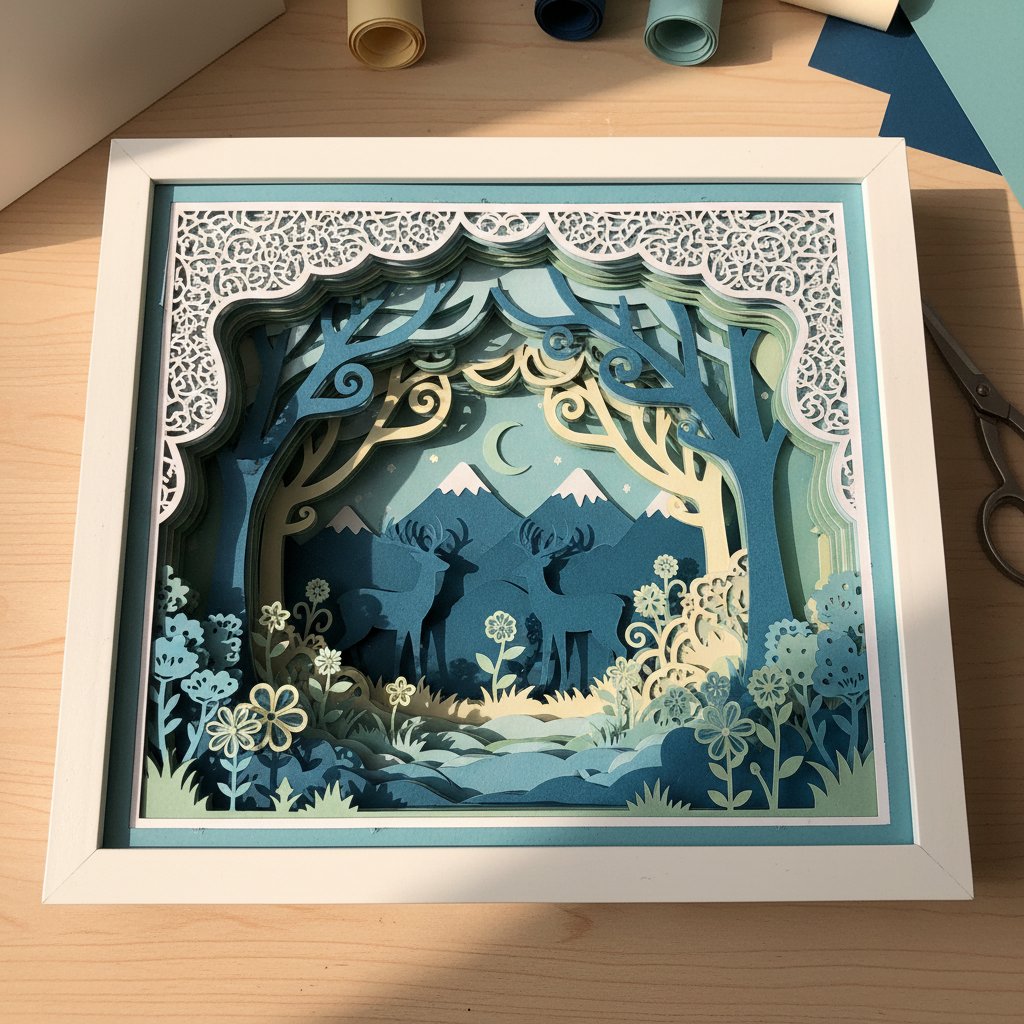
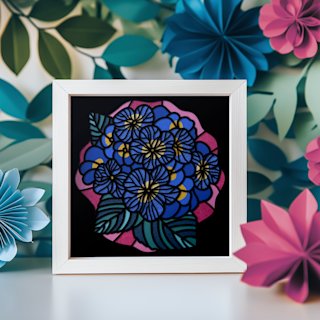
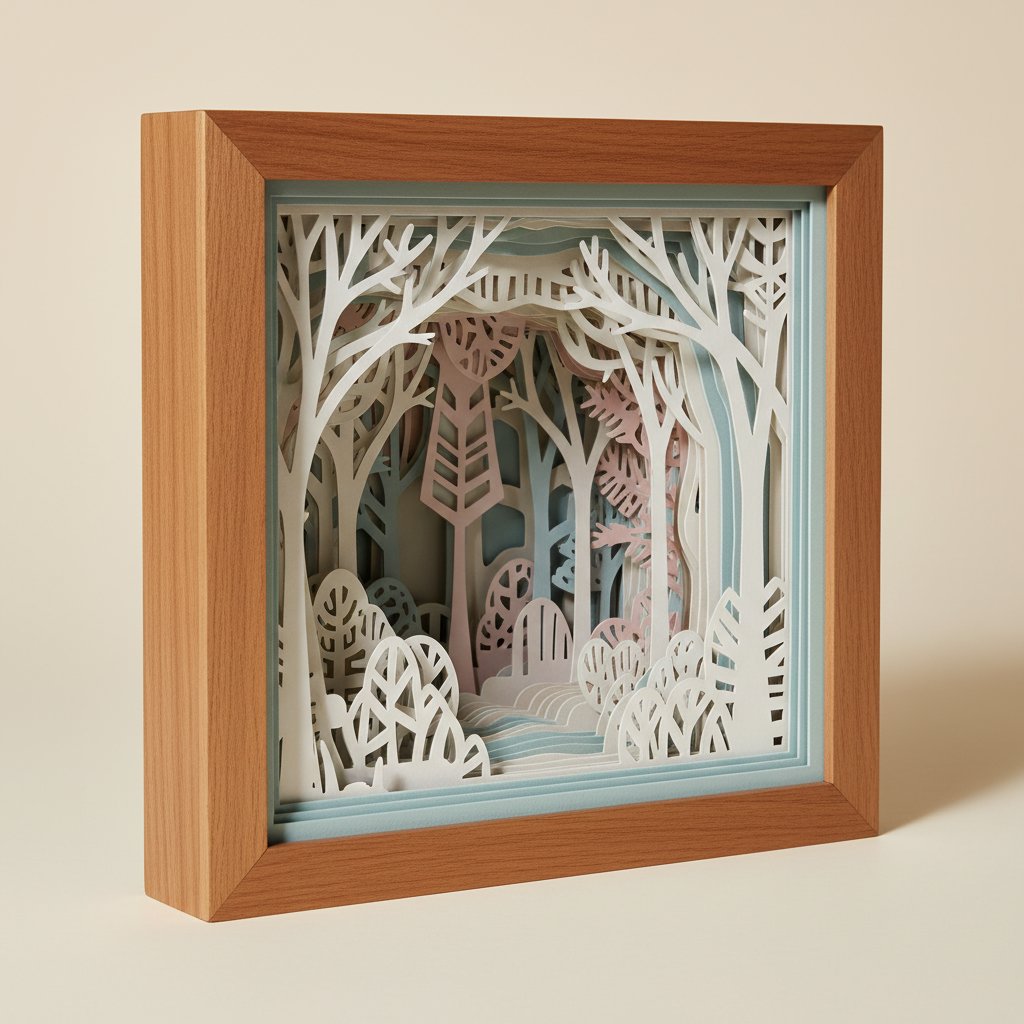
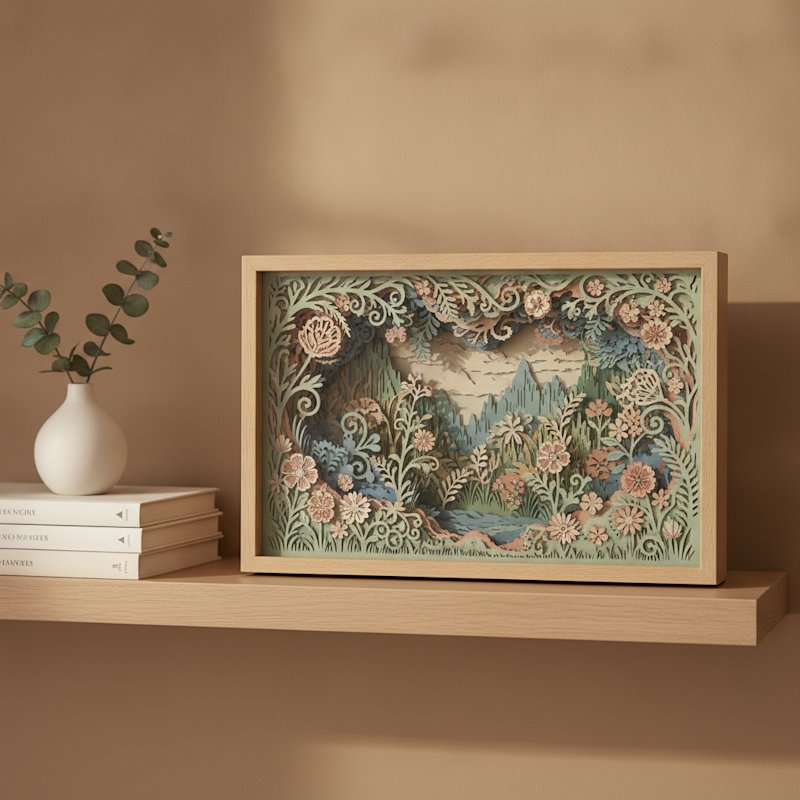
A finished layered papercut floral shadow box displayed as home decor on a styled shelf

Most papercut SVG content online treats the file like the finish line: download it, upload it,
cut it, done. For wall art, the file is only the starting line. What separates a flat cut-out
from a piece you'd actually hang is everything that happens between the SVG and the wall — the
layers you stack, the paper you feed, and the depth you build.

I learned this the hard way on a 9-layer botanical piece I cut at 12×16 inches on my Cricut
Maker. Same SVG, two attempts. The first used flat 80 lb cardstock glued directly to a backing
board — it looked like a coloured photocopy and went straight into a drawer. The second used a
vellum back layer behind the foliage, 3 mm foam spacers between every layer, and a warm LED
strip at the base. The shadows did the rest. It now hangs lit in my hallway and is the first
thing visitors ask about. Same cut file. Completely different result.

That gap — between a working SVG and a finished wall piece — is what this guide is about. We
focus on the artistic choices competitors skip: how a cut-file SVG translates into layered
depth, how paper changes the light, and how to assemble for real dimension rather than a
paper sandwich — from file choice through sizing, paper, cutting, and assembly.

If you want to design or edit your own SVGs (tracing, bridges, node cleanup in Inkscape),
that's a separate skill — our companion papercut SVG design
guide
goes deep on it. This
article starts from a file and takes you all the way to a finished, hung piece. Brand-new to
the machine? Start with Cricut paper cutting for
beginners
first.
What a Papercut Cut-File SVG Actually Is

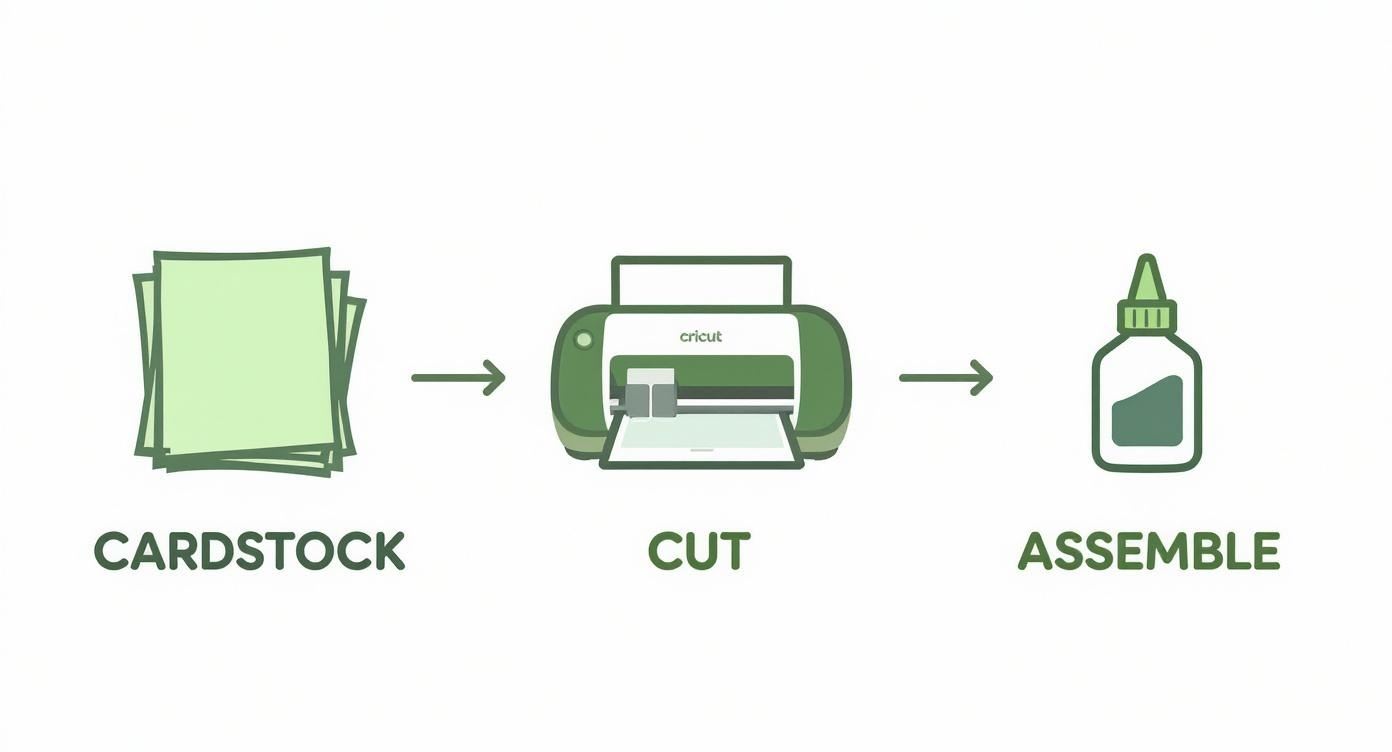
Three-step Cricut crafting process showing cardstock being cut with a Cricut machine

An SVG (Scalable Vector Graphic) is a file made of mathematical paths, not pixels. For
papercutting on a Cricut that matters for one practical reason: the blade follows the exact
same clean path whether you cut the design at 4 inches or 40 inches.
No pixelation, no fuzzy
edges. That scalability is what makes SVGs the only sensible format for wall art, where you're
often blowing a design up to fill a frame.

For wall-art papercutting there are really only two file types that matter:

Single-layer SVGs cut from one sheet. They're silhouettes — one continuous piece of paper
where the design is defined by what gets cut away. Minimalist, graphic, and fast. The whole
piece has to stay connected through thin bridges, or interior shapes fall out. They're the
cleanest introduction to papercut wall art and they look expensive when framed well.

Multi-layer SVGs contain several grouped paths that each become a separate cut job from a
different sheet. You stack them with spacers between to build physical depth. This is where
wall art gets its drama — a 7-layer landscape reads as a three-dimensional scene, not a
picture. Multi-layer files are more work to assemble but they're the format that justifies
hanging a papercut on the wall in the first place.

Formats at a glance

FormatRole in papercuttingUse for wall art?
SVGVector cut paths — the format your Cricut reads✅ Always
DXFOlder vector format, Silhouette free-tier importOnly if on Silhouette
PNG / JPGFlat raster images❌ Preview only, cannot be cut
EPSPrint/design sourceConvert to SVG first

One more distinction: cut-only vs. print-then-cut. Pure papercut wall art uses cut-only
files — colour comes from the paper, not ink. Print-then-cut is for stickers and cards, not
layered wall art, so confirm you're sourcing cut-only layered SVGs.

Choosing Papercut Cut-Files That Actually Cut Clean

Neatly cut white cardstock shadow box layers organized in sequence across a workbench

A beautiful preview render tells you nothing about how a file behaves on a machine. Over a few
hundred cuts I've landed on four quality checks that predict whether an SVG will produce clean
paper or a torn mess:

Closed paths. Every cut line should be a single closed loop. Open paths make the blade lift
mid-cut and leave rough edges. You can spot these by opening the SVG in a free editor like
Inkscape and looking for endpoints that don't meet.

Sensible bridge width. Every "island" of paper surrounded by cut-out space needs a bridge
(a tab of uncut paper) holding it to the rest of the sheet. At wall-art scale you want bridges
of roughly 1–2 mm at your final cut size — thin enough to hide in the design, thick enough to
survive weeding. Files designed for tiny cards often have bridges that snap at 12 inches.

Named, separated layers. A multi-layer file should arrive with each layer as its own group
— "Layer 1 back", "Layer 2", and so on — so each becomes its own cut job. If you open a
"9-layer" file and find 400 ungrouped paths, you're looking at hours of manual cleanup before
you can even start.

Real cut photos, not renders. The single best quality signal is a listing that shows the
design actually cut in paper, ideally at the size you'll use. Sellers who only show digital
renders haven't verified their own file.

Where wall-art-grade files live

Demand data backs the opportunity here: our search console shows 436 distinct queries
landing on our papercut SVG pages, sitting at positions 7–11 for the core papercut svg
term — strong intent and room to climb. That signal is exactly why a curated, wall-art-focused
collection beats generic marketplaces. Most marketplaces (think SVGCuts, Creative Fabrica,
Etsy bundles) are built for cards, scrapbooking, and small crafts; their detail density is
tuned for 5-inch projects, not 16-inch wall pieces, and licensing is often personal-use only.

Our shadow box SVG templates and the free shadow box SVG
resources
round up files that
are tested at wall-art scale with clean bridges and separated layers. When you shop
elsewhere, the same four checks apply — and always confirm the licence allows the finished
use you have in mind (see the FAQ below).

Start With a Tested Single-Layer Papercut SVG
Single-layer silhouettes are the fastest path to a finished wall piece — one clean cut, one frame, done. These tested cut-files arrive with closed paths, hidden bridges, and commercial-use licensing, so you can hang them or sell them without guesswork.

Preparing and Sizing Cut-Files for Wall Art

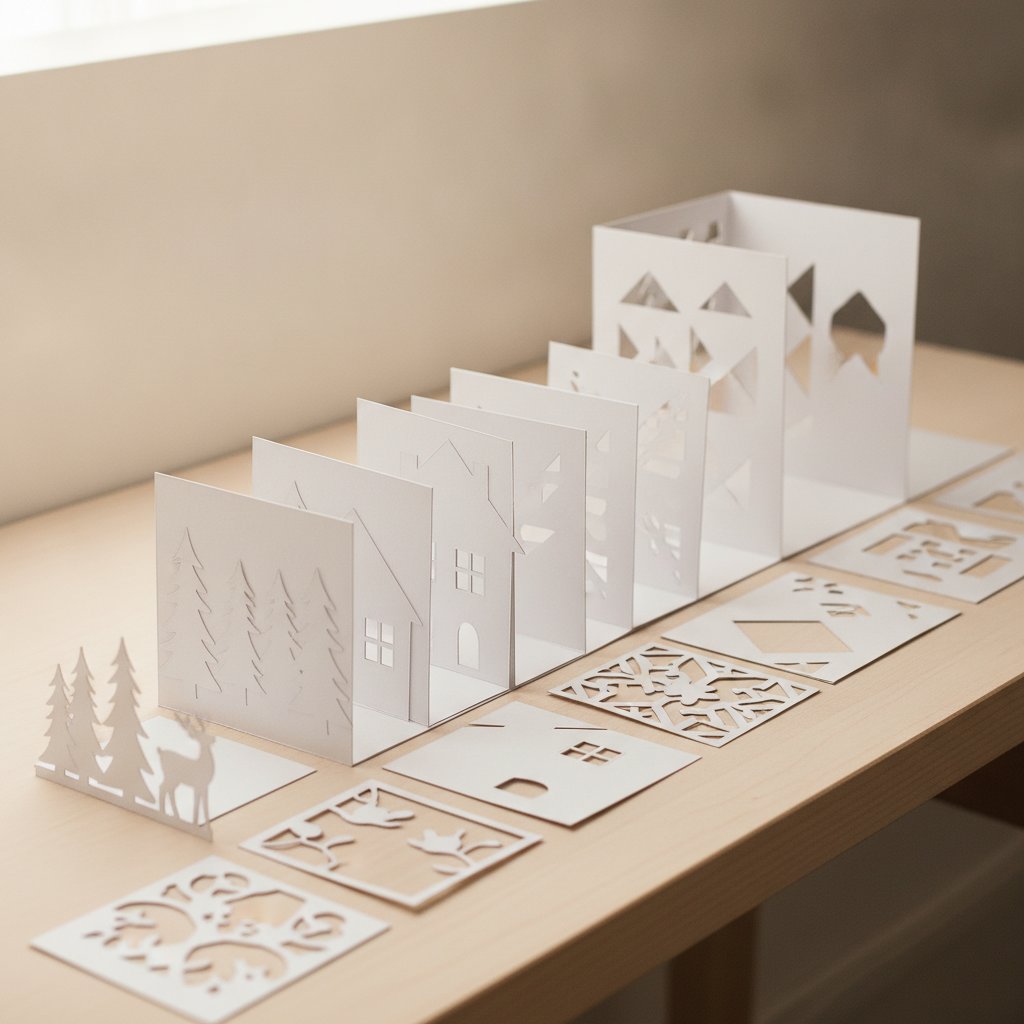
Step-by-step process of making a layered paper shadow box with a Cricut or Silhouette

Wall art lives or dies on dimension. A design that looks balanced at 6 inches can collapse
into a muddy blob at 16 inches, or spread so thin the bridges snap. Sizing the SVG
deliberately — not just hitting "make bigger" — is the step most beginners skip.

Match the SVG to a real frame first. Before you touch Design Space, decide the frame.
Standard ready-made depths for layered work are 1.25–1.75 inches; pick the frame, then size
every layer to the frame's mat opening minus a 3 mm bleed on each side. Working backwards
from the frame is the single biggest difference between hobby output and gallery output. Our
frame size and depth guide
and sizing shadow box SVGs for any
frame
walk through the
exact math.

Uploading to Cricut Design Space. Upload → Upload Image → select your .svg → Save, then
insert it onto the canvas. The critical next step most people miss: verify the layers came
through.
Select the design and click Ungroup. You should see one selectable object per
layer. If Design Space flattened everything into a single object, the file's grouping didn't
survive import — re-export from your editor with each layer as a distinct group and try again.

Scale proportionally, then sanity-check detail. With all layers selected, type the target
width and lock the aspect ratio. Now zoom to 100% and look at the smallest cut-out in the
design. If that detail is narrower than about 2 mm at final size, it will tear — simplify it
or scale up. A quick test cut of the most detailed layer at full size on cheap cardstock is
cheaper than ruining a sheet of the good stuff.

Colour-sync to your paper. In multi-layer projects, use Design Space's colour fill to tag
each layer with the paper colour you'll cut it from. It doesn't change the cut, but it turns
the on-screen preview into an accurate dry run of your finished palette, and the cut screen
will prompt you layer-by-layer in the right order. For the full Design Space workflow, see
our import multi-layer shadow box SVG in Design
Space
guide.

Paper as a Depth Tool: Weights, Vellum, and Metallics

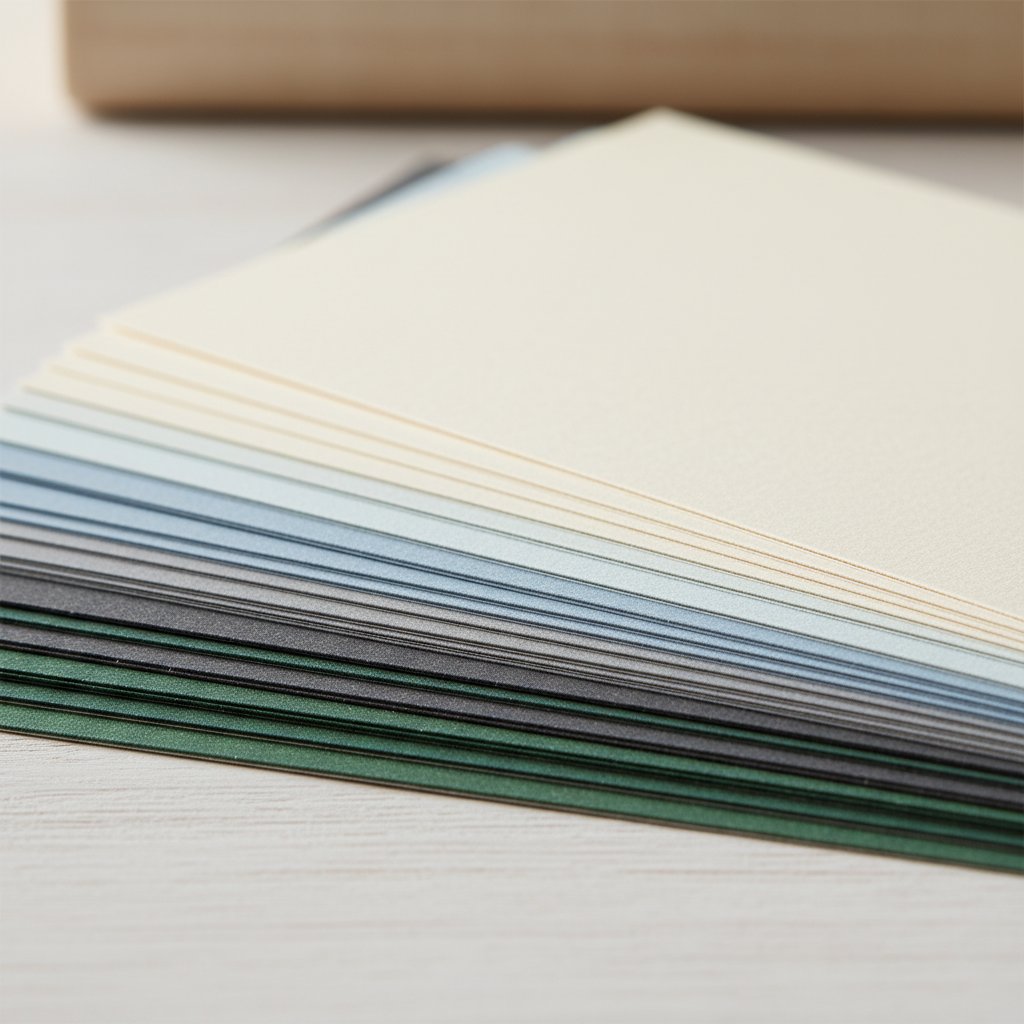
Fanned stack of cardstock sheets in graduated weights and colours showing varying thickness

Here's where papercut wall art diverges from every other SVG craft: the paper is not a
neutral carrier, it's the medium.
A layered piece is really a sculpture built from light and
shadow, and different papers manipulate that light differently. Choosing paper like a
material — not like a colour swatch — is what makes the depth read.

Cardstock weight sets the structure.

WeightBest role in wall art
65 lb (176 gsm)Single-layer silhouettes; beginner-friendly, cuts clean
80 lb (216 gsm)The reliable default for multi-layer work
100–110 lbFront (most detailed) layer; holds fine bridges without sagging

Heavier isn't always better — ultra-thick board fights the blade on intricate layers. For the
full breakdown, our best cardstock for paper-cut shadow
boxes
covers weights by role,
and Cricut cardstock types handles the brand
differences.

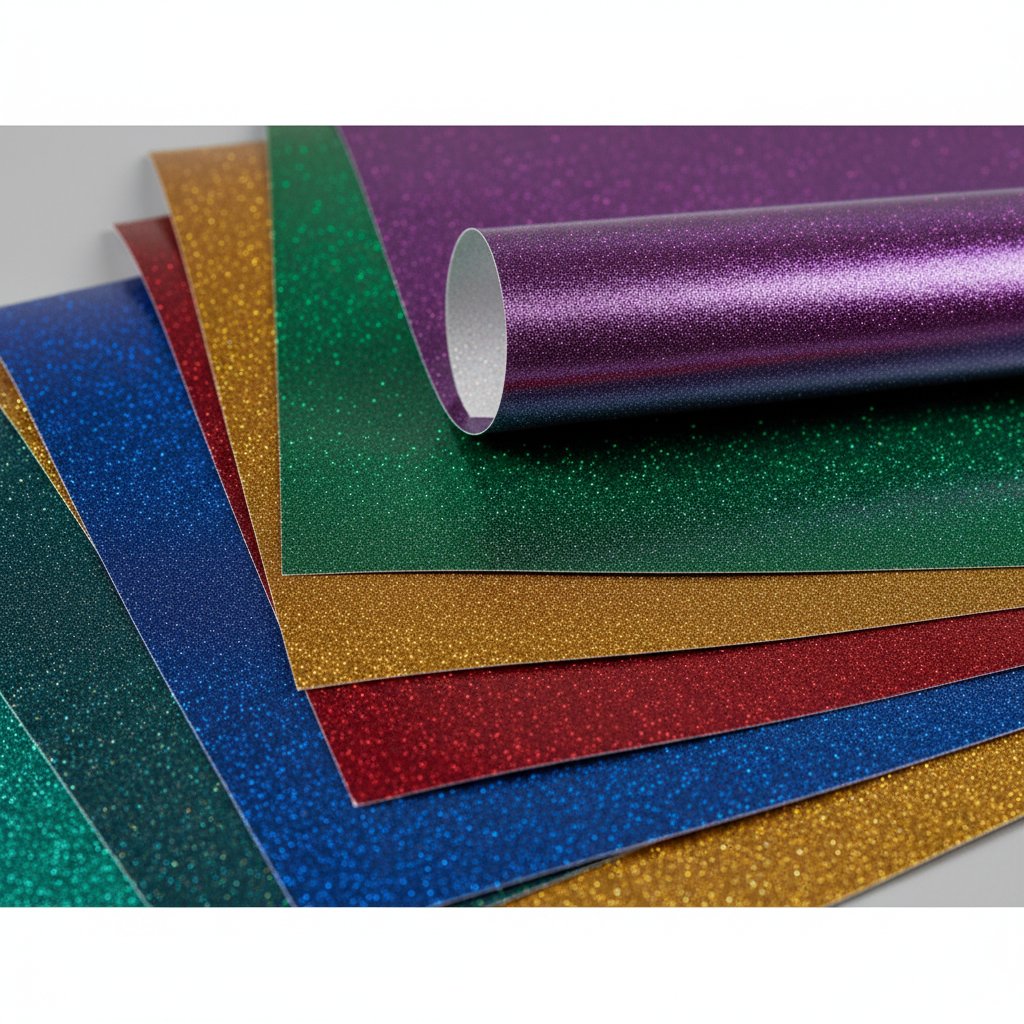
Glittering and pearlescent metallic specialty cardstock sheets in rich jewel tones

Vellum is the secret weapon for depth. Vellum is translucent — light passes through it
rather than bouncing off. Put a vellum layer behind cut foliage and the back layer glows
softly instead of sitting flat. Use it as a diffuser between an LED strip and the front layers
and the whole piece reads as if it's lit from within. One vellum layer does more for depth
than three extra cardstock layers. Go deep on the technique in our advanced vellum paper
cutting
guide.

Metallics and texture add focal accents. A single metallic layer — gold or pearl on a
geometric piece, or a copper accent on a botanical — catches room light and draws the eye to
your focal point. The rule is restraint: one metallic layer per piece, never two. Texture
(linen-finish, kraft) adds visual weight without colour, useful for monochrome pieces that
would otherwise read flat.

Colour Strategy for Layered Wall Art

Depth in a multi-layer papercut comes from two forces working together: physical spacing
(which we cover in assembly) and colour sequencing. Get the colour order wrong and even
perfectly spaced layers look flat.

Three palettes that consistently produce wall-ready results:

Monochromatic gradients. Same hue, five shades from dark (back) to light (front). This is
the most foolproof scheme for beginners because contrast does the depth work for you — each
layer reads as a distinct plane. It also photographs beautifully, which matters if you sell.

Complementary punch. Two opposite hues (deep teal back, warm coral front) for high drama.
Use sparingly — it's loud, so reserve it for statement pieces in rooms that can handle it.

Analogous calm. Three neighbouring hues (blue → blue-green → green) for a soothing,
gallery-style piece. Ideal for bedrooms and nurseries.

Two rules that apply to all three. First, darkest layer at the back, lightest at the
front
— reversing this flattens the piece because the eye reads light tones as closer.
Second, reserve your one metallic or vellum layer for the focal plane, usually layer 3 or
4 of 7, not the very front. Our colour theory for layered paper
art
unpacks the full system, and for
minimalist single-colour approaches see minimalist paper wall
art
principles.

Multi-Layer Shadow Box SVGs Built for Wall-Art Depth
When one layer isn't enough, these pre-separated multi-layer cut-files do the depth work for you — every layer arrives named and ready to cut, sized for standard shadow-box frames with bridges tested at wall-art scale.

Cutting Multi-Layer Projects Without Tears or Misalignment

Comparison of Cricut cutting mat grip levels for cardstock

A clean multi-layer cut is 90% setup and 10% the machine. Get the mat, blade, and settings
right and the cut is almost automatic; get them wrong and no amount of assembly skill saves
the piece.

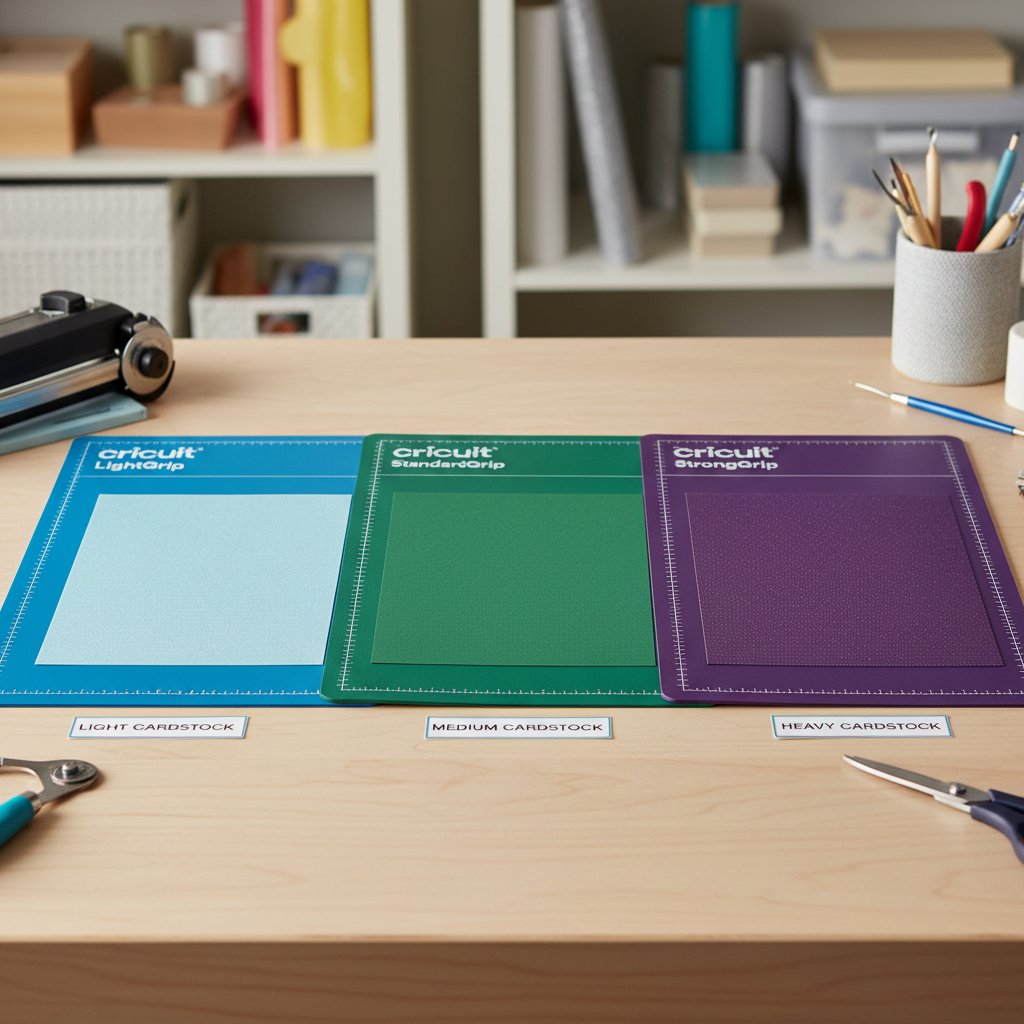
Mat grip by weight. Blue (LightGrip) for 65 lb and vellum — anything stickier and you'll
tear delicate cuts lifting them off. Green (StandardGrip) for 80 lb cardstock. The mat must
be tacky enough that the paper can't shift even a millimetre mid-cut; a sheet that lifts by
1 mm under the blade produces a visible double-line. If your mat has lost its bite, restore it
before a big project — see our Cricut mat guide for
cardstock
and mat restoration
guide
.

Worn dull Cricut blade beside a sharp new replacement blade in close-up

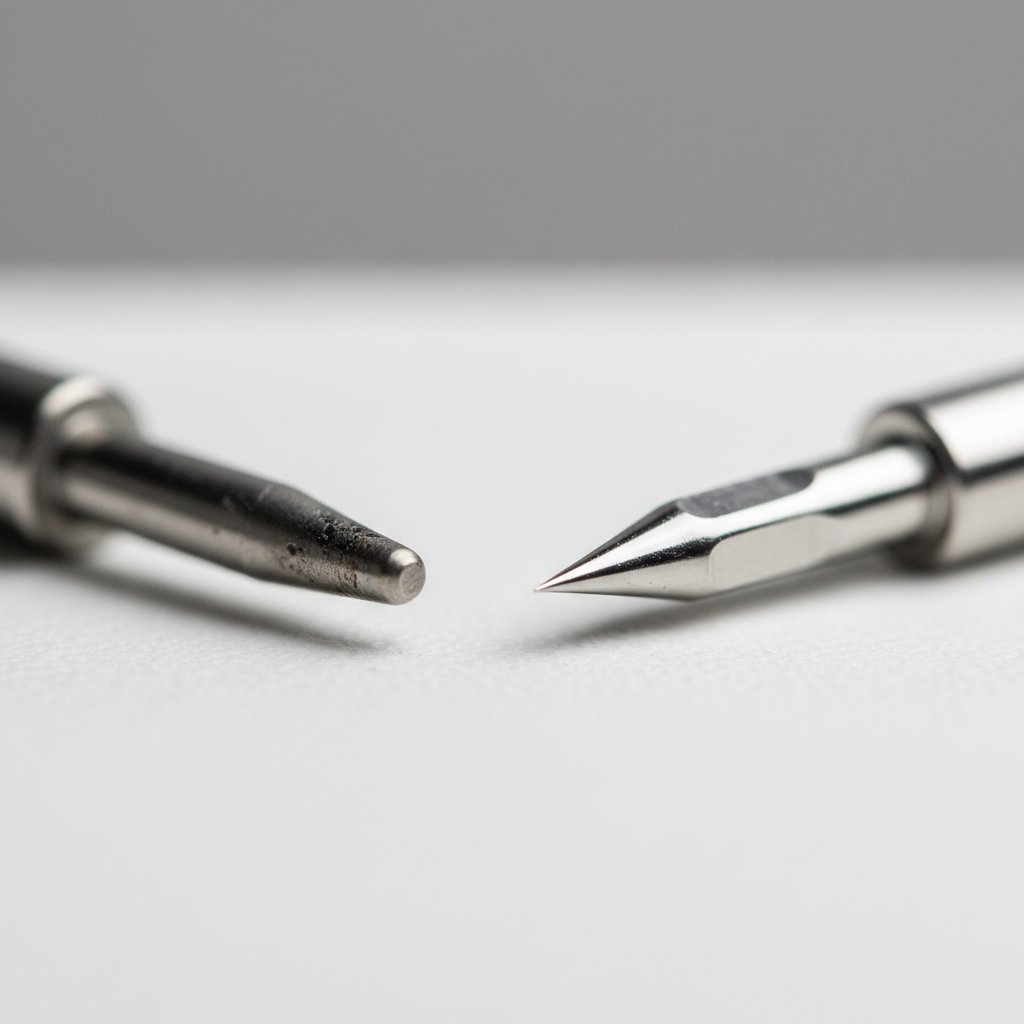
Blade condition is non-negotiable. A dull blade is the number-one cause of torn bridges
and fuzzy edges. On 80 lb cardstock, expect to replace the Fine-Point blade every 20–30
full-size cuts. The tell-tale sign is a small "hook" of uncut fibre at the end of cut lines —
once you see that, the blade is done. Keep spares on hand; our best Cricut blade for
cardstock
covers when to step up to
the Deep-Point blade for 110 lb board.

Cut order and pressure. Cut the most detailed (front) layer first, while your mat is
freshest and the blade sharpest — that's the layer that punishes any setup weakness. Starting
pressures by weight: 65 lb cardstock at default, 80 lb at roughly +20, 110 lb needing a second
pass. Always run a small test cut in the corner of the mat before the full job. For exact
settings and the full troubleshooting playbook, use the Cricut cardstock settings
mastery
guide and the
cardstock troubleshooting bible.

Handle each layer the moment it's cut. Don't stack cut sheets loosely — label them (a
pencil mark in a corner that gets hidden by the frame) in cut order. Misnumbered layers are
the most common assembly mistake, and they're invisible until the piece is glued.

Assembling for Real Dimension

Deep layered paper-cut shadow box viewed at an angle showing layers receding into depth

This is the step that turns a stack of cut sheets into wall art. The entire illusion of depth
comes from physical separation between layers — without spacers, a 9-layer design reads
as one flat collage.

The foam-spacer method. Use 3 mm adhesive foam squares (or rolled foam tape) between
layers. Place a spacer near each corner and at intervals along long edges — roughly every
10–15 cm. The goal is even support so no layer sags toward the one behind it. Stack
back-to-front, pressing each layer flat against its spacers before adding the next. For the
exact spacer materials, adhesives, and alignment tricks, our assembly guide for layered
papercut shadow
boxes
is the
definitive reference, paired with the best glue and adhesive
guide
.

Shadow boxes for maximum depth. When you want real 3D drama, go shadow box: a deep frame
(1.5 inches plus) with layers stacked front-to-back and a solid back layer. The depth between
planes casts its own shadows, and a rear LED strip turns those shadows into the design's most
striking feature. Vellum diffusers in front of the LED soften the light so no single hotspot
shows through. The full build is in how to make a layered paper shadow box with
Cricut
and
how to make layered paper-cut shadow
boxes
. Add lighting
safely with the LED lighting guide.

Single-layer mounting, done right. Even a one-layer silhouette can read as wall art if
it's float-mounted — raised on foam dots inside a deep frame so it casts a soft shadow on the
backing. Skip the glass if you can; glass flattens the shadow and adds glare. Our how to
frame paper art without glass
explains why
and how.

Floral & Seasonal Wall-Art Cut-File Collections
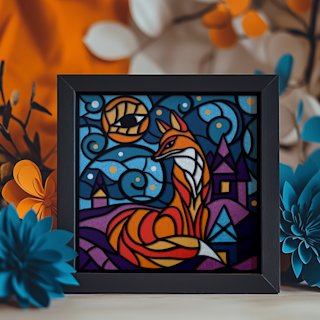
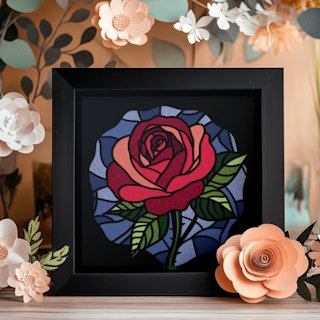
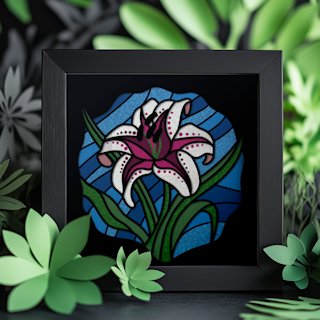
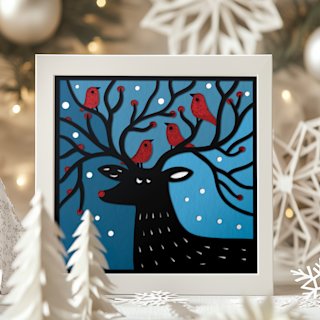
Stained-glass florals and seasonal scenes are the designs that sell — each one is a pre-separated, tested multi-layer file tuned for shadow-box depth and warm rear lighting. Pick a palette, cut your layers, and assemble a piece designed to glow.

Going Further: Customising Files and Fixing Problems

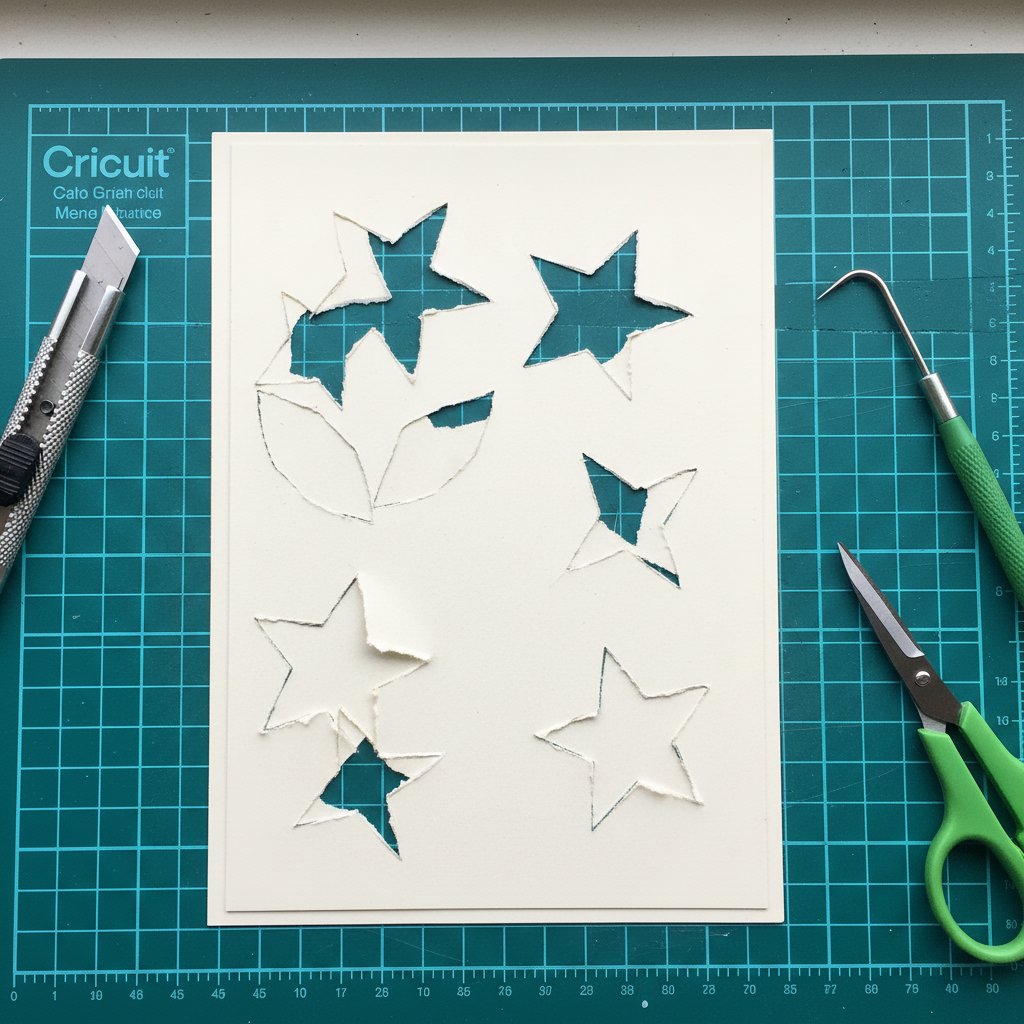
Close-up of paper cutting mistakes on cardstock showing torn edges and incomplete cuts

Once you've hung a few pieces, you'll start wanting to bend files to your own vision — and
you'll hit problems. Here's how to handle both.

Customising a purchased SVG doesn't require design skills. The most useful edits happen
right in Design Space: hide a layer you don't like, duplicate and mirror a layer for symmetry,
or weld two layers together to simplify a busy design. For anything beyond that — reshaping
bridges, removing detail, merging two different files — step into Inkscape (free) and follow
the editing workflow in our papercut SVG design
guide
. You don't need to
draw from scratch; 90% of "custom" pieces are purchased files thoughtfully modified.

Converting single-layer to multi-layer is a high-impact move: take a flat silhouette, cut
it twice — once solid as the back, once with interior details removed as the front — and mount
the front on foam dots. Instant depth from a file that was designed flat.

The three failures and their fixes

  • Tearing on intricate cuts. Three causes, in order of frequency: dull blade (replace
    it), pressure too high for the paper weight (drop it), or bridges too thin at your scale
    (widen them in Inkscape or cut larger). Run the most detailed layer first while setup is
    fresh.
  • Misaligned layers after assembly. Almost always a labelling problem — cut layers got
    stacked out of order. Label in pencil at cut time and stack back-to-front deliberately.
    The layer alignment fix guide has the rescue
    procedure.
  • Design Space freezing or mangling the import. Usually an over-complex SVG. Simplify
    node count (Path → Simplify in Inkscape), remove unsupported stroke effects, and re-export
    as filled shapes only. Design Space only reliably reads filled, grouped paths.

For the full catalogue of what goes wrong and how to save the piece, the papercut mistakes
and fixes
and common beginner
mistakes
guides cover it in
depth.

Project Ideas by Skill Level

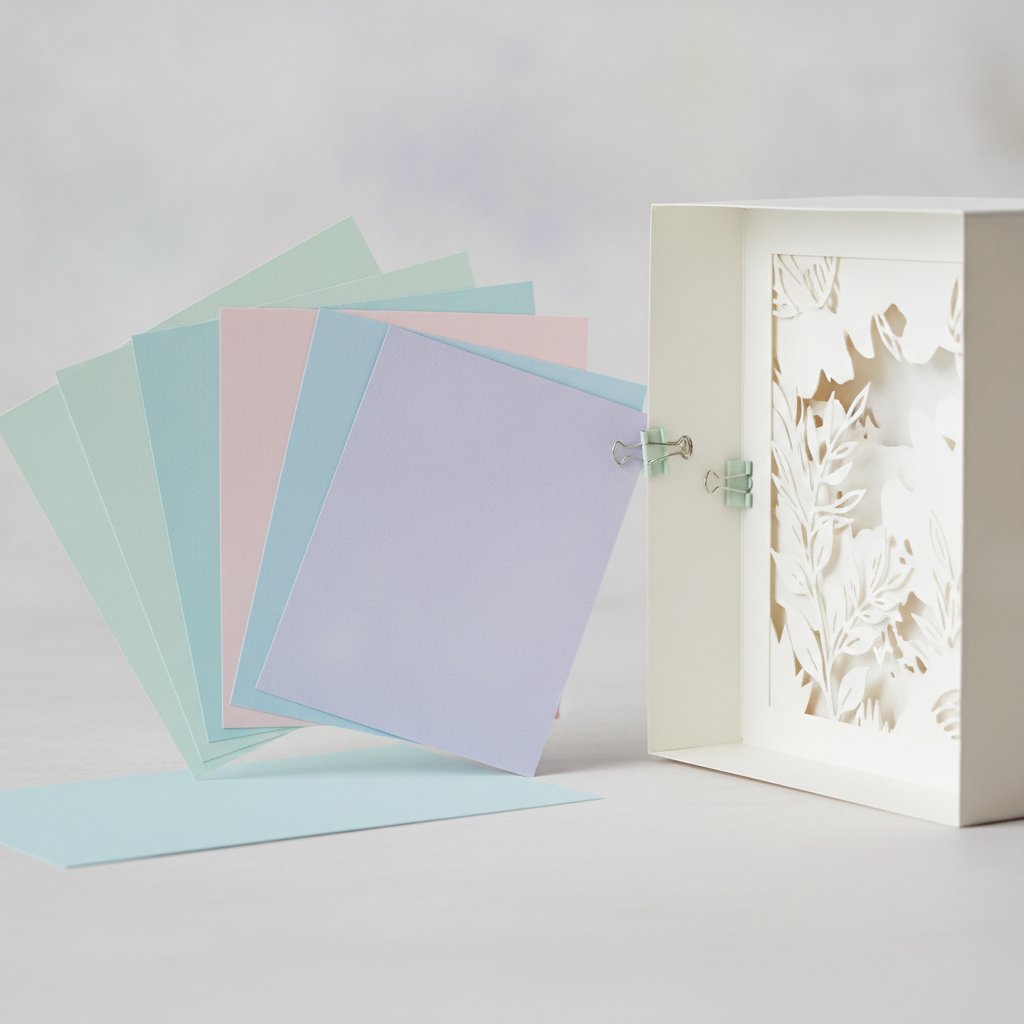
A fanned stack of soft pastel cardstock sheets beside a partly assembled papercut shadow box

Ready to pick a first (or next) piece? These progress naturally, each one teaching a new
depth skill:

Beginner — single-layer silhouettes. A botanical or animal silhouette, cut once in 80 lb
cardstock and float-mounted in a deep frame. You learn clean cutting, mat handling, and
float-mounting in a single afternoon. Minimalist single-colour pieces are the strongest entry
point — see the minimalist paper wall art look.

Intermediate — two-layer with a vellum overlay. A cut front layer backed by vellum, with
a solid colour behind. You learn the depth power of translucency and basic spacer mounting.
Seasonal designs are perfect here — the seasonal paper shadow
box
guide has palettes
for every season.

Advanced — multi-layer shadow box with lighting. A 7–9 layer landscape, floral, or
architectural scene in a deep frame with a rear LED strip. You learn full layer sequencing,
foam-spacer assembly at scale, and lighting. This is where papercut wall art stops looking
like craft and starts looking like art. Browse the 25 layered paper
projects
for tested designs,
and if you also sell, the pricing paper crafts to sell on
Etsy
guide sets sane numbers.

Whatever you pick, the workflow is the same one this guide lays out: choose a wall-art-grade
cut-file, size it to a real frame, cut each layer clean, and build depth on purpose. The SVG
is the start. The wall is the point.

Cut-Files Ready to Become Wall Art
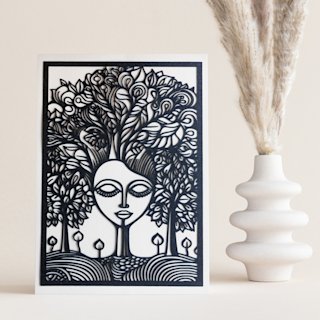
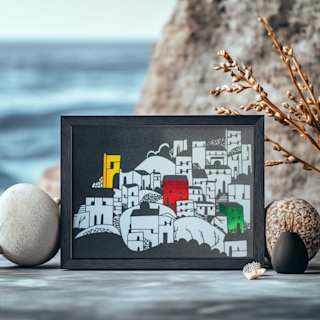
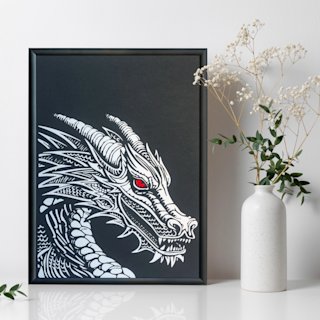
Some designs are built to be hung the moment they're assembled — bold single-cut statements and layered commemorative pieces with the depth and licensing for display or sale. Pick one, follow the workflow above, and you'll have a finished piece by the weekend.
1.What is a papercut cut-file SVG and why do I need it for wall art?
An SVG (Scalable Vector Graphics) is a file of mathematical cut paths, not pixels, so it cuts just as cleanly at 4 inches as at 40 inches. For wall art that scalability matters because you're often enlarging a design to fill a frame. A papercut cut-file SVG gives your Cricut the exact paths to follow for clean, layered cuts — something a PNG or JPG can't do.
2.Can I use any SVG file with my Cricut for papercutting?
Not every SVG cuts well. Files built for web or print often have too-fine detail, broken bridges, or ungrouped paths that make a mess on a cutting machine. Look for cut-files made specifically for cutting machines — closed paths, 1–2 mm bridges at your intended scale, and separated, named layers. Our wall-art-focused SVG collection is optimised exactly for this.
3.What's the difference between single-layer and multi-layer papercut SVGs?
A single-layer SVG cuts from one sheet as a continuous silhouette — minimalist, fast, and striking when float-mounted. A multi-layer SVG contains several grouped paths that each cut from a different sheet and stack with spacers to build physical depth. Multi-layer takes longer to assemble but is the format that produces genuinely three-dimensional wall art.
4.What paper works best for papercut cut-file wall art?
For multi-layer work, 80 lb (216 gsm) cardstock is the reliable default — heavy enough to hold fine bridges, light enough to cut cleanly. Use 100–110 lb for your most detailed front layer. Vellum is the depth secret weapon: its translucency makes back layers glow. Always test-cut a small section of any new paper before a full project.
5.How do I upload a cut-file SVG to Cricut Design Space?
In Design Space, click Upload in the left panel, choose Upload Image, select your .svg file, and Save. Insert it onto the canvas, then select it and click Ungroup to confirm each layer arrived as its own object. If it flattened into one object, re-export from your editor with each layer as a distinct group and upload again. Then size, colour-sync to your paper, and cut layer by layer.
6.Why is my paper tearing when I cut intricate SVG designs?
Tearing usually has one of three causes: a dull blade (replace it — every 20–30 full-size cuts on 80 lb cardstock), pressure set too high for the paper weight (reduce it), or bridges too thin at your cut scale (widen them or cut larger). Always run a test cut of your most detailed layer first, while your mat is freshest and your blade sharpest.
7.How do I get real depth in a multi-layer papercut?
Depth comes from physical separation between layers. Use 3 mm adhesive foam squares between layers (spaced every 10–15 cm so nothing sags), stack darkest at the back to lightest at the front, and add a vellum layer where you want a soft glow. In a deep shadow box with rear LED lighting, the spaces between layers cast the shadows that make the piece read as three-dimensional.
8.Can I sell wall art made from purchased cut-file SVGs?
It depends entirely on the file's licence. A commercial-use licence lets you sell finished pieces; a personal-use licence does not, so check each file before selling. The cut-files in our collection ship with commercial-use licensing, so you can create and sell papercut wall art from them. For files from anywhere else, verify the licence first.